Why Your Zapier Automation Keeps Failing (7 Fixes)
Your Zapier automation is failing because of auth expiry, rate limits, or data format mismatches. Here are 7 specific fixes from someone who debugs these daily.
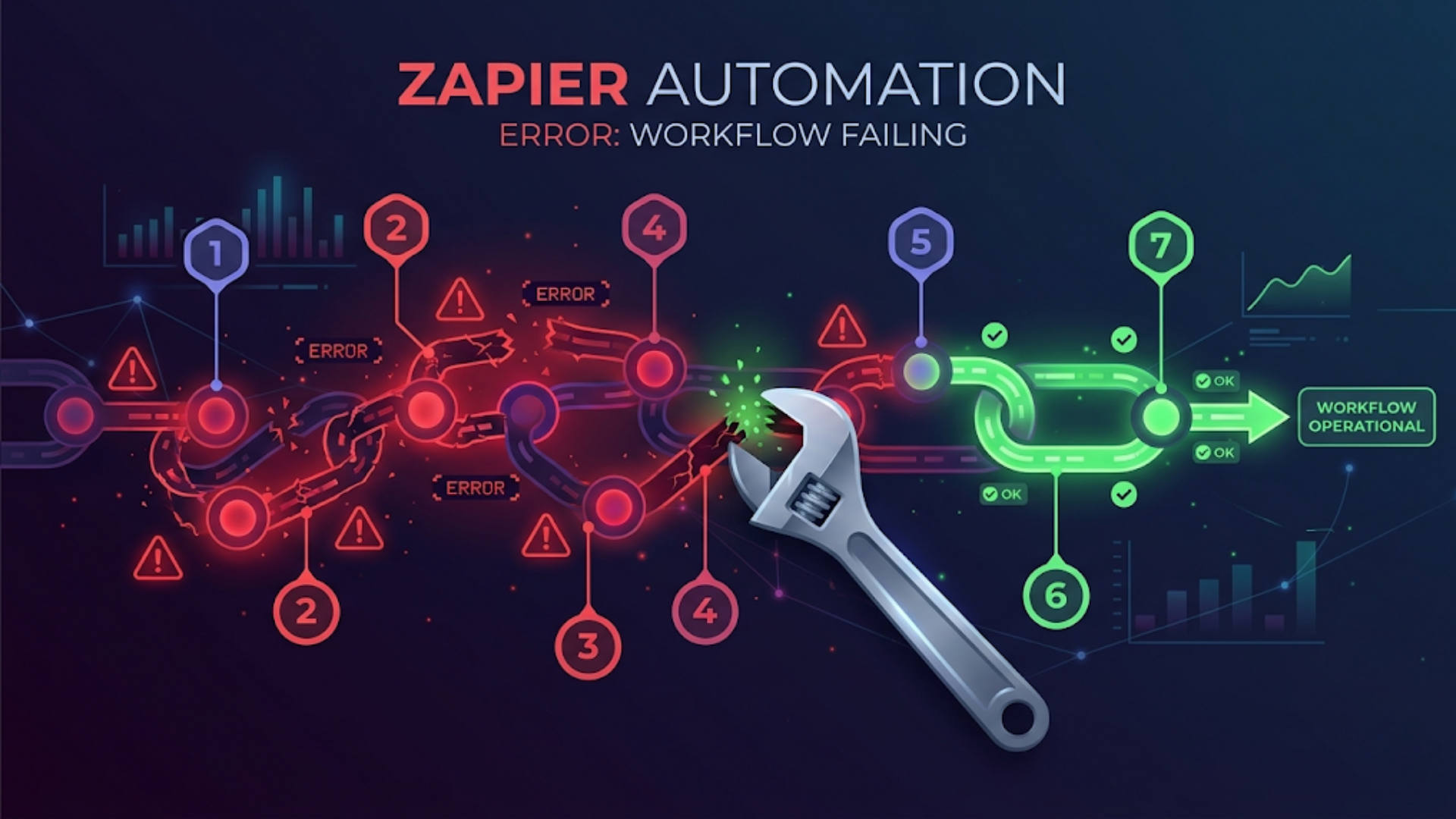
Why Your Zapier Automation Keeps Failing (7 Fixes)
Your Zapier automation is most likely failing because of one of seven causes: expired authentication tokens, API rate limits, data format mismatches, webhook timeouts, broken filter logic, app version changes, or task limit exhaustion. I debug broken Zaps for clients weekly, and 90% of failures trace back to this exact list.
The frustrating part is that Zapier’s error messages rarely tell you what’s actually wrong. “An error occurred” is not diagnostic information. So I’m going to walk through each failure type with the specific steps to fix it.
Fix 1: Reconnect Expired Authentication
This is the single most common reason Zaps fail. And it’s the easiest to fix.
OAuth tokens expire. Most apps issue tokens that last 30-90 days. When they expire, Zapier can’t authenticate your requests anymore. The Zap doesn’t crash dramatically. It just silently stops working. You find out when a client says “I submitted the form three days ago and nobody called me back.”
How to fix it:
- Go to your Zapier dashboard. Click on the failing Zap.
- Look at the Zap History. Find the failed run. The error will usually say something about authentication or “401 Unauthorized.”
- Go to Settings > My Apps in Zapier. Find the affected app connection.
- Click the three-dot menu and select “Reconnect.” This forces a fresh OAuth token.
- Run a test on the Zap to confirm the new connection works.
Prevention: Check your connected apps every two weeks. Zapier shows a warning icon next to connections that need attention, but only if you look. Set a recurring calendar reminder. Fifteen minutes every other week saves hours of debugging broken workflows.
If you’re using API key authentication instead of OAuth, check whether the key was rotated on the provider side. This happens frequently with services like Mailchimp, SendGrid, and Stripe when someone on your team updates security settings without realizing it breaks the automation.
Fix 2: Multi-Account Connection Conflicts
This one catches people off guard. If you’ve connected multiple accounts from the same app (two Gmail accounts, two Slack workspaces), Zapier sometimes picks the wrong one silently.
How to fix it:
- Open the failing Zap step.
- Click the account dropdown. Verify it’s pointing to the correct account.
- If you see accounts listed with generic names like “Gmail Account 1” and “Gmail Account 2,” rename them to something identifiable (e.g., “work@company.com” and “personal@gmail.com”).
- Disconnect accounts you no longer use. Stale connections are a source of confusion and intermittent failures.
I once spent two hours debugging a client’s Zap that was sending invoices to the wrong email. The issue was simple: their billing app was connected under a team member’s account who had left the company. The authentication was still valid but pointing to a deactivated user’s workspace.
Fix 3: API Rate Limits
Every API has rate limits. Zapier doesn’t always surface when you’ve hit them.
If your Zap processes data in bursts (a batch of form submissions, a CSV import, a spike in webhook events), you can easily exceed the rate limit of the connected app. The API returns a 429 “Too Many Requests” error. Zapier retries a few times, then marks the task as failed.
How to fix it:
- Check the Zap History for 429 errors or “rate limit” messages.
- Add a Delay step between actions that hit the same API. Even a 1-second delay between calls can resolve most rate limit issues.
- For burst scenarios, use Zapier’s built-in “Delay Until” or “Delay For” actions to space out execution.
- Check the connected app’s API documentation for their specific rate limits. Google Sheets, for example, has notoriously tight limits (60 requests per minute per user). Shopify caps at 40 requests per second for their REST API.
Prevention: If you regularly process more than 50 records at once, consider batching your logic. Or switch to n8n, where you have direct control over execution timing and can build proper queue management.
Fix 4: Webhook Timeouts
Webhooks are the backbone of most Zaps. When they time out, nothing downstream fires.
Zapier gives incoming webhooks about 30 seconds to receive a response from your trigger app. If the source app takes longer (a slow server, a heavy database query, a cold-start serverless function), the webhook times out and the Zap doesn’t trigger.
How to fix it:
- Test the webhook URL manually using a tool like Postman or curl. Send a sample payload and measure response time.
- If the source app is slow, check whether it supports asynchronous webhook delivery. Some apps queue webhooks and send them in batches, which introduces latency.
- In Zapier, go to the trigger step and click “Test Trigger.” If it times out consistently, the issue is on the source app’s side, not Zapier’s.
- For custom webhooks, make sure your server responds with a 200 status code immediately, then processes the data asynchronously. Don’t do heavy processing before sending the response.
Common culprit: Google Sheets as a trigger. Zapier polls Google Sheets rather than receiving webhooks. If your sheet has thousands of rows or complex formulas, the polling can time out. Move the trigger to a proper webhook source (a Google Form submission, a direct API call) and use Google Sheets only as a destination.
Fix 5: Data Format Mismatches
Your Zap works perfectly for three weeks, then fails on the 47th record. The reason: that record has data in an unexpected format.
Date formats are the worst offender. One system sends “2026-04-26” (ISO format). Another expects “04/26/2026” (US format). A third wants a Unix timestamp. Zapier tries to auto-convert but doesn’t always get it right. When it fails, the Zap errors out or, worse, writes garbage data to your destination.
How to fix it:
- Check the failed task in Zap History. Look at the “Input Data” for the failing step. Compare the actual data format to what the destination expects.
- For date issues, add a Formatter step before the destination. Use “Date / Time” > “Format” to explicitly convert to the target format. Never rely on Zapier’s auto-detection.
- For number issues (commas vs periods as decimal separators, currency symbols mixed in), add a Formatter step to clean the data before it reaches the next action.
- For empty fields, add a “Paths” or “Filter” step that handles the null case. An empty field that gets passed to an API endpoint expecting a string can cause a silent failure.
Pro tip from the field: Text fields that occasionally contain special characters (ampersands, quotes, angle brackets) break XML-based APIs and some webhook payloads. If you’re sending data to older systems, add a Formatter step to strip or encode special characters.
Fix 6: Filter Logic Errors
Filters look simple. “Only continue if field X contains value Y.” But the edge cases accumulate.
The most common filter bug: case sensitivity. “Pending” does not equal “pending” in a Zapier filter unless you select “Text Does Not Exactly Match” and handle both cases. Your filter silently blocks 30% of legitimate records because the source app sometimes capitalizes differently.
How to fix it:
- Open the filter step. Read each condition carefully. Test with the exact data from a failed run, not hypothetical data.
- For text matching, use “Contains” instead of “Exactly Matches” unless you need strict equality. Add a Formatter step to convert text to lowercase before the filter if case variation is an issue.
- Check for hidden whitespace. A field that looks like “Active” might actually be “Active ” (trailing space). Zapier’s “Trim” formatter fixes this.
- If you have multiple filter conditions (AND/OR logic), test each condition independently. Zapier evaluates them left to right. One incorrect condition blocks everything.
Debugging technique: Temporarily remove the filter. Let the Zap run on all records. Check which records would have been filtered and verify that’s actually what you want. I’ve found that about half the filter bugs I debug exist because the filter was too restrictive, not too loose.
Fix 7: Task Limits and App Version Changes
Two separate issues, but they both hit you the same way: your Zap stops working without an obvious error.
Task limits: Zapier’s pricing is task-based. Free plans get 100 tasks/month. Starter plans get 750. When you exhaust your monthly tasks, Zaps stop executing. No error email (on most plans). They just pause. Check your task usage at Settings > Account > Usage. If you’re regularly hitting 80%+ of your limit, either optimize your Zaps to use fewer tasks or upgrade. Common task wasters: Zaps that trigger on every row change in a large spreadsheet, or multi-step Zaps where each step counts as a separate task.
App version changes: Zapier maintains integrations for hundreds of apps. When an app updates its API (v2 to v3, endpoint changes, field renames), Zapier sometimes releases a new version of the app connector. Your existing Zaps might keep running on the old version, or they might break. Check the Zap editor. If you see a yellow warning saying “A new version of this app is available,” update and re-test. Don’t ignore this warning. The old version may work now but will stop working when the app fully deprecates the old API.
Zapier’s status page: Before debugging anything, check status.zapier.com. If Zapier itself is having issues, no amount of troubleshooting your individual Zap will help. I check the status page first on every debugging call. About 5% of the time, the issue is on Zapier’s end and the fix is waiting.
When to Stop Fixing and Rebuild
Here’s the honest assessment most people don’t want to hear.
If you’ve spent more than 3 hours debugging a single Zap, it’s cheaper to rebuild it from scratch than to keep patching. The sunk cost trap is real with automation. “I’ve already spent so much time on this Zap” is not a reason to keep investing in a broken foundation.
And here’s the harder conversation: if you’re regularly debugging Zapier workflows, you might have outgrown the platform.
Zapier is excellent for simple, linear automations. Trigger, action, done. But once you need conditional branching, error recovery, data transformation, or processing more than a few hundred records, you’re fighting the tool instead of using it.
n8n gives you proper execution logs (every step, every data payload, every error with a stack trace). Visual debugging where you can see exactly where the workflow failed and what data it had at that point. Unlimited executions on the self-hosted version. Custom code nodes when the pre-built integrations fall short.
I’m not saying n8n is always the answer. But if your monthly Zapier bill exceeds $100 and you’re still spending hours on debugging, the math favors switching. For a deeper comparison of both platforms and when each makes sense, see our Zapier vs n8n analysis.
If you want help migrating your Zapier workflows to a more robust setup, that’s literally what we do.
FAQ
Q1: Why does my Zapier keep turning off? A: Three common reasons. First, your authentication token expired and Zapier paused the Zap to prevent repeated failures. Go to My Apps and reconnect the affected service. Second, you hit your monthly task limit and Zapier auto-paused all Zaps. Check your usage at Settings > Account. Third, Zapier detected repeated errors (5+ consecutive failures) and paused the Zap as a safety measure. Fix the underlying error, then manually re-enable the Zap.
Q2: How do I fix a Zapier authentication error? A: Go to Settings > My Apps in your Zapier dashboard. Find the app showing the error. Click the three-dot menu and select “Reconnect.” This forces a fresh authentication token. After reconnecting, open the affected Zap and re-test the step that uses that connection. If the error persists after reconnecting, the issue may be on the app’s side (revoked API key, changed permissions, or account-level restrictions).
Q3: Why is my Zapier webhook not triggering? A: First, verify the webhook URL is correct in your source app. A single character difference means the payload goes nowhere. Second, test with a manual POST request using Postman or curl to confirm Zapier receives data at that URL. Third, check if your Zap has a filter step that might be silently blocking the webhook payload. Fourth, confirm the webhook format matches what Zapier expects. JSON is standard, but some apps send form-encoded data, which requires different parsing.
Q4: Does Zapier have a status page for outages? A: Yes. Visit status.zapier.com. It shows real-time status for the Zapier platform, individual app connectors, webhooks, and the editor. You can subscribe to updates via email or RSS. Always check the status page before debugging your own workflows. About 1 in 20 “my Zap is broken” incidents are actually Zapier-side outages that resolve without any action on your part.
Q5: Is it worth switching from Zapier to n8n for better error handling? A: If your automation needs are simple (under 10 Zaps, linear workflows, low volume), Zapier is fine and the debugging overhead is manageable. If you’re running 15+ workflows, processing hundreds of records, or spending more than 2 hours per month debugging failures, n8n is worth the switch. You get full execution history with input/output data at every step, proper error handling with retry and fallback logic, and unlimited executions on self-hosted. The migration effort is real (plan for 1-2 days to rebuild your workflows), but the ongoing debugging time drops dramatically.
Need help implementing this?
Book a free 30-minute discovery call. We'll map your current setup, identify quick wins, and outline what automation can do for your business.
Book a Free Discovery Call