WhatsApp Messages Not Delivering? 2026 Fix Guide
Fix WhatsApp Business API delivery failures: template rejections, quality rating drops, conversation limits, and BSP-specific troubleshooting for 2026.
WhatsApp Messages Not Delivering? 2026 Fix Guide
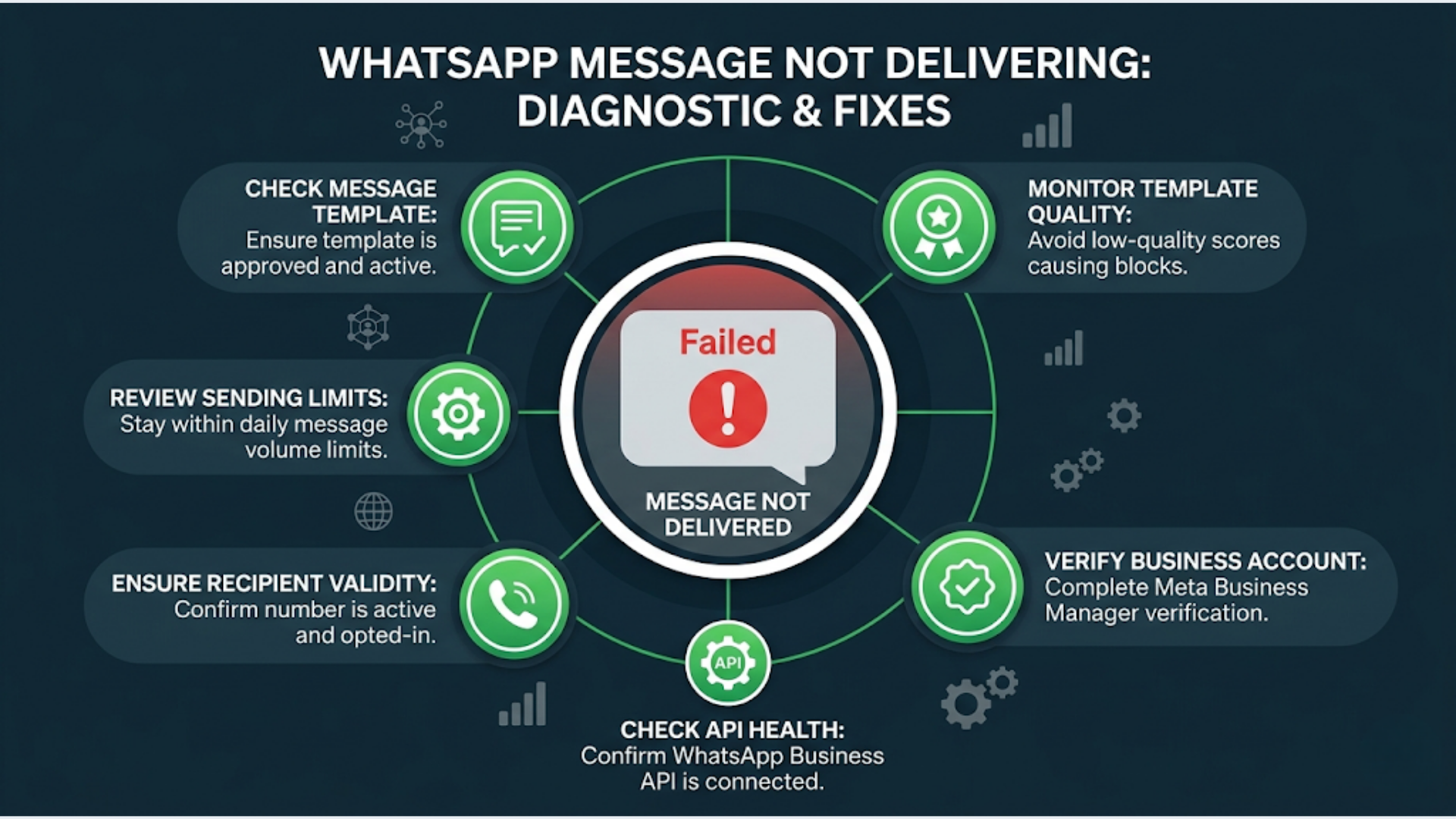
90% of WhatsApp Business API delivery failures come from four causes: rejected message templates, a low quality rating on your phone number, hitting your messaging tier’s conversation limit, or phone number verification issues. Each has a specific fix, and most can be resolved within 24-72 hours.
I troubleshoot WhatsApp delivery issues regularly as part of building automation systems. The frustrating part is that Meta’s error messages are vague. “Message failed to send” tells you nothing. This guide translates those vague errors into specific diagnoses and fixes.
Cause 1: Template Rejection or Pausing
This is the most common delivery failure for businesses using the WhatsApp Business API for outbound messaging.
How it happens:
Every outbound message you send outside a 24-hour customer-initiated conversation window must use a pre-approved template. Meta reviews every template. If your template gets rejected or paused, every message using that template fails silently.
Symptoms:
- Messages sent through your BSP dashboard show “failed” or “undelivered”
- Webhook callbacks return error code 131026 (template not found) or 131047 (re-engagement message)
- Messages were working yesterday but stopped today (template was paused by Meta)
Diagnosis:
Log into your BSP dashboard (WATI, Interakt, AiSensy, or whoever you use) and check the template status. It will show one of:
- Approved (working)
- Rejected (never worked)
- Paused (was working, Meta suspended it)
- In Review (pending, can’t use yet)
If “Paused”: Meta pauses templates when too many recipients block or report them. Check the template’s quality score in Meta Business Suite > WhatsApp Manager > Message Templates.
Fixes:
For rejected templates:
- Review Meta’s template policy. Common rejection reasons: promotional content disguised as utility, missing opt-out language, URL shorteners (bit.ly etc.), or content that could be misleading
- Rewrite the template. Keep it clear, specific, and non-spammy. Include the business name, the purpose, and an opt-out option
- Resubmit. Approval takes 1-24 hours
For paused templates:
- Check your template quality score. If it’s “Low,” you need to either fix the template content or fix your audience targeting (you’re sending to people who don’t want your messages)
- You can appeal a pause through Meta Business Suite, but fixing the underlying issue is faster
- Create a new template with improved content and better targeting. Use the new template while appealing the old one
For “in review” delays:
- Templates typically get approved in minutes to hours. If it’s been 24+ hours, the template likely has content that’s flagging automated review. Simplify the language, remove anything that could be considered promotional, and resubmit
Cause 2: Quality Rating Dropped
Your WhatsApp Business phone number has a quality rating: Green (High), Yellow (Medium), or Red (Low). When your quality drops to Red, Meta restricts your messaging capabilities.
How it happens:
Quality rating is based on how recipients interact with your messages over the past 7 days. The signals that tank your quality:
- Recipients blocking your number
- Recipients reporting your messages as spam
- Low read rates on your messages
- High unsubscribe/opt-out rates
Symptoms:
- Messages queue but deliver very slowly (throttled)
- Your messaging tier gets downgraded (you were Tier 3, now you’re Tier 1)
- New template submissions get rejected more frequently
- BSP dashboard shows quality rating as “Yellow” or “Red”
Diagnosis:
Check your quality rating in Meta Business Suite > WhatsApp Manager > Phone Numbers. You’ll see:
- Current quality rating (Green/Yellow/Red)
- Messaging tier (Tier 1: 1K conversations/day, Tier 2: 10K, Tier 3: 100K, Tier 4: unlimited)
- Whether your tier has been downgraded
Fixes:
Immediate (stop the bleeding):
- Pause all marketing/promotional campaigns immediately. Only send transactional messages (order confirmations, shipping updates)
- Review your contact list. Remove numbers that haven’t engaged in 90+ days
- Check if you recently sent to a new or unvalidated list. That’s usually the trigger
Short-term (7-14 days to recover):
- Quality rating recalculates on a rolling 7-day window. If you stop sending low-quality messages today, your rating starts improving in 7 days
- Send only high-value, expected messages during the recovery period
- Monitor the quality rating daily in Meta Business Suite
Long-term (prevent recurrence):
- Implement double opt-in for WhatsApp contacts. Send a confirmation message. Only add to marketing lists after explicit confirmation
- Segment your audience. Not everyone needs every message
- Set maximum frequency caps (no more than 2-3 marketing messages per contact per week)
- Clean your list monthly. Remove inactive contacts before they report you
Timeline: A Red rating takes 7-14 days to recover to Yellow, and another 7-14 days to recover to Green. During this period, your messaging capacity is reduced. Plan accordingly.
Cause 3: Conversation Tier Limits
Meta limits how many unique conversations your phone number can initiate per 24-hour period. New numbers start at Tier 1 (1,000 conversations/day). Exceeding your tier limit means messages queue and don’t deliver until the next day.
How it happens:
Every unique phone number you message within a 24-hour window counts as one conversation. If you’re on Tier 1 and try to message 1,500 unique contacts in a day, the last 500 won’t get delivered until your daily limit resets.
Symptoms:
- First batch of messages delivers fine. Later batches fail or are delayed
- Errors mention “rate limit” or “too many messages”
- Messages sent late in the day consistently fail while morning messages work
Diagnosis:
Check your current tier in Meta Business Suite > WhatsApp Manager > Phone Numbers. Your tier determines your daily limit:
| Tier | Conversations/Day | How to Reach |
|---|---|---|
| Tier 1 | 1,000 | New number default |
| Tier 2 | 10,000 | Send 1,000+ conversations in 7 days with Green quality |
| Tier 3 | 100,000 | Send 10,000+ conversations in 7 days with Green quality |
| Tier 4 | Unlimited | Send 100,000+ conversations in 7 days with Green quality |
Fixes:
Immediate:
- Spread your messages across multiple days instead of blasting all at once
- Prioritize high-value recipients (active customers, recent leads) to stay within limits
- Use your BSP’s scheduling feature to throttle sends across the day
For tier upgrades:
- Tier upgrades happen automatically when you consistently reach your current tier’s limit while maintaining a Green quality rating
- You can’t manually request a tier upgrade. It’s algorithmic
- Maintain Green quality. This is the prerequisite for tier advancement
- Gradually increase volume. Don’t jump from 200 messages/day to 1,000 overnight. Ramp up over 7-10 days
Common mistake: Businesses buy a new WhatsApp number, immediately blast 5,000 messages, get flagged for low quality (because the recipients don’t know the new number), get stuck at Tier 1 with Red quality, and now they’re in a hole that takes weeks to climb out of. New numbers need a warm-up period. Start with 100-200 messages/day to known, engaged contacts. Scale up over 2-3 weeks.
Cause 4: Phone Number Verification Issues
Less common but frustrating when it hits. Your WhatsApp Business phone number can lose verification or face restrictions that block all messaging.
Symptoms:
- All messages fail (not just templates, everything)
- BSP dashboard shows the number as “disconnected” or “unverified”
- You recently migrated the number between BSPs
Diagnosis:
Check three things:
- Is the number still registered in Meta Business Suite? (WhatsApp Manager > Phone Numbers)
- Is the business verification complete? (Business Settings > Business Verification)
- If you recently migrated BSPs, did the migration complete successfully?
Fixes:
For unverified business:
- Complete Meta’s business verification process. Requires a government-issued business document, a utility bill or bank statement with the business address, and verification of the phone number
- Verification takes 2-5 business days. During this time, messaging limits may be restricted
- Your BSP can assist with the verification process
For post-migration issues:
- BSP migrations sometimes fail silently. The old BSP released the number, but the new BSP hasn’t fully registered it
- Contact your new BSP’s support. They can check the registration status with Meta
- If the migration failed, you may need to restart the migration process. This adds 3-5 days
For “phone number banned”:
- Meta can permanently ban a phone number for severe policy violations (spam, scam content, selling prohibited items)
- Bans are rarely reversed. If your number is banned, you’ll need a new number and a fresh start
- Before getting a new number, fix whatever caused the ban. Otherwise, the new number gets banned too
Cause 5: BSP-Specific Issues
Sometimes the problem isn’t with Meta or your phone number. It’s with your BSP’s infrastructure.
WATI-specific issues:
- Template sync delays: WATI caches template statuses. A template approved in Meta Business Suite might take 15-30 minutes to show as approved in WATI. Refresh the template list manually
- API rate limits: WATI’s lower-tier plans have API rate limits that can throttle automated workflows. Check if your n8n/Make/Zapier workflows are hitting these limits
- Scheduled broadcast delays: WATI’s broadcast queue can lag during peak hours (especially around Indian business hours, 9-11 AM IST). Schedule broadcasts 30 minutes before your target time
Interakt-specific issues:
- Shopify sync conflicts: If Interakt and another Shopify app both try to send order confirmation messages, one may fail. Check for duplicate automation triggers
- Template variable mapping: Interakt auto-maps Shopify variables to template placeholders. If a variable is null (e.g., customer didn’t provide a name), the message fails. Add fallback values
AiSensy-specific issues:
- Bulk broadcast failures: AiSensy processes large broadcasts sequentially. A broadcast to 50,000+ contacts can take hours. Messages later in the queue may fail if your tier limit resets mid-broadcast
- API timeout: AiSensy’s API occasionally times out during high-traffic periods. Implement retry logic in your automation tools
Gallabox-specific issues:
- Chatbot fallback failures: If a chatbot flow doesn’t have a default fallback, unrecognized inputs cause the conversation to hang silently. Always configure a “didn’t understand” fallback
- Contact import limits: Gallabox limits bulk contact imports on lower plans. If your import fails halfway, you end up with a partial contact list
The India-Specific Troubleshooting Checklist
Indian businesses face delivery issues that global guides miss.
DND (Do Not Disturb) registry. India has a national DND registry. While WhatsApp messages aren’t technically subject to TRAI’s DND regulations (they’re internet-based, not telecom), some carriers and devices have aggressive spam filters that flag bulk WhatsApp messages. If specific recipients consistently don’t receive messages, their device or carrier may be filtering.
Number format. Indian phone numbers in the WhatsApp API must be in international format: +91XXXXXXXXXX (12 digits including country code). Common error: storing numbers as 0XXXXXXXXXX (11 digits with leading zero) or XXXXXXXXXX (10 digits). Your automation must normalize number formats before sending.
Internet connectivity on recipient’s device. WhatsApp messages require an internet connection to deliver. In Tier 2 and Tier 3 Indian cities, recipients may have spotty data coverage. Messages queue on Meta’s servers and deliver when the device reconnects, but they can appear as “sent, not delivered” for hours. This isn’t a problem with your setup.
Dual SIM phones. Many Indian users have dual SIM phones with WhatsApp registered on one SIM. If the SIM with WhatsApp is not active (common with users who switch data SIMs), messages won’t deliver until that SIM reconnects to data.
FAQ
Why are my WhatsApp messages showing “sent” but not “delivered”? “Sent” means Meta’s server received the message. “Not delivered” means the recipient’s phone hasn’t downloaded it. Common causes: recipient’s phone is off, no internet connection, or the recipient has blocked your number. If this affects many recipients simultaneously, check your BSP’s delivery reports for error codes.
How long does quality rating recovery take? 7-14 days from Red to Yellow, another 7-14 days from Yellow to Green. During recovery, only send transactional messages to engaged contacts. Don’t send marketing messages until you’re back to Green.
Can I speed up my tier upgrade? No. Tier upgrades are automatic and based on consistent volume at your current tier plus a Green quality rating. You can’t request manual upgrades. The fastest path: send consistently at 80-90% of your current tier limit while maintaining Green quality.
My template was approved then suddenly paused. Why? Meta continuously monitors template performance. If a previously-approved template starts getting blocks, reports, or low engagement, Meta pauses it. Check the template quality score in Meta Business Suite. Paused templates can be appealed, but creating a new, improved template is usually faster.
Is there a difference between WhatsApp Cloud API and On-Premise API delivery? The Cloud API (hosted by Meta) and On-Premise API (self-hosted) use the same delivery infrastructure. Delivery rates are identical. The difference is in latency (Cloud API adds a small hop to Meta’s servers) and control (On-Premise gives you more infrastructure control). Most businesses should use Cloud API. On-Premise is being deprecated for new deployments anyway.
What’s the best time to send WhatsApp marketing messages in India? Based on delivery and engagement data: 10:00-11:30 AM IST and 7:00-8:30 PM IST. Avoid 1:00-3:00 PM (low engagement) and after 9:00 PM (marks as spam increase). Saturday mornings perform well. Sunday afternoons are surprisingly poor.
Need help implementing this?
Book a free 30-minute discovery call. We'll map your current setup, identify quick wins, and outline what automation can do for your business.
Book a Free Discovery Call