How to Sync Shopify Orders to Google Sheets in Real Time
Sync Shopify orders to Google Sheets automatically using n8n webhooks. Step-by-step setup with column mapping, GST fields for India, rate limit handling, and error recovery.
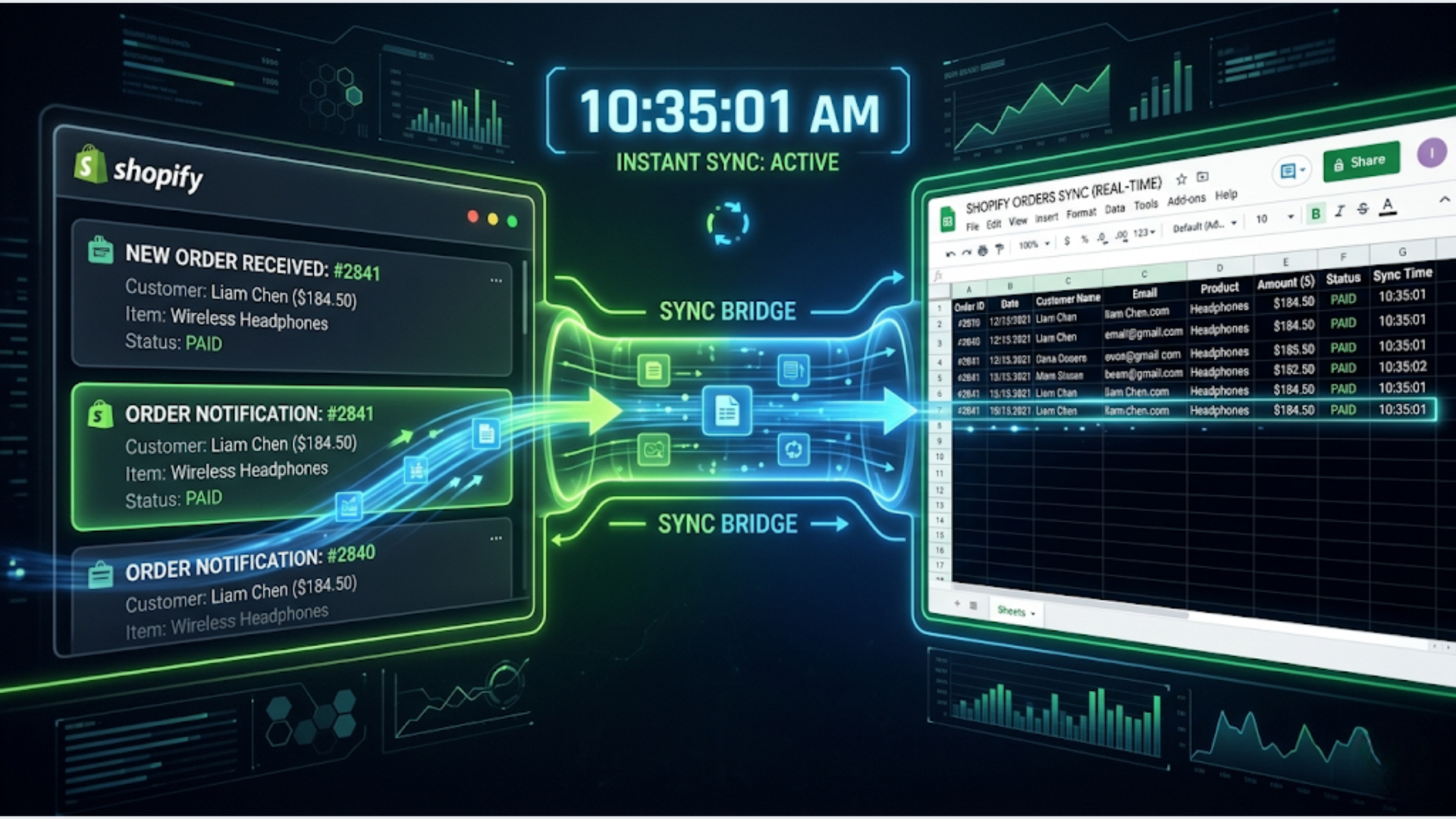
How to Sync Shopify Orders to Google Sheets in Real Time
Every Shopify store eventually needs order data in a spreadsheet. Exporting CSVs manually works until it does not. You forget, the data is stale by the time you open it, and your operations team makes decisions on yesterday’s numbers.
I build these syncs for e-commerce clients regularly. The setup takes about 30 minutes and runs indefinitely without maintenance. Every new order appears in your Google Sheet within seconds of being placed.
This guide covers the complete setup using Shopify webhooks and n8n, including column mapping, GST fields for Indian stores, rate limit handling, and what to do when things break.
Why Real-Time Sync Instead of Scheduled Exports
Shopify lets you export orders as CSV. Some apps sync on a schedule, every 15 minutes or hourly. Both approaches have the same problem: the data is always behind.
Real-time sync means the moment a customer completes checkout, that order row exists in your sheet. Your fulfillment team sees it immediately. Your accountant has current numbers. Your operations dashboards reflect reality, not a snapshot from 30 minutes ago.
The practical difference matters more than it sounds.
If you run flash sales, orders spike. A 15-minute delay means your warehouse team is always catching up. Real-time sync means they can start packing orders as they come in.
If you reconcile payments daily, stale data creates mismatches. Real-time sync means your sheet matches your Shopify admin at any given moment.
If you track inventory across multiple channels, even a 5-minute delay can cause overselling. Real-time order data in Sheets lets you build simple stock formulas that stay accurate.
The cost of this sync is essentially zero. Shopify webhooks are free. n8n is free if self-hosted. Google Sheets is free. The only investment is the 30 minutes to set it up.
The Architecture
The flow is straightforward:
- Customer places an order on Shopify
- Shopify fires an “Order Creation” webhook with full order data
- n8n receives the webhook payload
- n8n extracts and formats the fields you need
- n8n appends a new row to your Google Sheet
Optional additions:
- Order update webhook (tracks fulfillment status, refunds)
- Error handling and retry logic
- Deduplication check (prevents double entries)
You need:
- A Shopify store (any plan)
- An n8n instance (self-hosted or cloud)
- A Google Sheet with your desired column structure
- Google Sheets API credentials in n8n (OAuth2 or service account)
Step 1: Set Up Your Google Sheet Structure
Create a new Google Sheet. Name it something like “Shopify Orders Live.”
Here is the column structure I recommend for most stores:
| Column | Field | Notes |
|---|---|---|
| A | Order Number | Shopify order number (#1001, etc.) |
| B | Order Date | ISO format or local date |
| C | Customer Name | First + Last |
| D | Customer email | |
| E | Phone | Customer phone |
| F | Shipping Address | Full address, single cell |
| G | City | For filtering/reporting |
| H | State | For filtering/reporting |
| I | Pincode | For delivery zone analysis |
| J | Items | Product names and quantities |
| K | Subtotal | Before tax and shipping |
| L | Shipping Cost | Shipping amount charged |
| M | Tax | Total tax |
| N | Total | Order total |
| O | Payment Status | Paid, pending, refunded |
| P | Fulfillment Status | Unfulfilled, fulfilled, partial |
| Q | Currency | INR, USD, etc. |
For Indian stores, add GST-specific columns:
| Column | Field | Notes |
|---|---|---|
| R | GSTIN | Customer GST number (if B2B) |
| S | CGST | Central GST amount |
| T | SGST | State GST amount |
| U | IGST | Integrated GST (interstate) |
| V | HSN Code | For each line item |
These GST fields are critical if you use the sheet for tax filing or send it to your CA. Shopify stores using Indian tax settings include this data in the order payload.
Add header rows with these labels. Freeze the first row. Format the currency columns as numbers with 2 decimal places.
Step 2: Configure n8n and the Shopify Webhook
In n8n, create a new workflow.
Add a Webhook node:
- Method: POST
- Path: Something unique like
/shopify-orders-sync - Response Code: 200
Copy the webhook URL.
In Shopify Admin: Go to Settings > Notifications > Webhooks. Click “Create webhook.”
- Event: Order creation
- Format: JSON
- URL: Paste your n8n webhook URL
- API version: Use the latest stable version (2024-01 or later)
Save the webhook. Shopify will send a test payload. Check your n8n execution history to confirm it arrived.
Add a Set node to extract fields:
The Shopify order payload is large. You only need specific fields. Use a Set node (or Code node for more control) to extract:
// In an n8n Code node
const order = $input.first().json;

return [{
  json: {
    order_number: order.name,
    order_date: new Date(order.created_at).toLocaleString('en-IN', { timeZone: 'Asia/Kolkata' }),
    customer_name: `${order.customer?.first_name || ''} ${order.customer?.last_name || ''}`.trim(),
    email: order.customer?.email || order.contact_email || '',
    phone: order.customer?.phone || order.shipping_address?.phone || '',
    shipping_address: order.shipping_address
      ? `${order.shipping_address.address1}, ${order.shipping_address.address2 || ''}, ${order.shipping_address.city}, ${order.shipping_address.province} ${order.shipping_address.zip}`
      : '',
    city: order.shipping_address?.city || '',
    state: order.shipping_address?.province || '',
    pincode: order.shipping_address?.zip || '',
    items: order.line_items.map(i => `${i.title} x${i.quantity}`).join(', '),
    subtotal: order.subtotal_price,
    shipping: order.total_shipping_price_set?.shop_money?.amount || '0.00',
    tax: order.total_tax,
    total: order.total_price,
    payment_status: order.financial_status,
    fulfillment_status: order.fulfillment_status || 'unfulfilled',
    currency: order.currency
  }
}];
For Indian GST fields, you will need to dig into order.tax_lines and order.line_items[].tax_lines. The structure varies based on your Shopify tax configuration:
// GST extraction (add to the same Code node)
const taxLines = order.tax_lines || [];
let cgst = 0, sgst = 0, igst = 0;

for (const tax of taxLines) {
  const title = tax.title.toLowerCase();
  if (title.includes('cgst')) cgst += parseFloat(tax.price);
  else if (title.includes('sgst')) sgst += parseFloat(tax.price);
  else if (title.includes('igst')) igst += parseFloat(tax.price);
}

// Add to your return object:
// cgst: cgst.toFixed(2),
// sgst: sgst.toFixed(2),
// igst: igst.toFixed(2),
// gstin: order.note_attributes?.find(a => a.name === 'GSTIN')?.value || ''
The GSTIN is tricky. Shopify does not have a native GSTIN field. Most Indian stores capture it via a custom field in checkout (using note attributes or a metafield). Check how your store captures it and adjust the extraction accordingly.
Step 3: Write to Google Sheets
Add a Google Sheets node in n8n.
Configuration:
- Operation: Append Row
- Spreadsheet: Select your “Shopify Orders Live” sheet
- Sheet: Sheet1 (or whatever you named the tab)
- Mapping: Map each extracted field to the corresponding column
n8n’s Google Sheets node supports both column letter mapping and header-based mapping. I recommend header-based mapping. It is more readable and does not break if you insert a column later.
Make sure your n8n instance has Google Sheets credentials configured. Use OAuth2 for the simplest setup. Service account works too but requires sharing the sheet with the service account email.
Test the workflow. Place a test order on your Shopify store (or use Shopify’s “Bogus Gateway” for test transactions). Verify the row appears in your sheet with all fields populated correctly.
Step 4: Handle Rate Limits and Errors
Google Sheets API has rate limits. For most stores, you will never hit them. But during sales events or if you are syncing multiple data types to the same sheet, you might.
Google Sheets API limits:
- 60 requests per minute per project
- 300 requests per minute per user
If you process more than 60 orders per minute (which would mean 3,600 orders per hour, a genuinely high volume), you need to batch writes.
Batching approach: Instead of writing one row per webhook, collect orders in n8n’s internal storage or a temporary variable, then write them in batches of 10-20 every 30 seconds. Use n8n’s Wait node and a Merge node to accumulate records.
For most stores, this is overkill. Process each order individually. Only build batching if you consistently see rate limit errors in your n8n execution logs.
Error handling: Add an Error Trigger node to your workflow. When a Google Sheets write fails, capture the order data and retry. Options:
- Simple retry: n8n’s built-in retry on failure setting. Set the Google Sheets node to retry 3 times with a 10-second delay.
- Dead letter queue: On failure, write the order to a separate “Failed Orders” Google Sheet. Review and reprocess manually or with a scheduled cleanup workflow.
- Notification: Send yourself a Slack/email alert when a sync fails. You might not check failed order queues daily, but you will see a notification.
I recommend option 1 combined with option 3. Retry handles transient errors (rate limits, network blips). Notifications catch persistent issues (expired credentials, deleted sheet).
Step 5: Add Order Update Tracking
Order creation is the baseline. But orders change. They get fulfilled, partially refunded, or cancelled. If your sheet only captures creation data, it becomes stale.
Add a second Shopify webhook for “Order Updated” events. Create a separate n8n workflow (or add a branch to your existing one).
The update flow is different from creation. Instead of appending a new row, you need to find the existing row and update it.
Approach:
- Receive the order update webhook
- Extract the order number
- Use the Google Sheets “Lookup” operation to find the row with that order number
- Update the fulfillment_status, payment_status, and any other changed fields
In n8n, use the Google Sheets node with:
- Operation: Update Row
- Lookup Column: Order Number
- Lookup Value: The order number from the webhook
This handles fulfillment updates, payment status changes, and partial refunds. For full cancellations, you might want to add a “Status” column and mark it as “Cancelled” rather than deleting the row.
Common Pitfalls and How to Avoid Them
Duplicate orders. Shopify occasionally sends duplicate webhooks. Before appending, check if the order number already exists in the sheet. Use a Google Sheets Lookup operation before the Append. If found, skip. This adds one API call per order but prevents duplicates that mess up your reporting.
Timezone mismatches. Shopify stores order timestamps in UTC. If you are in IST (UTC+5:30), your sheet times will be 5.5 hours behind unless you convert. The code example above handles this with toLocaleString and the Asia/Kolkata timezone. Always convert to your local timezone.
Sheet grows too large. Google Sheets slows down above 50,000 rows. For high-volume stores, archive older orders monthly. Create a simple n8n workflow that runs on the 1st of each month: copy rows older than 30 days to an archive sheet, delete them from the live sheet.
Special characters in product names. Some product names include commas, quotes, or unicode characters. These can break CSV-style parsing. n8n’s Google Sheets node handles this correctly because it uses the Sheets API (not CSV upload), but verify with a test order containing special characters.
Multi-currency stores. If you sell in multiple currencies, the amounts in your sheet will be mixed. Add a currency column (included in the mapping above) and consider adding a “Base Currency Amount” column that converts everything to INR using the exchange rate from the order payload.
FAQ
Can I use this with WooCommerce instead of Shopify? Yes. WooCommerce has webhooks for order creation and updates. The n8n workflow structure is identical. The webhook payload differs, so you will need to adjust the field extraction in your Code node. WooCommerce’s REST API documentation lists the exact payload structure.
What if I need data from multiple Shopify stores in one sheet? Add a “Store” column to your sheet. Create separate webhooks and n8n workflows for each store (or separate branches in one workflow). Each branch adds the store name to the data before writing. This works well for businesses managing multiple brands.
Can I use Google Apps Script instead of n8n? Technically yes. You can write an Apps Script web app that receives webhooks directly. I do not recommend it. Apps Script has execution time limits (6 minutes), unreliable webhook handling under load, and no built-in retry logic. n8n is purpose-built for this.
How do I backfill existing orders?
Use the Shopify Admin API to pull historical orders. Create a separate n8n workflow with an HTTP Request node that paginates through /admin/api/2024-01/orders.json?status=any&limit=250. Process each order through the same extraction and Sheet-writing logic. Run it once.
Will this affect my Shopify store’s performance? No. Webhooks are asynchronous. Shopify fires them after the order is processed. There is zero impact on your checkout speed or store performance. The webhook delivery is Shopify’s responsibility, not your store’s.
What happens if n8n goes down? Shopify retries failed webhook deliveries. It attempts delivery up to 19 times over 48 hours with increasing intervals. If your n8n instance comes back online within that window, you will not lose any orders. For critical stores, monitor your n8n uptime.
Can I trigger other automations from this sheet? Yes, and this is where it gets powerful. Once orders are in Google Sheets, you can build formulas, pivot tables, and even use the sheet as a trigger for other n8n workflows. Common additions: auto-generate packing slips, trigger SMS notifications to delivery partners, update inventory counts in a separate tracking sheet.
If you need a custom Shopify integration or want to build more complex order processing workflows, triggerAll builds these systems.
Need help implementing this?
Book a free 30-minute discovery call. We'll map your current setup, identify quick wins, and outline what automation can do for your business.
Book a Free Discovery Call