n8n Workflow Is Slow: A Performance Troubleshooting Guide
Slow n8n workflows are usually caused by 3 things: large data payloads, sequential API calls, or undersized hosting. Here's how to fix each one.
n8n Workflow Is Slow: A Performance Troubleshooting Guide
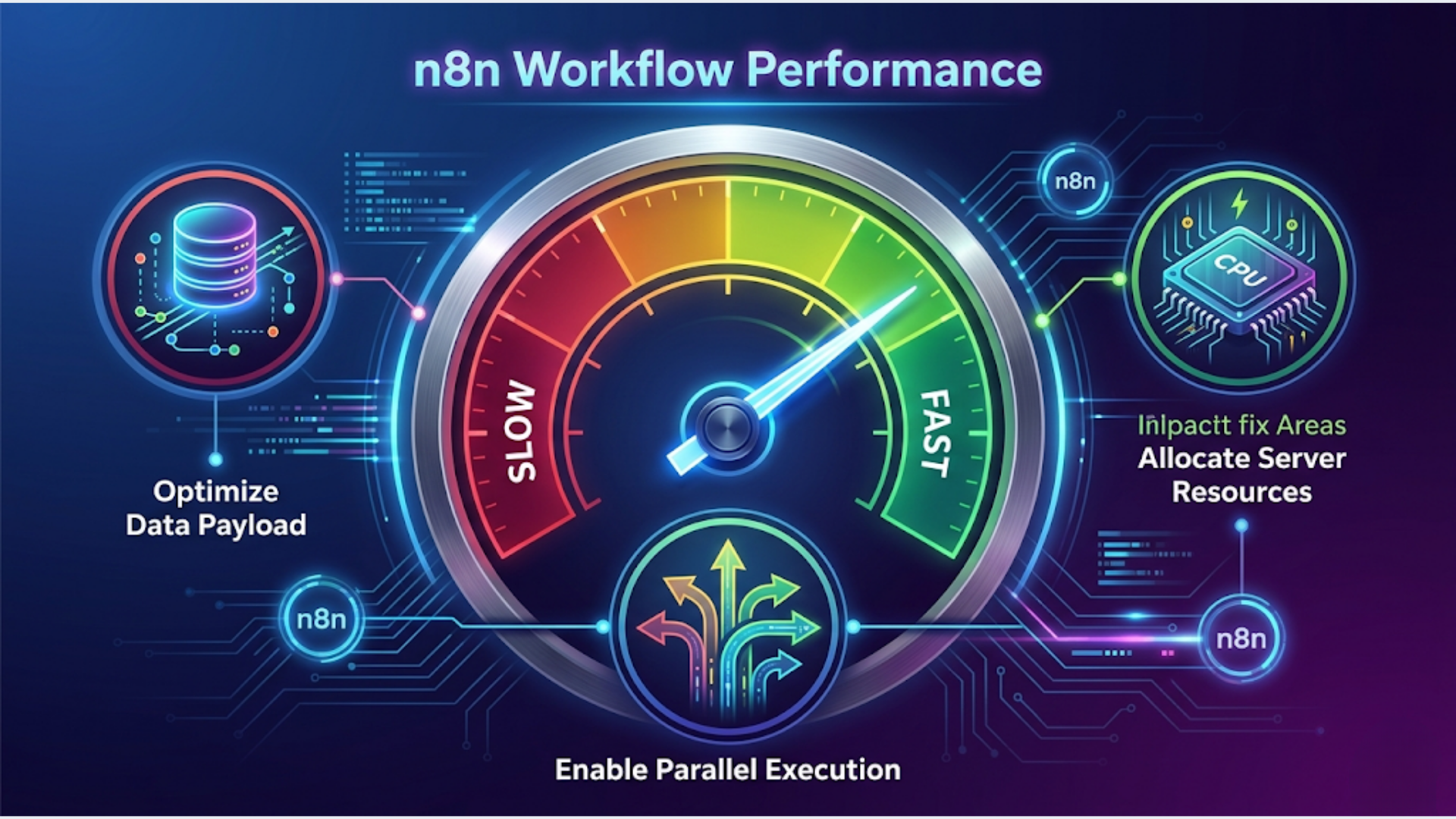
Slow n8n workflows almost always come down to three things: oversized data payloads choking your nodes, sequential API calls waiting in line when they don’t need to, and a server that’s gasping for resources. Fix those three and most workflows drop from minutes to seconds.
n8n performance problems are remarkably consistent. Same three causes, same fixes. Same three causes, same fixes, over and over.
This guide walks through each one with specific fixes you can apply today.
The 3 Most Common Causes of Slow n8n Workflows
Before you start optimizing, you need to diagnose. Open your workflow execution history and look at the timing for each node.
Cause 1: Large data payloads. Your HTTP Request or database node returns 10,000 records when you need 50. Every downstream node processes all of them. A workflow that should take 3 seconds takes 90.
Cause 2: Sequential API calls. You’re calling an external API inside a loop, one request at a time. 200 contacts to update in your CRM? That’s 200 sequential HTTP calls. Each one waits for the last to finish.
Cause 3: Undersized server. Your n8n instance is running on 1 CPU core and 1GB RAM, but you’re processing 5,000 records with JSON transformations. The server itself is the bottleneck.
The good news: all three are fixable without rewriting your workflows from scratch.
Fix 1: Data Payload Optimization
This is the most common culprit and the easiest to fix.
Use Pagination Instead of Full Pulls
If you’re pulling data from an API or database, never pull everything at once. Most APIs support pagination. Use it.
Set your HTTP Request node to return 100 records per page. Process each page, then fetch the next. Your memory usage drops by 95%.
For database queries, add LIMIT and OFFSET clauses. Process in chunks of 200-500 rows depending on your server specs.
Limit Fields Returned
Most API responses include 40+ fields per record. You probably need 5.
Add a Set node immediately after your data source. Map only the fields you need. Drop everything else. This alone can cut processing time by 60% on large datasets because every downstream node handles smaller objects.
Split Large Batches Properly
The SplitInBatches node is your best friend for large data, but most people configure it wrong.
Set the batch size based on your downstream operation:
- API calls: 10-25 items per batch (respects rate limits)
- Database writes: 100-500 items per batch (bulk insert is faster)
- Email sends: 5-10 items per batch (avoid spam throttling)
Add a Wait node between batches if your downstream service has rate limits. Even 500ms between batches prevents 429 errors that force retries and make everything slower.
Remove Unnecessary Nodes
Every node in your workflow adds processing overhead. I’ve seen workflows with 5 Set nodes in sequence that could be consolidated into 1. Each Set node serializes and deserializes the entire data payload.
Audit your workflow. If two Function nodes run back to back, combine them. If a Set node only renames one field, consider doing it in the previous node’s output mapping.
Fix 2: Parallel Execution
Sequential processing is the silent killer of n8n performance.
Use SplitInBatches with Concurrent Execution
n8n’s SplitInBatches node supports processing multiple batches simultaneously. Instead of processing batch 1, then batch 2, then batch 3, you can process all three at once.
In n8n version 1.0+, use the “Settings” on your SplitInBatches node and set “Max Concurrent Batches” to 3-5 (depending on your API’s rate limits and server resources).
Restructure Sequential HTTP Calls
If you’re making HTTP calls inside a loop, restructure the workflow:
- Collect all the data you need first
- Use SplitInBatches to group them
- Process batches in parallel
- Merge results at the end
I had a client workflow that updated 500 HubSpot contacts sequentially. Took 12 minutes. Restructured to 5 parallel batches of 100. Dropped to under 3 minutes.
Use Sub-Workflows for Complex Parallel Processing
When one workflow needs to trigger multiple independent processes, use the Execute Workflow node.
Create separate sub-workflows for each independent task. Trigger them from your main workflow. They run in parallel by default. The main workflow continues without waiting (unless you configure it to wait).
This is especially useful for fan-out patterns: one event triggers updates to your CRM, sends an email, posts to Slack, and logs to a spreadsheet. Four sub-workflows, all running simultaneously, instead of four sequential operations.
Fix 3: Server Resources
Sometimes your workflow is fine. Your server isn’t.
CPU and RAM Benchmarks
Here’s what I recommend based on workflow volume:
| Workflow Volume | CPU Cores | RAM | Concurrent Executions |
|---|---|---|---|
| 1-20 workflows, < 1,000 executions/day | 1 vCPU | 2 GB | 5 |
| 20-50 workflows, 1,000-5,000 executions/day | 2 vCPU | 4 GB | 10 |
| 50-100 workflows, 5,000-20,000 executions/day | 4 vCPU | 8 GB | 20 |
| 100+ workflows, 20,000+ executions/day | 8 vCPU | 16 GB | 50+ |
Most people undersize by 50%. If your workflow processes images, PDFs, or large JSON payloads, add 50% more RAM to these numbers.
When to Upgrade
Monitor these signals:
- Execution times gradually increasing over weeks (not sudden spikes)
- Multiple workflows queuing instead of running immediately
- Node.js process using 90%+ RAM consistently
- CPU pegged at 100% during batch operations
If two or more of these are true, it’s time to upgrade.
Self-Hosted vs n8n Cloud Performance
Self-hosted gives you full control over resources. You can allocate exactly what you need and scale vertically.
n8n Cloud handles scaling for you, but you’re sharing resources. The Starter plan is fine for light usage. For production workloads over 5,000 executions/day, self-hosted on a properly sized VPS is typically faster and cheaper.
n8n Cloud pricing starts at $24/month for 2,500 executions. A 2 vCPU / 4GB VPS costs $24-28/month and handles 5,000+ executions with better performance because resources aren’t shared.
Advanced Optimizations
Once you’ve fixed the big three, these optimizations squeeze out the remaining performance.
Caching with Redis
If your workflow repeatedly fetches the same reference data (product catalogs, user lists, config settings), cache it.
Set up a Redis instance alongside n8n. Use the Redis node to check cache before making API calls. Set TTL (time to live) based on how often the data changes:
- Product prices: 15 minutes
- User profiles: 1 hour
- Config settings: 24 hours
One client’s order processing workflow made 300 API calls per run to fetch product details. Added Redis caching. API calls dropped to 15 (only new/changed products). Execution time went from 8 minutes to 45 seconds.
Database Indexing
If your workflow queries PostgreSQL or MySQL, check your indexes.
A workflow that queries orders by customer_id and date_range needs a composite index on both columns. Without it, the database scans every row. With it, the query returns in milliseconds.
Run EXPLAIN ANALYZE on your slow queries. If you see “Seq Scan” on a table with more than 10,000 rows, you need an index.
Webhook vs Polling
Polling triggers check for new data at intervals. Webhooks push data to n8n when it happens.
Switch every Polling trigger to a Webhook trigger where the source supports it. Polling wastes executions (checking when nothing changed) and adds latency (up to your polling interval).
Most modern APIs, CRMs, and e-commerce platforms support webhooks: HubSpot, Shopify, Stripe, Zoho, Slack, GitHub. Use them.
Execution Mode Settings
In your n8n configuration, two settings matter:
EXECUTIONS_MODE: Set to queue for production. The default regular mode runs everything in the main process. Queue mode uses a separate worker process, which prevents long workflows from blocking short ones.
N8N_CONCURRENCY_PRODUCTION_LIMIT: Controls how many workflows run simultaneously. Default is -1 (unlimited). Set it based on your server resources. For a 2 vCPU server, 10 concurrent executions is a safe starting point.
India-Specific: Optimal Hosting for n8n Instances
If your users or APIs are primarily in India, hosting location matters. Every millisecond of network latency compounds across hundreds of API calls.
Best Hosting Options (India Region)
| Provider | Region | Specs (2 vCPU / 4GB) | Monthly Cost |
|---|---|---|---|
| DigitalOcean | BLR1 (Bangalore) | 2 vCPU, 4 GB, 80 GB SSD | ~$28 (~Rs 2,350) |
| AWS EC2 | ap-south-1 (Mumbai) | t3.medium, 2 vCPU, 4 GB | ~$30 (~Rs 2,500) |
| Hetzner | No India region | 2 vCPU, 4 GB, 40 GB (Finland/Germany) | ~$7 (~Rs 585) |
| Hostinger VPS | India available | 2 vCPU, 4 GB | ~$12 (~Rs 1,000) |
DigitalOcean Bangalore and AWS Mumbai give the lowest latency to Indian APIs (Razorpay, Zoho India, WATI, Shiprocket). If most of your external calls are to Indian services, host in India. The 3-4x price premium over Hetzner pays for itself in execution speed.
If your workflows primarily call global APIs (OpenAI, HubSpot, Stripe), Hetzner’s European servers are fine. The latency difference is 50-80ms per call, which adds up only on high-volume workflows.
Recommended Setup for Indian Businesses
For most Indian SMBs running 20-50 n8n workflows:
- DigitalOcean BLR1, 2 vCPU / 4GB droplet (~Rs 2,350/month)
- Redis on the same droplet for caching
- PostgreSQL on a managed database (~Rs 1,250/month) or same droplet for smaller setups
- Total: Rs 2,350-3,600/month for a production-ready n8n setup
That’s less than one month of most SaaS automation tools, with no per-execution pricing.
FAQ
Q1: Why is my n8n workflow timing out? A: Timeouts usually mean one node is waiting too long for an external response. Check your HTTP Request nodes for slow APIs. Increase the timeout setting on individual nodes (default is 30 seconds). If an API consistently takes longer than 30 seconds, that API is the bottleneck, not n8n. Consider caching the response or finding an alternative endpoint.
Q2: How do I check which node is the slowest in my n8n workflow? A: Open the execution history and click on any completed execution. n8n shows execution time per node on the right panel. The nodes highlighted in orange or with the longest times are your bottlenecks. Focus optimization efforts on the top 2-3 slowest nodes first.
Q3: Does n8n Cloud perform better than self-hosted? A: Not necessarily. Self-hosted n8n on a properly sized VPS (2+ vCPU, 4+ GB RAM) typically outperforms n8n Cloud Starter and Pro plans because you have dedicated resources. n8n Cloud is better for teams that don’t want to manage infrastructure. For raw performance per dollar, self-hosted wins.
Q4: How many workflows can n8n handle simultaneously? A: It depends on your server resources and workflow complexity. A 2 vCPU / 4GB server comfortably handles 10-15 concurrent simple workflows (few nodes, small payloads). Complex workflows with large data or many HTTP calls reduce this to 5-8 concurrent executions. Use queue mode and set concurrency limits to prevent overload.
Q5: Should I use n8n’s built-in SQLite or switch to PostgreSQL? A: Switch to PostgreSQL for any production setup. SQLite works fine for development and testing, but it locks the database on writes, which causes slowdowns when multiple workflows execute simultaneously. PostgreSQL handles concurrent reads and writes properly. The performance difference is significant once you exceed 500 executions per day.
Q6: How do I optimize n8n workflows that process large files (PDFs, images)? A: Don’t pass large files through the workflow as binary data between nodes. Instead, upload the file to cloud storage (S3, Google Cloud Storage) in the first node, then pass only the file URL to subsequent nodes. Each node that needs the file downloads it directly. This prevents n8n from holding multiple copies of large files in memory, which is the main cause of out-of-memory crashes on file-heavy workflows.
I build and optimize n8n workflows for businesses that need their automations to actually perform at scale. If your workflows are slow and you’ve tried the basics, triggerAll can help.
Need help implementing this?
Book a free 30-minute discovery call. We'll map your current setup, identify quick wins, and outline what automation can do for your business.
Book a Free Discovery Call