How to Migrate from HubSpot to Zoho (Without Losing Data)
Migrate from HubSpot to Zoho CRM in 5 steps without losing contacts, deals, or automation history. Complete guide with field mapping and common pitfalls.
How to Migrate from HubSpot to Zoho (Without Losing Data)
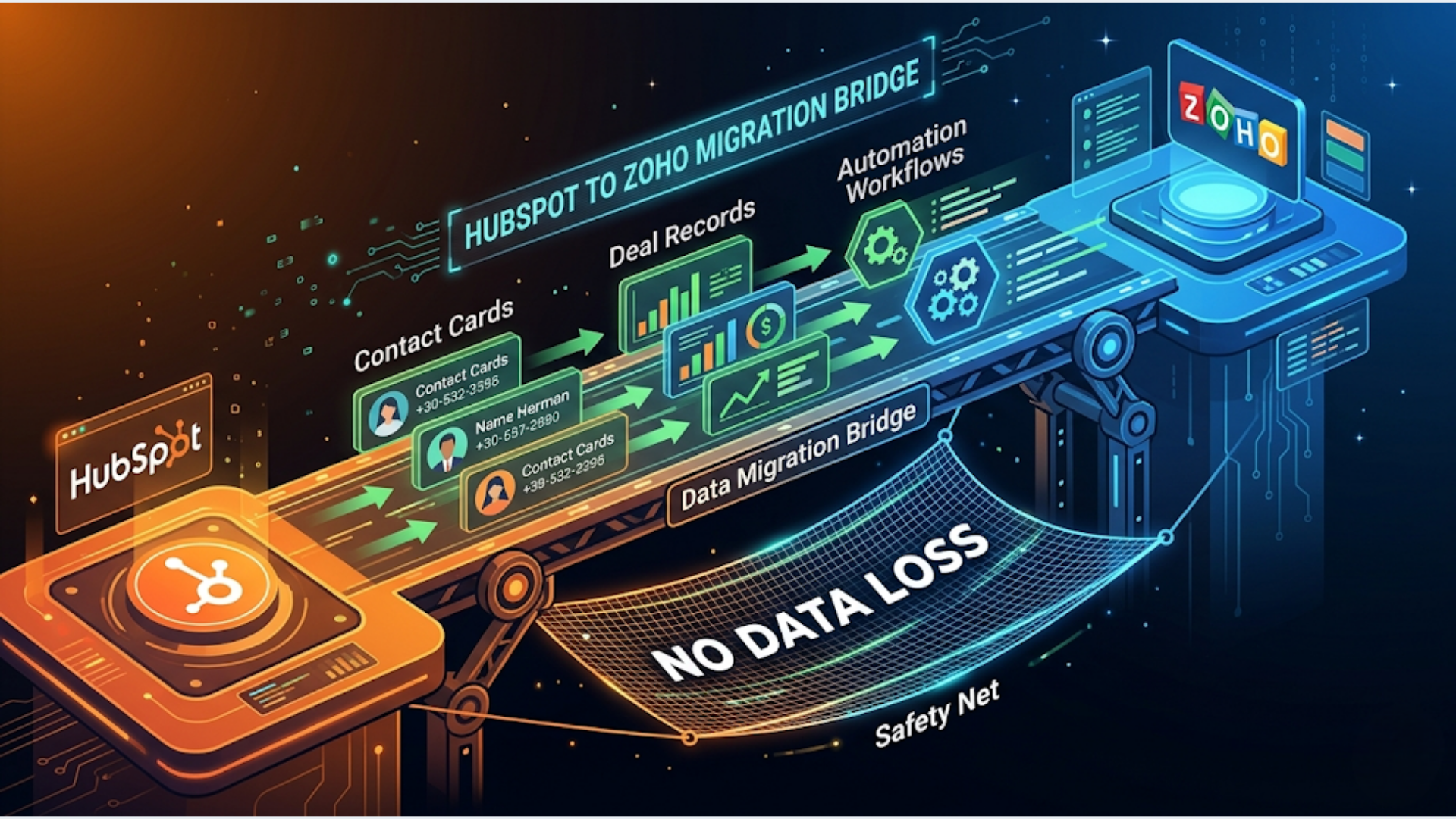
The migration takes 5 steps: audit your HubSpot data, export everything to CSV, map fields to Zoho equivalents, import into Zoho CRM, and rebuild your automations. Most teams complete this in 1 to 3 weeks depending on data volume and workflow complexity.
This migration is straightforward if you follow the right sequence. The data part is simple. The automation rebuild is where teams lose time (and sometimes lose their minds). This guide covers both, including the exact field mapping table I use on every project.
The 5-Step Migration Process
Here’s the overview before we dig into each step.
Step 1: Audit. Catalog every contact property, deal stage, pipeline, automation, and integration in HubSpot. You need a complete picture before exporting anything.
Step 2: Export. Pull CSVs from HubSpot for contacts, companies, deals, tickets, and any custom objects. Export workflow definitions separately.
Step 3: Map fields. Match every HubSpot property to its Zoho CRM equivalent. Create custom fields in Zoho for anything that doesn’t have a native match.
Step 4: Import. Use Zoho’s import wizard to bring data in. Clean and deduplicate during import, not after.
Step 5: Rebuild automations. Translate HubSpot Workflows into Zoho Blueprint and Workflow Rules. This is the slowest step, plan for it.
Timeline varies. A team with 5,000 contacts and 3 pipelines finishes in a week. A team with 50,000+ contacts, 15 automations, and custom objects needs 2 to 3 weeks with testing.
When Switching Makes Sense (and When It Doesn’t)
Not every team should switch. Here’s the honest decision matrix.
| Factor | Switch to Zoho | Stay on HubSpot |
|---|---|---|
| Monthly CRM cost | Over $800/month on HubSpot Professional | Under $400/month on Starter |
| Team size | Under 25 users | Over 50 users already trained on HubSpot |
| Marketing Hub dependency | Don’t use HubSpot Marketing Hub heavily | Marketing Hub is core to your stack |
| Integration needs | Use Zoho ecosystem (Books, Desk, Projects) | Deep HubSpot App Marketplace integrations |
| Data residency | Need data in specific regions | No compliance requirements |
| Budget pressure | Need to cut CRM costs by 40 to 60% | Budget is not the primary concern |
Stay on HubSpot if: Your team is deeply embedded in HubSpot Marketing Hub, you have 50+ users trained on the platform, and you rely on HubSpot-specific integrations that don’t exist in Zoho. The switching cost won’t be worth it.
Switch to Zoho if: You’re paying for HubSpot Professional or Enterprise but using mostly CRM features, your team is under 25 people, or you need the broader Zoho One suite (mail, books, desk, projects) at a fraction of the cost. Most teams switching save 40 to 60% annually.
The teams I see switching most often are 5 to 20 person companies on HubSpot Professional ($800+/month) who realized they’re paying enterprise prices for what’s essentially a contact database and deal tracker.
Field Mapping Guide
This is the table I use on every HubSpot to Zoho migration. It covers the critical fields across contacts, deals, and companies. Bookmark this.
Contact Field Mapping
| HubSpot Property | Zoho CRM Field | Notes |
|---|---|---|
| First Name | First Name | Direct match |
| Last Name | Last Name | Direct match |
| Direct match | ||
| Phone Number | Phone | Direct match |
| Mobile Phone Number | Mobile | Direct match |
| Company Name | Account Name | Link via Company/Account association |
| Job Title | Title | Direct match |
| Lifecycle Stage | Lead Status | Requires value mapping (see below) |
| Lead Status | Lead Source | Different concept in Zoho, map carefully |
| Contact Owner | Record Owner | Must match Zoho user emails |
| Create Date | Created Time | Auto-mapped on import |
| Last Activity Date | Last Activity Time | Auto-mapped on import |
| Associated Company | Account Name | Requires separate company import first |
| Custom Properties | Custom Fields | Create in Zoho before import |
Lifecycle Stage Value Mapping
HubSpot’s lifecycle stages don’t map 1:1 to Zoho’s lead statuses. Here’s how I typically translate them.
| HubSpot Lifecycle Stage | Zoho Lead Status |
|---|---|
| Subscriber | Cold |
| Lead | Not Contacted |
| Marketing Qualified Lead | Attempted to Contact |
| Sales Qualified Lead | Contacted |
| Opportunity | Junk (skip, use Deals) |
| Customer | Converted to Contact |
| Evangelist | Custom field |
| Other | Custom field |
Deal Field Mapping
| HubSpot Property | Zoho CRM Field | Notes |
|---|---|---|
| Deal Name | Deal Name | Direct match |
| Deal Stage | Stage | Requires stage name mapping |
| Amount | Amount | Direct match |
| Close Date | Closing Date | Direct match |
| Pipeline | Layout | One Zoho layout per HubSpot pipeline |
| Deal Owner | Deal Owner | Must match Zoho user emails |
| Associated Contact | Contact Name | Link after contact import |
| Associated Company | Account Name | Link after company import |
Company Field Mapping
| HubSpot Property | Zoho CRM Field | Notes |
|---|---|---|
| Company Name | Account Name | Direct match |
| Company Domain | Website | Direct match |
| Industry | Industry | Direct match |
| Annual Revenue | Annual Revenue | Direct match |
| Number of Employees | Employees | Direct match |
| Company Owner | Account Owner | Must match Zoho user emails |
| City | Billing City | Zoho separates billing/shipping |
| State/Region | Billing State | Zoho separates billing/shipping |
| Country | Billing Country | Zoho separates billing/shipping |
Step-by-Step Data Export and Import
Exporting from HubSpot
Go to Contacts > Actions > Export. Select all properties. Choose CSV format.
Repeat for Companies, Deals, and Tickets. Each object exports separately.
For contacts, HubSpot lets you export all contacts or filtered lists. Export everything. You can filter during Zoho import.
Critical: Export companies first. Then contacts. Then deals. The import order matters because Zoho needs to link records via Account Name, and those accounts need to exist first.
Custom properties export as column headers matching your HubSpot property names. Note them. You’ll need to create matching custom fields in Zoho before import.
Preparing CSVs for Import
Open each CSV and clean it before importing. Every migration I’ve done hits the same issues.
Remove HTML tags from any rich text fields. HubSpot exports the raw HTML. Zoho’s import wizard chokes on it.
Standardize date formats. HubSpot exports dates as YYYY-MM-DD. Zoho accepts this, but double check your locale settings.
Remove any column with internal HubSpot IDs (like hs_object_id, vid, canonical-vid). These mean nothing in Zoho and clutter your import.
Check for duplicate emails. HubSpot allows duplicate contacts in some cases. Zoho doesn’t. Deduplicate before import or Zoho will flag them as errors.
Importing into Zoho CRM
Go to Setup > Data Administration > Import. Select the module (Leads, Contacts, Accounts, Deals).
Upload your CSV. Zoho’s import wizard shows a field mapping screen. This is where your mapping table from above saves hours. Match each CSV column to the correct Zoho field.
For fields that don’t have a Zoho match, create custom fields before starting the import. Don’t skip them and try to add data later. That turns into a mess.
Import order matters. Accounts first. Then Contacts (with Account Name linked). Then Deals (with Account Name and Contact Name linked). Breaking this order means broken associations.
Run a test import with 50 records first. Check that field values, associations, and custom fields all landed correctly. Only then import the full dataset.
Zoho’s import handles up to 30,000 records per batch. For larger datasets, split your CSV and run multiple batches.
Rebuilding Automations
This is the part that takes the most time. HubSpot Workflows don’t export to Zoho. You rebuild them manually.
What Translates
| HubSpot Feature | Zoho Equivalent | Translation Difficulty |
|---|---|---|
| Simple Workflows (if/then) | Workflow Rules | Easy, 1:1 mapping |
| Deal Stage Automations | Blueprint | Medium, different concept |
| Enrollment Triggers | Workflow Triggers | Easy, similar options |
| Delay Actions | Scheduled Actions | Easy |
| Email Sequences | Cadences (Zia) | Medium, requires Zoho Zia |
| Branching Logic | Blueprint Transitions | Medium to hard |
| Custom Code Actions | Deluge Scripts | Hard, different language |
| Chatbot Flows | Zoho SalesIQ | Hard, completely different builder |
What Doesn’t Translate
HubSpot’s marketing automation (email nurture sequences, lead scoring, smart lists) has no direct Zoho CRM equivalent. You need Zoho Marketing Automation or Zoho Campaigns as a separate product.
HubSpot’s reporting dashboards don’t migrate. Rebuild them in Zoho Analytics or Zoho CRM’s built-in reports.
Any custom coded actions in HubSpot Workflows need to be rewritten in Zoho’s Deluge scripting language. Deluge is not JavaScript. Budget extra time for this.
Rebuild Priority
Start with deal stage automations. These directly affect pipeline operations and are the highest risk if delayed.
Then rebuild lead assignment rules. Without these, new leads sit unassigned.
Email sequences come next. If your sales team relies on automated follow-up sequences, this is where you lose deals during migration.
Leave reporting dashboards for last. They’re important but not operationally blocking.
For complex automations that HubSpot Workflows handled, consider using n8n as a middleware layer. I do this for clients who need logic that neither HubSpot nor Zoho handles well natively. n8n connects to both systems via API, and you can build branching logic that would be painful in either CRM’s native automation tools.
If you need help with the automation rebuild specifically, that’s what we do at triggerAll.
Why Indian Businesses Are Switching to Zoho
The India angle is different from the global story. It’s not just about features.
INR billing. Zoho bills in Indian Rupees. HubSpot bills in USD. For a 10-person team on HubSpot Professional, you’re paying approximately $800/month (around ₹67,000/month at current rates). The same team on Zoho CRM Professional pays ₹1,200/user/month, totaling ₹12,000/month. That’s an 82% cost reduction.
Data residency. Zoho has data centers in India (Chennai and Mumbai). If your clients or compliance requirements demand data stay within Indian borders, Zoho solves this natively. HubSpot stores data in the US and EU.
Local support. Zoho is headquartered in Chennai. Support is in your timezone, in your language. HubSpot support routes through US and EU teams. The time zone gap means 24+ hour turnaround on support tickets.
Zoho One pricing. For ₹2,000/user/month (approximately), you get the entire Zoho suite: CRM, Books, Mail, Desk, Projects, Analytics, Marketing Automation, and 40+ other apps. There’s no HubSpot equivalent at any price.
GST integration. Zoho Books integrates natively with Zoho CRM and handles GST invoicing, e-way bills, and TDS. If you’re using HubSpot CRM and a separate accounting tool for Indian compliance, Zoho collapses that into one ecosystem.
For Indian SMBs doing ₹50 lakh to ₹5 crore in annual revenue, the Zoho One bundle is the most cost-effective CRM plus business suite available. Indian companies switching off HubSpot consistently cite billing currency and Zoho One pricing as the primary drivers.
FAQ
Q1: Can I migrate HubSpot contacts to Zoho without losing custom properties? A: Yes. Export all custom properties from HubSpot as CSV columns. Create matching custom fields in Zoho CRM before running the import. Map each CSV column to the corresponding Zoho field during import. No data loss if you create the fields first.
Q2: How long does a HubSpot to Zoho migration take? A: 1 to 3 weeks for most teams. Small teams (under 5,000 contacts, 2 to 3 pipelines, minimal automation) finish in a week. Larger teams with 50,000+ contacts, complex automations, and custom integrations need 2 to 3 weeks including parallel testing.
Q3: Will my HubSpot email sequences work in Zoho? A: Not automatically. HubSpot Sequences don’t export to Zoho. You’ll rebuild them using Zoho’s Cadences feature (available with Zia AI) or using Zoho Campaigns for marketing emails. The logic is similar but the builder is different. Budget 2 to 3 days for sequence rebuilds.
Q4: Can I migrate HubSpot deal pipelines to Zoho CRM? A: Yes. Each HubSpot pipeline maps to a Zoho CRM Layout. Export your deals with pipeline and stage columns, create matching layouts and stages in Zoho, then import. Deal stage names don’t need to match exactly since you map them during import.
Q5: What happens to my HubSpot integrations after switching? A: Each integration needs to be re-evaluated. Check if the same app is available in the Zoho Marketplace. Popular tools like Slack, Google Workspace, and Mailchimp have Zoho integrations. For niche tools, you may need n8n or Zapier as middleware to connect Zoho to apps it doesn’t support natively.
Q6: Is Zoho CRM good enough for enterprise teams? A: Zoho CRM Enterprise handles complex needs: territory management, multi-currency, custom modules, and Deluge scripting. It works well for teams up to 200 users. Beyond that, or if you need Salesforce-level customization depth, evaluate carefully. For teams under 100, Zoho Enterprise at ₹2,800/user/month competes directly with Salesforce at 5x the price.
Krishna is the founder of triggerAll, where he builds custom CRM migration and automation systems for businesses switching platforms without losing data or operational continuity.
Need help implementing this?
Book a free 30-minute discovery call. We'll map your current setup, identify quick wins, and outline what automation can do for your business.
Book a Free Discovery Call