CRM Data Is Messy: How to Clean and Automate Hygiene
Dirty CRM data costs businesses 15-25% of revenue. Here's a 4-step cleanup process and 5 automations that keep your data clean permanently.
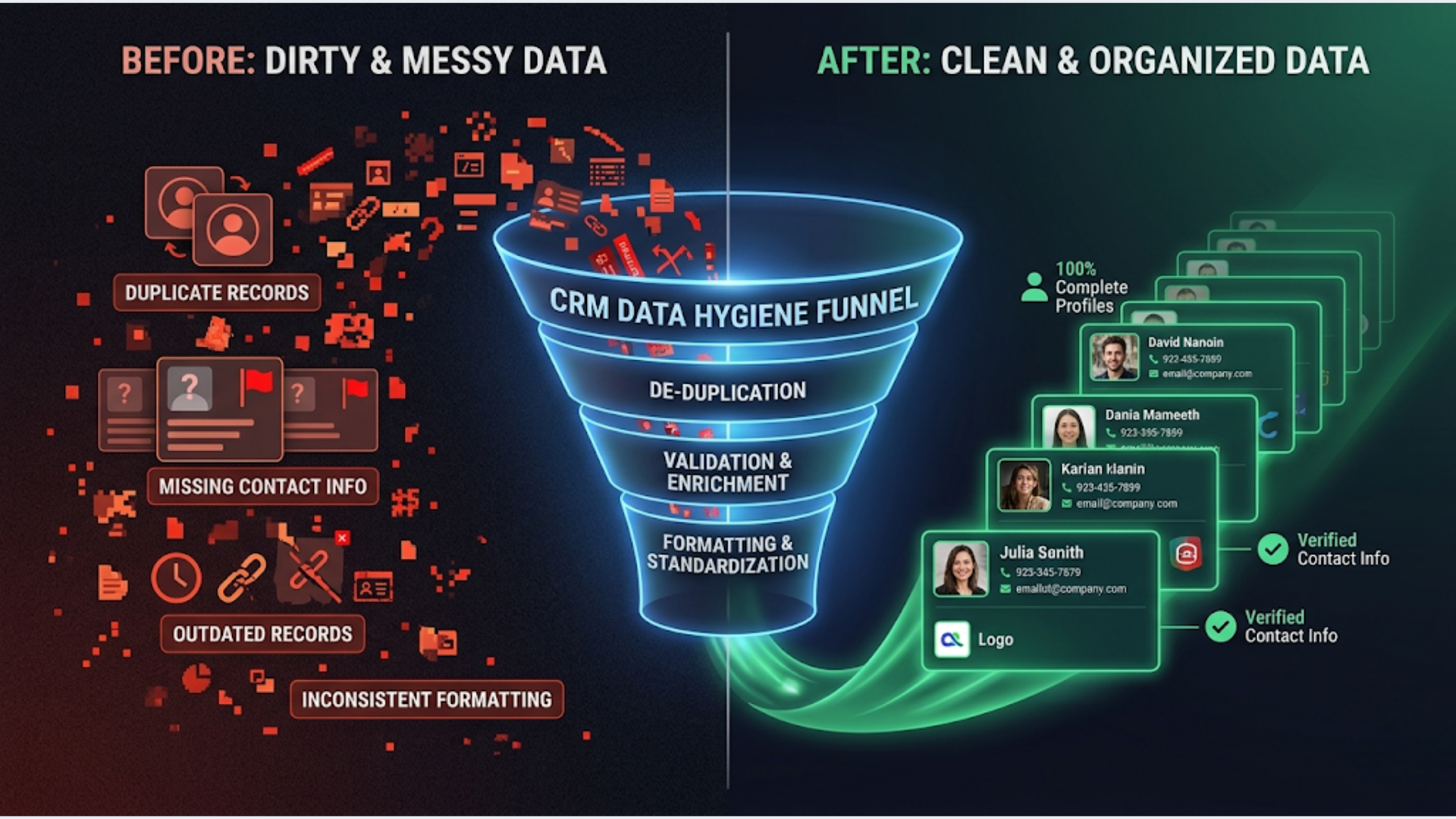
CRM Data Is Messy: How to Clean and Automate Hygiene
Dirty CRM data costs businesses 15-25% of revenue according to Gartner, and in my experience with client CRMs, that number is conservative. Duplicates waste sales time. Missing fields break automations. Outdated contacts tank your email deliverability. And the longer you wait, the worse it compounds.
I’ve cleaned up CRMs for clients across insurance, events, and professional services. The pattern is always the same: data starts clean, nobody maintains it, and 6 months later your sales team doesn’t trust the CRM anymore. Then they stop using it. Then you’ve wasted your entire CRM investment.
Here’s the 4-step cleanup process and the 5 automations that prevent it from happening again.
The Real Cost of Dirty CRM Data
Let’s be specific about what “dirty data” actually means and what it costs.
Duplicate records mean your sales team calls the same lead twice. Or worse, two reps work the same deal without knowing. I had a client with 12,000 contacts in HubSpot. After deduplication, they had 8,400 unique contacts. 30% were duplicates. Their sales team was wasting roughly 15 hours per week chasing records that already existed under a different entry.
Missing fields break every automation you build. A workflow that segments leads by industry can’t work when 40% of records have no industry field. Your email personalization falls back to generic templates. Your lead scoring assigns wrong scores.
Outdated contacts destroy email deliverability. Sending to bounced addresses, old job titles, or people who left the company hurts your sender reputation. Once your domain reputation drops, even your emails to valid contacts land in spam.
Inconsistent formatting makes reporting useless. “Bangalore” vs “Bengaluru” vs “BLR” vs “bangalore” in your city field. Five versions of the same company name. Phone numbers with and without country codes.
Each of these problems compounds daily. Every new record that enters without validation adds to the mess.
The 4-Step Cleanup Process
Step 1: Audit and Benchmark
Before cleaning anything, measure how bad it is. You need a baseline.
Export your CRM data and check these metrics:
- Duplicate rate: What percentage of records are duplicates? (Acceptable: under 5%)
- Field completion rate: For your critical fields (email, phone, company, industry, deal stage), what percentage are filled? (Target: 90%+)
- Bounce rate: What percentage of email addresses bounce? (Acceptable: under 2%)
- Stale contact rate: How many contacts haven’t been updated in 12+ months? (Flag anything over 30%)
Document these numbers. You’ll compare against them after cleanup to prove ROI.
Step 2: Deduplicate
Start with the biggest problem: duplicates.
Most CRMs have built-in dedup tools, but they’re conservative. They catch exact matches and miss close ones.
Your dedup strategy should match on:
- Exact email match (highest confidence, merge automatically)
- Company name + first name match (high confidence, review manually)
- Phone number match (medium confidence, review manually)
- Fuzzy company name match (low confidence, review one by one)
When merging duplicates, keep the record with the most complete data. Preserve the earliest creation date (that’s your true first-touch). Merge activity history from both records.
Step 3: Standardize Fields
Pick a standard format for every field and enforce it.
| Field | Standard Format | Example |
|---|---|---|
| Phone | +[country code][number], no spaces | +919876543210 |
| Company name | Title Case, no abbreviations | Tata Consultancy Services |
| City | Official name, Title Case | Bengaluru |
| Country | ISO 3166 two-letter code | IN |
| Industry | Predefined picklist (no free text) | Information Technology |
| Deal value | Numbers only, no currency symbol | 150000 |
Use a bulk update to standardize existing records. Most CRMs support bulk edit. For complex transformations (phone number formatting, company name normalization), use a script or automation tool.
Step 4: Enrich Missing Data
After dedup and standardization, fill in the gaps.
For B2B CRMs, enrichment services pull company data, employee counts, industry, and revenue from public databases. Options:
| Tool | Records/Month | Monthly Cost | Best For |
|---|---|---|---|
| Apollo.io (free tier) | 50 exports | Free | Small teams, manual enrichment |
| Clearbit | 1,000 | $99/month | HubSpot native integration |
| ZoomInfo | 5,000+ | $15,000+/year | Enterprise, high-volume |
| Clay | 500 | $149/month | Flexible, multi-source enrichment |
| Lusha | 480 | Free tier | Quick phone/email lookup |
For most small and mid-size businesses, Apollo’s free tier plus manual enrichment for priority accounts is enough to start.
5 Automations That Prevent Data From Getting Messy Again
Cleaning data once is pointless if you don’t prevent it from getting dirty again. These five automations run in the background and keep your CRM clean permanently.
1. Auto-Dedup on Entry
Every time a new contact is created, automatically check for existing records with the same email or phone number.
If a match exists, either merge automatically (for exact email matches) or flag for manual review (for fuzzy matches). This prevents duplicates from being created in the first place.
Build this as an n8n workflow triggered by your CRM’s “contact created” webhook. Check the email against existing records via API. If a match is found, update the existing record instead of creating a new one.
2. Required Field Validation
Set up a workflow that runs nightly and flags records missing critical fields.
Define your “critical fields” based on your sales process. At minimum: email, phone, company name, and deal stage. The automation checks all records updated in the last 24 hours. If any are missing critical fields, it sends a Slack notification to the record owner with a direct link to fix it.
This creates accountability. People fix incomplete records when they get a daily nudge.
3. Email Bounce Detection
Connect your email tool (Mailchimp, SendGrid, Brevo) to your CRM via automation.
When an email bounces, automatically update the contact’s email status to “invalid” and remove them from active sequences. For hard bounces, archive the contact. For soft bounces, retry once, then flag.
This protects your sender reputation and prevents your sales team from emailing dead addresses.
4. Inactive Contact Archival
Set up a quarterly automation that identifies contacts with no activity (no emails opened, no calls logged, no deals updated) in the last 12 months.
Move them to an “inactive” segment. Send one re-engagement email. If no response in 30 days, archive them. This keeps your active contact list lean and your metrics accurate.
Don’t delete them. Archive to a separate list. They might come back.
5. Format Standardization on Entry
When new data enters your CRM (from forms, imports, or manual entry), automatically format it.
Phone numbers get standardized to international format. Company names get title-cased. City names get mapped to your standard list. This runs as a triggered automation on every new or updated record.
Build this as a Function node in n8n that applies regex transformations and lookup tables. Run it before the data writes to your CRM, not after.
Tool-by-Tool Cleanup Guide
Each CRM has different built-in data quality tools. Here’s what you get out of the box and where you need external help.
| Feature | HubSpot Operations Hub | Zoho DataPrep | Salesforce Data Cloud | Insycle (Third-Party) |
|---|---|---|---|---|
| Built-in dedup | Yes (Pro+) | Yes | Yes (matching rules) | Yes (advanced) |
| Bulk field edit | Yes | Yes | Yes (Data Loader) | Yes |
| Format standardization | Yes (workflows) | Yes (transforms) | Limited | Yes (templates) |
| Automated data quality rules | Yes (Operations Hub Pro) | Yes | Yes (validation rules) | Yes |
| Enrichment | No (needs third-party) | Partial (Zia enrichment) | Yes (Data Cloud) | No (needs third-party) |
| Pricing | $800/month (Pro) | Included in CRM Plus (~$57/user) | $300/month (Platform) | From $200/month |
For HubSpot users: Operations Hub Pro is the best investment if data quality is a priority. The data quality automation features alone justify the upgrade for teams with 5,000+ contacts.
For Zoho users: DataPrep is included in CRM Plus subscriptions. Underused by most Zoho teams. It handles dedup, standardization, and basic enrichment without any third-party tools.
For Salesforce users: Validation rules prevent bad data entry, but cleanup of existing data usually requires Data Loader for bulk operations or a third-party tool like Insycle for ongoing automated hygiene.
India-Specific: Common Data Issues in Indian CRMs
Indian businesses face unique CRM data challenges that global guides don’t cover.
Phone Number Chaos
Indian phone numbers come in every format imaginable: 10 digits without country code, +91 prefix, 0 prefix for landlines, WhatsApp numbers that differ from mobile numbers.
Standard format for Indian CRMs: +91XXXXXXXXXX (no spaces, no dashes). Store WhatsApp numbers in a separate field if they differ from the primary mobile number.
GST Number Validation
If you’re a B2B business in India, storing GST numbers in your CRM is essential for invoicing. But 20-30% of GST numbers in most CRMs I’ve audited are either invalid, expired, or formatted incorrectly.
Build a validation automation: when a GST number is entered, check its format (15 characters, specific pattern) and optionally verify against the GST portal API. Flag invalid numbers immediately.
Regional Language Entries
Sales teams entering data in Hindi, Tamil, or other regional languages create segmentation nightmares when your CRM fields expect English.
Solution: set field-level validation to accept only English characters for standard fields (company name, city, industry). Create separate “local language” fields if you need to store regional language data.
WhatsApp vs Mobile Number Confusion
In India, WhatsApp is often the primary business communication channel. But many contacts use WhatsApp on a different number than their primary mobile.
Create two separate fields: “Mobile Number” and “WhatsApp Number.” Pre-fill WhatsApp with the mobile number, and let sales reps update it if different. Your WhatsApp automation workflows need the correct number to function.
ROI of Clean Data: Before and After
Here’s what typical CRM cleanups reveal:
| Metric | Before Cleanup | After Cleanup | Improvement |
|---|---|---|---|
| Duplicate rate | 15-30% | Under 3% | 80-90% reduction |
| Email bounce rate | 8-15% | Under 2% | 75-85% reduction |
| Field completion (critical fields) | 50-65% | 90%+ | 40-60% increase |
| Sales team CRM adoption | Low (they don’t trust it) | High (data is reliable) | Qualitative |
| Email open rates | 12-18% | 22-30% | 50-80% increase |
| Lead-to-deal conversion | Baseline | 10-20% improvement | Cleaner scoring = better routing |
The biggest win isn’t any single metric. It’s that your sales team starts trusting the CRM again. When they trust it, they use it. When they use it, your data stays clean. Virtuous cycle.
The cleanup itself typically takes 2-4 weeks depending on CRM size. The automations take another week to build and test. Total investment for a business with 10,000-50,000 contacts: 3-5 weeks, one-time.
FAQ
Q1: How often should I clean my CRM data? A: Run a full audit quarterly. But if you have the five automations in place (auto-dedup, required field validation, bounce detection, inactive archival, format standardization), you won’t need major cleanups. The automations handle daily hygiene. Your quarterly audit becomes a 30-minute spot check instead of a week-long project.
Q2: What’s the fastest way to remove duplicate contacts from HubSpot? A: HubSpot’s built-in duplicate management tool (under Contacts > Actions > Manage Duplicates) catches exact and fuzzy matches. For large-scale dedup (10,000+ contacts), use Insycle or Dedupely, which offer more aggressive matching algorithms and bulk merge capabilities. Export to CSV and dedup in Google Sheets only as a last resort.
Q3: Can I automate CRM data cleaning with n8n or Zapier? A: Yes, and I recommend it. Build workflows triggered by CRM webhooks (new contact created, contact updated) that validate fields, check for duplicates, and standardize formats in real-time. n8n is better for complex multi-step validation logic. Zapier is simpler for basic field formatting and notifications. The five automations in this article can all be built in either tool.
Q4: How do I fix inconsistent company names in my CRM? A: Create a company name lookup table (a Google Sheet or database table) that maps common variations to the canonical name. “TCS”, “Tata Consultancy”, “Tata Consultancy Services Ltd.” all map to “Tata Consultancy Services.” Run an automation that checks every new or updated contact’s company name against this table and standardizes it. Start with your top 100 companies by deal count.
Q5: What’s an acceptable duplicate rate in a CRM? A: Under 5% is healthy. 5-10% needs attention. Over 10% is actively hurting your sales team’s productivity and your automation accuracy. Most CRMs I audit for the first time are in the 15-30% range. People are surprised, but duplicates accumulate faster than you’d think, especially with multiple data entry points (web forms, manual entry, imports, integrations).
Q6: Should I delete old CRM contacts or archive them? A: Archive, never delete. Deleted contacts lose all activity history, deal associations, and email records permanently. Archived contacts are removed from active lists and don’t count toward your CRM’s contact tier (in most platforms), but they’re recoverable if the contact resurfaces. Create an “Archived” lifecycle stage or tag and move inactive contacts there.
CRM data cleanup and hygiene automation is one of the most requested projects we deliver at triggerAll. If your sales team has stopped trusting your CRM, let’s fix that.
Need help implementing this?
Book a free 30-minute discovery call. We'll map your current setup, identify quick wins, and outline what automation can do for your business.
Book a Free Discovery Call