How to Build a Document-Processing Pipeline with Claude
Build an automated document processing pipeline using Claude for PDF extraction, classification, and structured data output. Handles invoices, contracts, and insurance claims.
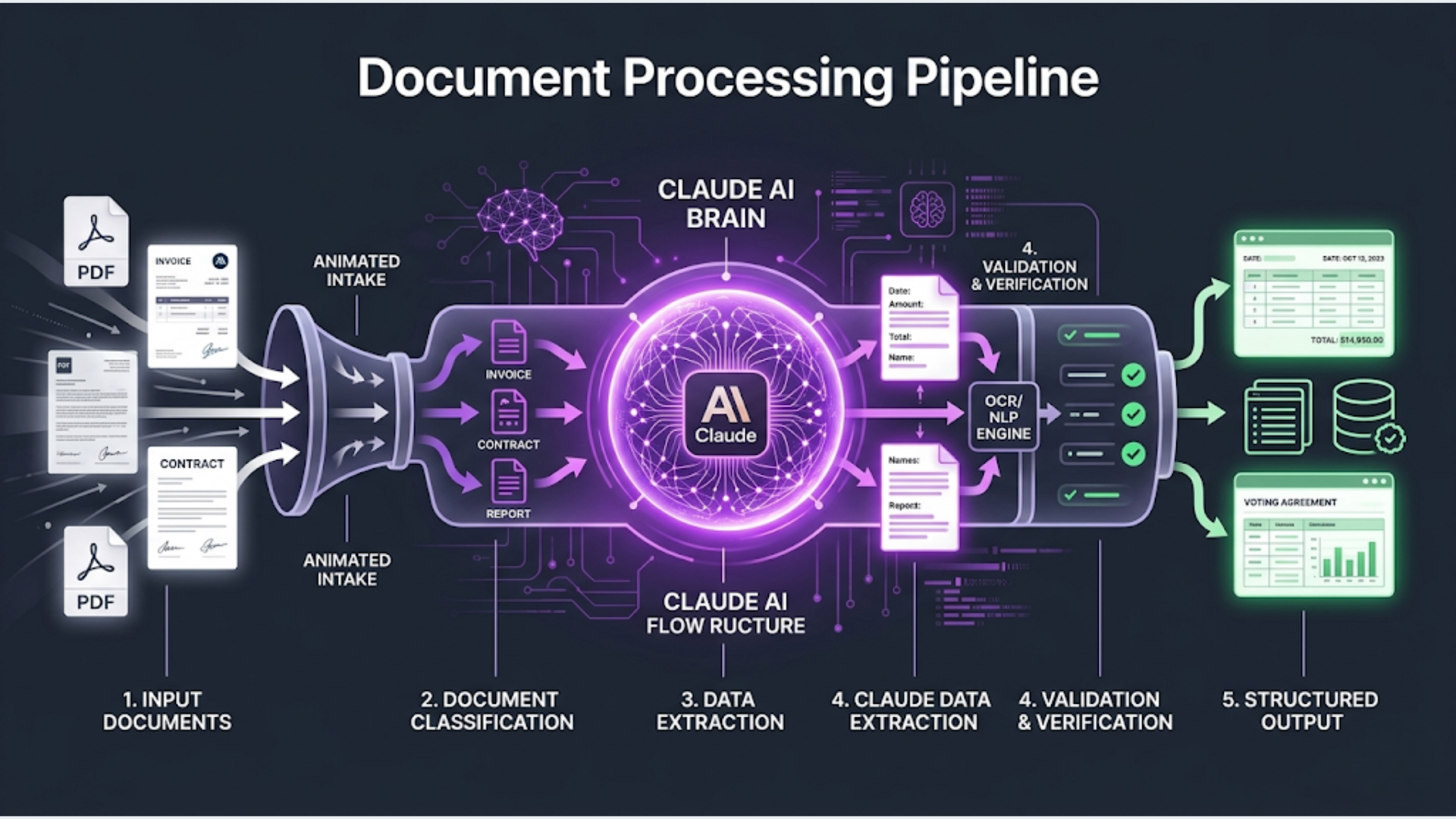
How to Build a Document-Processing Pipeline with Claude
Document processing is one of those problems every business has and nobody wants to solve manually. Someone receives an email with a PDF attached. They open it, figure out what kind of document it is, extract the relevant data, type it into a system, and move on to the next one.
Multiply that by 50 documents a day and you have a full-time job that adds zero strategic value.
I build these pipelines using Claude for the intelligence layer. Claude is particularly good at understanding document context, not just extracting text fields. It can tell the difference between a purchase order and a quotation even when the formats vary wildly between vendors.
This guide covers building a complete pipeline: PDF intake, text extraction, document classification, field extraction, structured output, and routing.
Why Claude for Document Processing
There are dedicated document processing tools. AWS Textract, Google Document AI, Azure Form Recognizer. They are good at OCR and template-based extraction. If every invoice you receive has the same layout, those tools work fine.
The problem is when they do not.
Real-world document processing means handling 20 different invoice formats from 20 different vendors. Contracts that vary from 3 pages to 80 pages. Insurance claims with handwritten notes in the margins. Forms where someone filled in the wrong field.
Template-based tools break when the template changes. Claude does not need a template. It reads the document like a human would and extracts information based on understanding, not pattern matching.
The trade-off is speed and cost. Textract processes a page in milliseconds for a fraction of a cent. Claude takes 2-5 seconds and costs $0.01-0.10 per page depending on length. For high-volume, uniform documents (10,000+ identical invoices), template-based tools win. For variable documents at moderate volume (50-500 per day), Claude is better because you skip the template training entirely.
The Architecture
The complete pipeline:
- Document arrives (email attachment, upload, or file drop)
- PDF text extraction (convert PDF to text)
- Claude classifies the document type
- Claude extracts structured fields based on document type
- Validation checks on extracted data
- Route to destination system (spreadsheet, database, CRM, ERP)
- Flag exceptions for human review
What you need:
- n8n instance (for orchestration)
- Claude API key (Anthropic)
- A PDF text extraction method
- Destination system(s) for the extracted data
- Email inbox or file storage for document intake
Step 1: Document Intake
Documents arrive in three common ways. Pick the one that matches your workflow.
Option A: Email intake Most common for invoices and contracts. Set up a dedicated email address (docs@yourcompany.com). In n8n, use the Email Trigger (IMAP) node to poll for new emails with attachments.
IMAP Configuration:
- Host: imap.gmail.com (or your email provider)
- Port: 993
- User: docs@yourcompany.com
- SSL: Yes
- Mailbox: INBOX
n8n pulls the email, extracts attachments, and passes the PDF binary to the next step. Configure the trigger to run every 2-5 minutes.
Option B: File drop (Google Drive or S3) For teams that upload documents to a shared folder. Use n8n’s Google Drive Trigger (watches a specific folder for new files) or the S3 trigger for AWS.
Option C: Direct upload via webhook Build a simple upload form that POSTs to an n8n webhook. Best for internal tools where users submit documents through a web interface.
Regardless of intake method, the output is the same: a PDF file binary that needs processing.
Step 2: PDF Text Extraction
Claude can process images and PDFs directly through its vision capability. But for text-heavy documents, explicit text extraction first gives better results and lower costs.
For digital PDFs (text-based): Use a library or service to extract text. In n8n, you have a few options:
Option 1: Use an n8n Code node with a PDF parsing library. If you are on n8n self-hosted, install pdf-parse as a custom dependency.
Option 2: Use an external extraction API. Apache Tika, PDF.co, or a simple Python microservice running PyPDF2.
Option 3: Send the PDF directly to Claude using the document upload feature in the API. This works but uses more tokens.
I recommend Option 2 for production systems. A Python microservice running on the same server as n8n is fast and free:
# Simple Flask PDF extraction service
from flask import Flask, request, jsonify
import PyPDF2
import io

app = Flask(__name__)

@app.route('/extract', methods=['POST'])
def extract():
    pdf_file = request.files['file']
    reader = PyPDF2.PdfReader(io.BytesIO(pdf_file.read()))
    text = ''
    for page in reader.pages:
        text += page.extract_text() + '\n---PAGE BREAK---\n'
    return jsonify({'text': text, 'page_count': len(reader.pages)})
For scanned PDFs (image-based): You need OCR first. Options:
- Tesseract (free, open source, decent accuracy)
- Google Cloud Vision (better accuracy, $1.50 per 1,000 pages)
- Claude’s vision capability (send page images directly)
For scanned documents, sending page images to Claude directly is often the best approach. Claude’s vision handles messy scans, rotated text, and mixed layouts well. The cost is higher per page, but you skip the OCR step entirely.
For Indian documents specifically: Many Indian business documents are bilingual (English + Hindi or regional languages). Claude handles multilingual documents well. Tesseract requires language-specific configuration. If you process documents in multiple Indian languages, Claude’s direct vision approach saves significant setup complexity.
Step 3: Document Classification
Before extracting fields, Claude needs to know what kind of document it is looking at. Different document types have different fields.
Add an OpenAI/Anthropic node in n8n (or an HTTP Request to the Claude API).
Classification prompt:
System: You are a document classifier for a business document processing system. Classify the given document into exactly one category. Return ONLY a JSON object with the classification.

User: Classify this document.

Document text (first 2000 characters):
{extracted_text_truncated}

Categories:
- INVOICE: Bills, invoices, credit notes, debit notes
- PURCHASE_ORDER: Purchase orders, order confirmations
- CONTRACT: Agreements, contracts, MOUs, NDAs, SOWs
- RECEIPT: Payment receipts, transaction confirmations
- INSURANCE_CLAIM: Claims, claim forms, assessment reports
- TAX_DOCUMENT: GST returns, TDS certificates, Form 16, ITR
- BANK_STATEMENT: Account statements, transaction summaries
- OTHER: Does not fit any above category

Return JSON:
{
  "document_type": "CATEGORY_NAME",
  "confidence": "high/medium/low",
  "sub_type": "more specific classification if possible",
  "language": "primary language of the document"
}
Use Claude 3.5 Haiku for classification. It is fast (sub-second) and cheap. Classification does not need the full reasoning power of Sonnet or Opus. Save the heavy models for extraction.
Add an IF node (or Switch node) after classification to route each document type to its specific extraction prompt.
Step 4: Field Extraction by Document Type
This is where Claude earns its keep. Each document type has a different extraction prompt with different expected fields.
Invoice extraction prompt:
System: You are an invoice data extraction specialist. Extract all structured data from the given invoice text. Return ONLY valid JSON. Use null for fields you cannot find. Do not fabricate data.

User: Extract data from this invoice.

Invoice text:
{full_extracted_text}

Return JSON:
{
  "invoice_number": "",
  "invoice_date": "YYYY-MM-DD",
  "due_date": "YYYY-MM-DD or null",
  "vendor_name": "",
  "vendor_address": "",
  "vendor_gstin": "for Indian invoices, or null",
  "buyer_name": "",
  "buyer_address": "",
  "buyer_gstin": "for Indian invoices, or null",
  "line_items": [
    {
      "description": "",
      "hsn_code": "or null",
      "quantity": 0,
      "unit_price": 0.00,
      "amount": 0.00,
      "gst_rate": "percentage or null"
    }
  ],
  "subtotal": 0.00,
  "cgst": 0.00,
  "sgst": 0.00,
  "igst": 0.00,
  "total_tax": 0.00,
  "total_amount": 0.00,
  "currency": "INR/USD/etc",
  "payment_terms": "",
  "bank_details": {
    "bank_name": "",
    "account_number": "",
    "ifsc": ""
  }
}
Contract extraction prompt:
System: You are a contract analysis specialist. Extract key terms and metadata from the given contract. Return ONLY valid JSON. Use null for fields not present.

User: Extract key information from this contract.

Contract text:
{full_extracted_text}

Return JSON:
{
  "contract_type": "NDA/MSA/SOW/Employment/Lease/Other",
  "parties": ["Party A name", "Party B name"],
  "effective_date": "YYYY-MM-DD",
  "expiry_date": "YYYY-MM-DD or null",
  "auto_renewal": true/false,
  "notice_period": "e.g., 30 days",
  "total_value": 0.00,
  "currency": "",
  "payment_schedule": "",
  "key_obligations": ["obligation 1", "obligation 2"],
  "termination_clauses": ["clause summary 1"],
  "governing_law": "jurisdiction",
  "dispute_resolution": "arbitration/court/mediation",
  "confidentiality_period": "",
  "non_compete_duration": "or null",
  "key_dates": [{"event": "", "date": "YYYY-MM-DD"}]
}
Insurance claim extraction prompt:
System: You are an insurance document specialist. Extract structured data from insurance claims and assessment reports. Return ONLY valid JSON. Use null for fields not found.

User: Extract data from this insurance document.

Document text:
{full_extracted_text}

Return JSON:
{
  "claim_number": "",
  "policy_number": "",
  "claimant_name": "",
  "insured_name": "",
  "claim_type": "Motor/Health/Property/Life/Travel",
  "date_of_loss": "YYYY-MM-DD",
  "date_filed": "YYYY-MM-DD",
  "loss_description": "",
  "claimed_amount": 0.00,
  "assessed_amount": 0.00,
  "currency": "",
  "location_of_loss": "",
  "documents_attached": ["list of attached documents"],
  "status": "Filed/Under Review/Approved/Rejected/Settled",
  "assessor_remarks": ""
}
Use Claude 3.5 Sonnet for extraction. Haiku works for simple invoices but struggles with complex contracts and claims where context understanding matters. Sonnet hits the right balance of accuracy and cost.
Step 5: Validation and Exception Handling
Raw AI extraction is not perfect. You need validation before the data enters your systems.
Numeric validation: Check that line item amounts sum to the subtotal. Check that subtotal plus tax equals total. If the math does not add up, flag for human review.
// n8n Code node for invoice validation
const data = $input.first().json;
const errors = [];

// Check line items sum
const lineItemTotal = data.line_items.reduce((sum, item) => sum + item.amount, 0);
if (Math.abs(lineItemTotal - data.subtotal) > 1) {
  errors.push('Line items do not sum to subtotal');
}

// Check tax calculation
const calculatedTotal = data.subtotal + data.total_tax;
if (Math.abs(calculatedTotal - data.total_amount) > 1) {
  errors.push('Tax calculation mismatch');
}

// Check GSTIN format (Indian)
const gstinRegex = /^[0-9]{2}[A-Z]{5}[0-9]{4}[A-Z]{1}[1-9A-Z]{1}Z[0-9A-Z]{1}$/;
if (data.vendor_gstin && !gstinRegex.test(data.vendor_gstin)) {
  errors.push('Invalid vendor GSTIN format');
}

return [{ json: { ...data, validation_errors: errors, is_valid: errors.length === 0 } }];
Date validation: Check that dates are in valid format and make logical sense (invoice date before due date, contract start before end).
Completeness check: Define mandatory fields per document type. If any are null, flag for review.
Route valid documents to automatic processing. Route exceptions to a human review queue. A simple Google Sheet works as a review queue: dump the extracted data with the validation errors and a link to the original document.
Step 6: Route to Destination Systems
Once validated, the extracted data goes to your business systems.
Common destinations:
-
Google Sheets: Append a row with extracted fields. Good for small businesses, simple tracking. Use the Google Sheets node in n8n.
-
Accounting software (Zoho Books, Tally, QuickBooks): Create a bill or expense entry. Zoho Books and Tally are popular in India. n8n has a Zoho Books node. For Tally, use their API or import via XML.
-
ERP systems (SAP, Oracle): Push via API or to an intermediary staging table. These integrations are more complex but follow the same pattern.
-
Database: Insert into PostgreSQL or MySQL. Best for custom applications. Use n8n’s database nodes.
-
Slack/Teams notification: Send a summary to the relevant team. Useful for contracts and claims that need human decisions.
For invoice processing specifically, the most common Indian workflow is:
- Extract invoice data
- Validate GSTIN against the government GST portal (API available)
- Push to Tally/Zoho Books as a purchase entry
- Update a Google Sheet tracking all invoices for the CA
- Store the original PDF in Google Drive with a standardized naming convention
Processing Costs and Performance
| Document Type | Model | Tokens (avg) | Cost/Document | Processing Time |
|---|---|---|---|---|
| Classification | Haiku | 800 | $0.001 | <1 second |
| Simple Invoice (1 page) | Sonnet | 2,000 | $0.01-0.02 | 2-3 seconds |
| Complex Invoice (3-5 pages) | Sonnet | 5,000 | $0.03-0.05 | 4-6 seconds |
| Contract (10-20 pages) | Sonnet | 15,000 | $0.08-0.15 | 8-12 seconds |
| Insurance Claim | Sonnet | 4,000 | $0.02-0.04 | 3-5 seconds |
Total cost per document (classification + extraction + validation): $0.02-0.20 depending on document length and complexity.
At 100 documents per day, you are looking at $2-20/day in AI costs. Compare that to the salary of someone spending 4-6 hours processing documents manually.
Processing time is the main constraint. At 3-5 seconds per document, 100 documents take about 5-8 minutes. For time-sensitive processing, run multiple n8n workflows in parallel.
FAQ
Can I use GPT-4 instead of Claude? Yes. GPT-4o works well for document processing. The prompt structure is identical. Claude tends to be more careful about not fabricating data (it returns null instead of guessing), which I prefer for financial documents. Both handle multilingual documents well.
How accurate is the extraction? For digital PDFs with clear formatting: 95-98% field-level accuracy. For scanned documents: 85-92% depending on scan quality. For handwritten documents: 70-80%. Always validate extracted data, especially financial figures. The validation step catches most errors.
What about documents with tables? Claude handles tables well in text-based PDFs. For complex tables in scanned documents, sending page images directly to Claude (using vision) produces better results than OCR plus text extraction. The vision approach preserves the spatial relationships that text extraction loses.
Can this handle documents in Hindi or regional Indian languages? Claude supports Hindi, Tamil, Telugu, Bengali, Marathi, and other major Indian languages. For bilingual documents (English + Hindi headers on invoices), Claude extracts fields from both languages correctly. Accuracy is slightly lower for regional languages compared to English, but still production-viable.
How do I handle confidential documents? Anthropic’s API does not use your data for training (per their data policy). For highly sensitive documents (legal contracts, medical records), review Anthropic’s data processing agreement. Consider running Claude locally via an on-premise solution if data cannot leave your network. For most Indian businesses processing invoices and purchase orders, the API approach is fine.
What happens when Claude makes a mistake? The validation layer catches numeric and format errors. For semantic errors (wrong vendor name, misclassified document), you need human spot-checking. Build a feedback loop: when a human corrects an extraction error, log the document type and error type. If you see patterns, adjust the extraction prompt.
Can I process documents in batch rather than one at a time? Yes. For bulk processing (importing a backlog of documents), use n8n’s SplitInBatches node. Process 5-10 documents concurrently. Monitor Anthropic’s rate limits (varies by tier). Batch processing 500 documents at Sonnet speed takes about 30-45 minutes.
Document processing automation eliminates hours of manual data entry daily. If you process more than 20 documents a day and want a custom pipeline, talk to triggerAll about building one.
Need help implementing this?
Book a free 30-minute discovery call. We'll map your current setup, identify quick wins, and outline what automation can do for your business.
Book a Free Discovery Call