How to Build an Automated Reporting Dashboard with n8n + Google Sheets
Build an automated reporting dashboard using n8n and Google Sheets. Pull data from CRM, payments, analytics, and support. Auto-refresh Looker Studio. Multi-department coverage for sales, marketing, support, and finance.
How to Build an Automated Reporting Dashboard with n8n + Google Sheets
Every Monday morning, someone on your team spends 2-3 hours logging into 6 different tools, exporting CSVs, copying numbers into a master spreadsheet, and formatting a report that is already outdated by the time it reaches the decision-makers.
I build these systems. The automated version takes zero human hours. n8n pulls data from every source overnight, pushes it to Google Sheets, and Looker Studio refreshes the dashboard automatically. By 8 AM, the numbers are waiting.
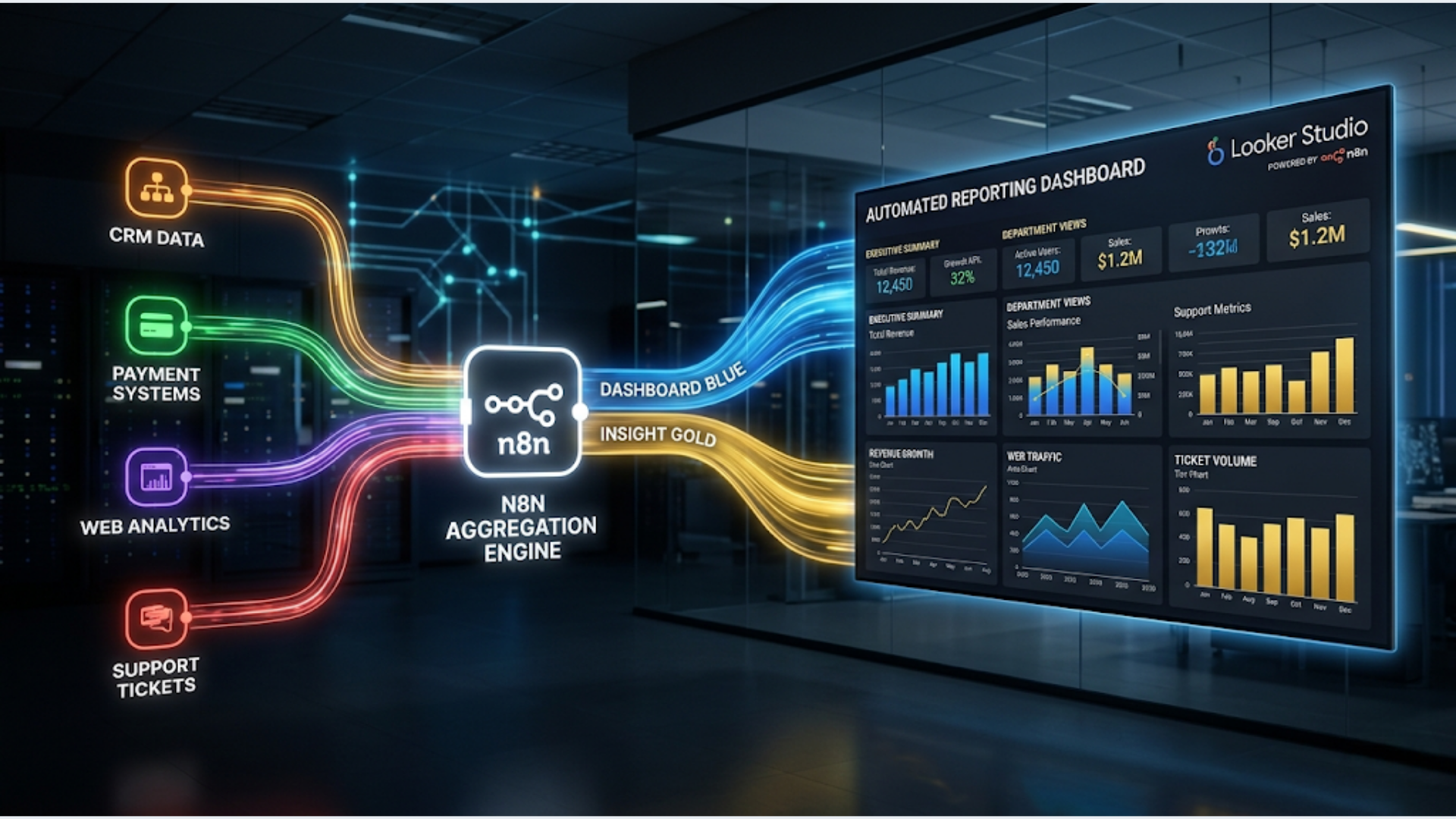
This guide covers building a multi-department reporting dashboard that aggregates data from your CRM, payment processor, analytics, and support tools. One workflow, one sheet, one dashboard.
Why Manual Reporting Is Broken
Manual reporting has three fatal problems.
Time cost. A mid-size business with 5-8 tools generating data spends 8-15 hours per week on reporting across all departments. That is a part-time employee doing nothing but copying numbers between systems. At Rs 30,000/month for that person’s time, automated reporting pays for itself in the first month.
Staleness. A report compiled on Monday morning reflects data through Friday evening. By Wednesday, those numbers are 5 days old. Decisions made on stale data are decisions made on guesswork. In fast-moving environments (e-commerce, SaaS with daily signups, support teams with shifting ticket volumes), a 5-day lag is unacceptable.
Errors. Manual data entry has a 1-3% error rate. In a report with 200 data points, that is 2-6 wrong numbers. Sometimes those errors compound. Wrong revenue number leads to wrong margin calculation leads to wrong profitability assessment leads to a bad business decision. Automated pipelines do not make typos.
The solution is a pull-and-push system. n8n pulls data from every source on a schedule, transforms it into a consistent format, and pushes it to Google Sheets. Looker Studio reads the Sheets and renders the dashboard. Every step is automated. Every data point is traceable.
The Architecture: Sources to Dashboard
Here is the stack:
Data sources (where the numbers live):
- CRM: HubSpot, Zoho, Salesforce, Pipedrive (deals, contacts, pipeline)
- Payments: Stripe, Razorpay, PayPal (revenue, refunds, subscriptions)
- Analytics: Google Analytics 4, Plausible (traffic, conversions, channels)
- Support: Freshdesk, Zendesk, Intercom (tickets, response time, CSAT)
- Marketing: Mailchimp, ConvertKit, LinkedIn Ads (campaigns, subscribers, engagement)
Orchestration (what moves the data):
- n8n: scheduled workflows that pull from each source API, transform data, push to Sheets
Storage (where the data lands):
- Google Sheets: one workbook with multiple tabs, one per data source or department
Visualization (what people look at):
- Looker Studio (free): connected to Google Sheets, auto-refreshes every 15 minutes
What you need:
- n8n instance (self-hosted or cloud)
- Google Workspace account (for Sheets and Looker Studio)
- API keys/credentials for each data source
- 2-4 hours for initial setup, depending on the number of sources
Step-by-Step: Building the Data Pipeline
Start with one data source. Get it working end-to-end. Then add sources one at a time.
Source 1: CRM data (HubSpot example)
Node 1: Schedule Trigger. Set to run daily at 6 AM (or whatever time ensures data is ready before your team starts work).
Node 2: HubSpot node (Get Deals). Pull all deals updated in the last 24 hours. Use the HubSpot “Search” endpoint with a filter for “lastmodifieddate > yesterday.” Request properties: dealname, amount, dealstage, closedate, pipeline, owner.
Node 3: Function node (Transform). Reshape the HubSpot data into your reporting format. Calculate derived metrics: deals per stage, total pipeline value, average deal size, win rate. n8n’s Function node runs JavaScript, so you can aggregate, filter, and compute whatever you need.
Node 4: Google Sheets node (Update). Write the transformed data to the “CRM” tab in your reporting workbook. Use “Append” mode for daily snapshots (each day adds a row) or “Update” mode for current-state dashboards (overwrites with the latest numbers).
Source 2: Payment data (Razorpay example)
Node 5: HTTP Request. Call Razorpay’s Payments API to fetch payments from the last 24 hours. Use Basic Auth with your Razorpay key and secret. The response includes: payment amount, status (captured/failed/refunded), method (card/UPI/netbanking/wallet), and timestamp.
Node 6: Function node. Aggregate by: total revenue, refund amount, net revenue, transaction count, average order value, payment method distribution. For Indian businesses, the UPI vs card vs netbanking split is valuable. UPI now accounts for 65-70% of online payments in India.
Node 7: Google Sheets node. Write to the “Payments” tab.
Source 3: Analytics (GA4 example)
Node 8: HTTP Request. Call the GA4 Data API. The query: sessions, users, pageviews, bounce rate, conversion events, source/medium. Date range: yesterday. GA4’s API requires a Google Cloud service account with the Analytics Reporting scope enabled.
Node 9: Function node. Parse GA4’s nested response format into flat rows. Calculate: sessions by channel, conversion rate by source, top landing pages, mobile vs desktop split.
Node 10: Google Sheets node. Write to the “Analytics” tab.
Source 4: Support (Freshdesk example)
Node 11: HTTP Request. Call Freshdesk’s Tickets API. Filter for tickets created or updated yesterday. Pull: ticket count, average response time, resolution time, CSAT scores, ticket categories.
Node 12: Function node. Aggregate into support KPIs: new tickets, resolved tickets, backlog size, average first response time, average resolution time, CSAT average.
Node 13: Google Sheets node. Write to the “Support” tab.
Connect all four source flows to the same Schedule Trigger node. They run in parallel. n8n executes all branches simultaneously, so your 4-source pipeline takes as long as the slowest API call (usually 10-30 seconds), not the sum of all calls.
Google Sheets Structure for Clean Reporting
How you structure the Sheets determines how useful the dashboard will be. Do this wrong and you will rebuild it within a month.
Workbook name: “Business Dashboard Data - Auto”
Tab structure:
Tab 1: Daily Snapshot. One row per day. Columns: Date, Revenue, Orders, AOV, New Deals, Pipeline Value, Win Rate, Sessions, Conversions, Tickets Opened, Tickets Resolved, CSAT. This is the summary tab that Looker Studio connects to for trend charts.
Tab 2: CRM Detail. Deal-level data. Columns: Deal Name, Amount, Stage, Owner, Close Date, Source. Updated daily. Used for pipeline analysis and sales team performance.
Tab 3: Payment Detail. Transaction-level data. Columns: Payment ID, Amount, Method, Status, Timestamp. Used for revenue reconciliation and payment method analysis.
Tab 4: Analytics Detail. Page-level or source-level data. Columns: Source, Medium, Sessions, Users, Conversions, Bounce Rate. Used for marketing channel performance.
Tab 5: Support Detail. Ticket-level data. Columns: Ticket ID, Category, Priority, Created, First Response Time, Resolution Time, CSAT. Used for support team performance.
Tab 6: Config. Non-data tab. Store: target values, thresholds, team member names, and any reference data the dashboard needs. For example, revenue targets by month so Looker Studio can show actual vs target.
Data retention: Keep 90 days of daily snapshots for trend analysis. Archive older data to a separate “Archive” workbook quarterly. Google Sheets performs well up to 50,000 rows. Beyond that, load times increase and Looker Studio connections slow down.
Naming convention: Every tab starts with a clear name. Every column header is descriptive. Date formats are consistent (YYYY-MM-DD). Currency values are raw numbers (no formatting in the data tab; Looker Studio handles formatting). This sounds basic but 80% of dashboard problems stem from inconsistent data formatting in the source sheet.
Looker Studio Dashboard: Layout and Design
Looker Studio (formerly Google Data Studio) is free and connects natively to Google Sheets. For automated dashboards, it is the best free option available.
Dashboard layout for a multi-department view:
Page 1: Executive Summary. The 60-second overview. Four scorecards at the top: Revenue (today), Pipeline Value, Active Support Tickets, Website Sessions. Below that, a line chart showing daily revenue for the last 30 days. Below that, a bar chart comparing this week vs last week for the top 5 KPIs.
Page 2: Sales. Pipeline funnel visualization. Deal count and value by stage. Win rate trend. Average deal size trend. Sales by rep (if applicable). Pipeline forecast: sum of deals in proposal and negotiation stages multiplied by historical conversion rates.
Page 3: Finance/Payments. Revenue trend (daily and monthly). Refund rate trend. Payment method breakdown (pie chart). Net revenue after refunds. For Indian businesses: UPI vs card vs netbanking trend. Average transaction value by method.
Page 4: Marketing/Analytics. Traffic by channel (organic, paid, social, direct, referral). Conversion rate by channel. Top 10 landing pages by sessions. Mobile vs desktop split. Campaign performance if you are running paid ads.
Page 5: Support. Ticket volume trend. First response time trend. Resolution time trend. CSAT trend. Ticket distribution by category. Open ticket backlog.
Design tips that actually matter:
- Use a date range control at the top of every page. Default to “Last 30 days” but let viewers change it.
- Set background colors to differentiate sections. Light grey for headers, white for chart areas.
- Use consistent colors: green for positive trends, red for negative, blue for neutral.
- Scorecards with comparison (vs previous period) provide instant context. “Revenue: Rs 12.4L (+8% vs last week)” is more useful than “Revenue: Rs 12.4L.”
- Keep each page to 4-6 charts maximum. More than that creates visual noise that nobody reads.
Looker Studio auto-refresh: By default, Looker Studio caches data for 12 hours. For a daily-updating dashboard, this is fine. If you need more frequent updates, adjust the data source cache settings to 15 minutes or 1 hour. More frequent refreshes increase load time slightly.
Multi-Department Scheduling Strategy
Different departments need data at different frequencies.
Daily (run at 6 AM):
- Revenue and payment data (finance needs this first thing)
- Support ticket metrics (support managers review morning backlog)
- Key CRM pipeline changes
Weekly (run Sunday night for Monday morning):
- Full analytics breakdown (marketing reviews weekly)
- Sales pipeline analysis (sales reviews weekly)
- Support CSAT and resolution trends
Monthly (run on the 1st):
- Full financial summary with month-over-month comparison
- Customer acquisition cost by channel
- Support SLA compliance rates
- Revenue by product line or service tier
In n8n, set up separate Schedule Trigger nodes for each frequency. Daily workflows push to the “Daily Snapshot” tab. Weekly workflows push to a “Weekly Summary” tab. Monthly to “Monthly Summary.”
A mistake I see often: running all reports daily when some data is only meaningful weekly or monthly. Daily CSAT scores fluctuate wildly with small sample sizes. A weekly average is more actionable. Daily pipeline value jumps around as deals move between stages. Weekly or monthly trend lines are what matter for forecasting.
Timezone handling for India: If your tools are set to UTC and your team works in IST (UTC+05:30), your “daily” report at 6 AM IST is pulling data through 12:30 AM UTC. Make sure your API date filters account for this offset. Otherwise, your “yesterday’s revenue” report is missing the last 5.5 hours of the day.
Error Handling and Reliability
An automated dashboard that breaks silently is worse than no dashboard. Your team makes decisions based on missing or outdated data without realizing it.
Error handling in n8n:
-
API failures. Wrap each API call in a try-catch pattern using n8n’s Error Trigger node. If an API call fails (timeout, rate limit, auth expired), send an alert to Slack or email. Do not write partial data to the sheet. Either the full update succeeds or nothing updates and you get notified.
-
Rate limits. Razorpay API: 20 requests per second. HubSpot: 100 requests per 10 seconds. GA4: 10 requests per second per property. For daily reporting, you are unlikely to hit these limits unless you are pulling large datasets. Add a 1-second delay between paginated API calls to be safe.
-
Schema changes. APIs evolve. HubSpot renamed properties, Razorpay added new fields, GA4 deprecated metrics. Your transform logic needs to handle unexpected data gracefully. Use defensive checks: if a field does not exist in the response, use a default value rather than crashing the workflow.
-
Google Sheets limits. The Google Sheets API has a quota of 300 requests per minute per project. If your dashboard writes to 6 tabs with 50 rows each, that is well within limits. If you are writing 10,000 rows daily, consider using the Sheets batch update API (one request, many rows) instead of individual row writes.
Monitoring the dashboard itself:
Add a “Last Updated” timestamp to the Config tab. Update it at the end of every n8n run. In Looker Studio, display this timestamp prominently on the dashboard. If anyone opens the dashboard and sees “Last Updated: 3 days ago,” they know something broke.
Better yet: add an n8n workflow that checks the “Last Updated” timestamp every morning at 8 AM. If it is more than 24 hours old, send an alert. This catches silent failures that nobody notices until someone asks “why are the numbers from last week?”
Scaling Beyond Google Sheets
Google Sheets works for most small and mid-size businesses. Here is when to graduate to something more robust.
Signs you have outgrown Sheets:
- Dashboard load time exceeds 10 seconds
- You are writing more than 50,000 rows per month
- Multiple concurrent writers cause conflicts
- You need historical data beyond 90 days for trend analysis
- You need joins between data sources (Sheets cannot do SQL-style joins)
Next step: PostgreSQL + Metabase or Grafana.
Replace Google Sheets with a PostgreSQL database. n8n writes to Postgres instead of Sheets. Connect Metabase (free, self-hosted) or Grafana (free, self-hosted) for visualization.
The n8n workflow changes are minimal. Replace Google Sheets nodes with Postgres nodes. The rest of the pipeline stays identical.
PostgreSQL handles millions of rows without performance degradation. Metabase supports SQL queries, which means you can build complex reports (joins, subqueries, window functions) that are impossible in Sheets. The tradeoff: more infrastructure to manage. A $10/month VPS runs PostgreSQL + Metabase comfortably.
For Indian startups: Start with Google Sheets + Looker Studio. It costs nothing and takes 2-4 hours to set up. Move to PostgreSQL + Metabase when your data volume or complexity demands it. That transition typically happens around 50-100 customers or Rs 5-10 lakh monthly revenue, when the business is complex enough to need proper analytics.
FAQ
How long does the initial dashboard setup take? For a 4-source dashboard (CRM, payments, analytics, support): 6-10 hours total. That breaks down to: 1-2 hours per data source for the n8n pipeline, 1-2 hours for Google Sheets structure, and 2-3 hours for the Looker Studio dashboard design. After the initial setup, adding a new data source takes 1-2 hours.
What if one of my tools does not have an API? Most modern business tools have APIs. If a tool only offers CSV exports, set up a scheduled export to Google Drive or email, then use n8n to pick up the CSV file and process it. If the tool has no export at all, screen scraping (using Puppeteer via n8n) is a last resort. Prioritize tools with APIs when choosing your tech stack.
Can I send the dashboard as a PDF report via email? Yes. Looker Studio supports scheduled email delivery of dashboard PDFs. Set it to send every Monday at 8 AM to your leadership team. Alternatively, use n8n to take a screenshot of the Looker Studio dashboard URL (using a headless browser) and email it. The native Looker Studio email is simpler.
How do I handle data from tools with different fiscal calendars? Normalize everything to calendar dates in your n8n transform step. If Razorpay reports in UTC and Zoho CRM reports in IST, convert both to IST before writing to Sheets. If you need fiscal year views (April-March for India), add a fiscal_quarter and fiscal_year column calculated from the calendar date.
What happens if my n8n instance goes down? If you self-host n8n and the server goes down, no data gets pulled. Your dashboard shows stale data. Solutions: use n8n Cloud (managed hosting, 99.9% uptime SLA) for production dashboards. If self-hosting, set up a health check that pings your n8n instance every 5 minutes and alerts you if it is unreachable. UptimeRobot (free) handles this.
Can multiple people edit the Looker Studio dashboard? Yes. Looker Studio supports collaborative editing. Share the dashboard with edit access to your team. However, designate one person as the “dashboard owner” to prevent conflicting changes. For viewers, share with view-only access. Embed the dashboard in your internal wiki or Slack channel for easy team access.
Is Looker Studio really free? What are the limitations? Free. No contact limits, no data row limits, no dashboard limits. The main limitations: no alerting (you cannot set up “alert me when revenue drops 20%”), limited data blending (joining multiple sources is basic), and no write-back (you cannot update source data from the dashboard). For alerting, use n8n. For advanced data blending, use BigQuery as an intermediate layer (free tier: 1 TB of queries per month).
Automated reporting is not a luxury. It is the baseline for making informed decisions. Every hour your team spends manually compiling reports is an hour not spent acting on the data.
If you need help building an automated reporting dashboard for your business, triggerAll handles the full stack: data pipelines, sheet structure, and dashboard design.
Need help implementing this?
Book a free 30-minute discovery call. We'll map your current setup, identify quick wins, and outline what automation can do for your business.
Book a Free Discovery Call