How to Automate Slack Notifications from Any Business Tool
Automate Slack notifications from CRM, payments, support, and deployments using n8n. 10 ready-made recipes with rich formatting, channel routing, and threading.
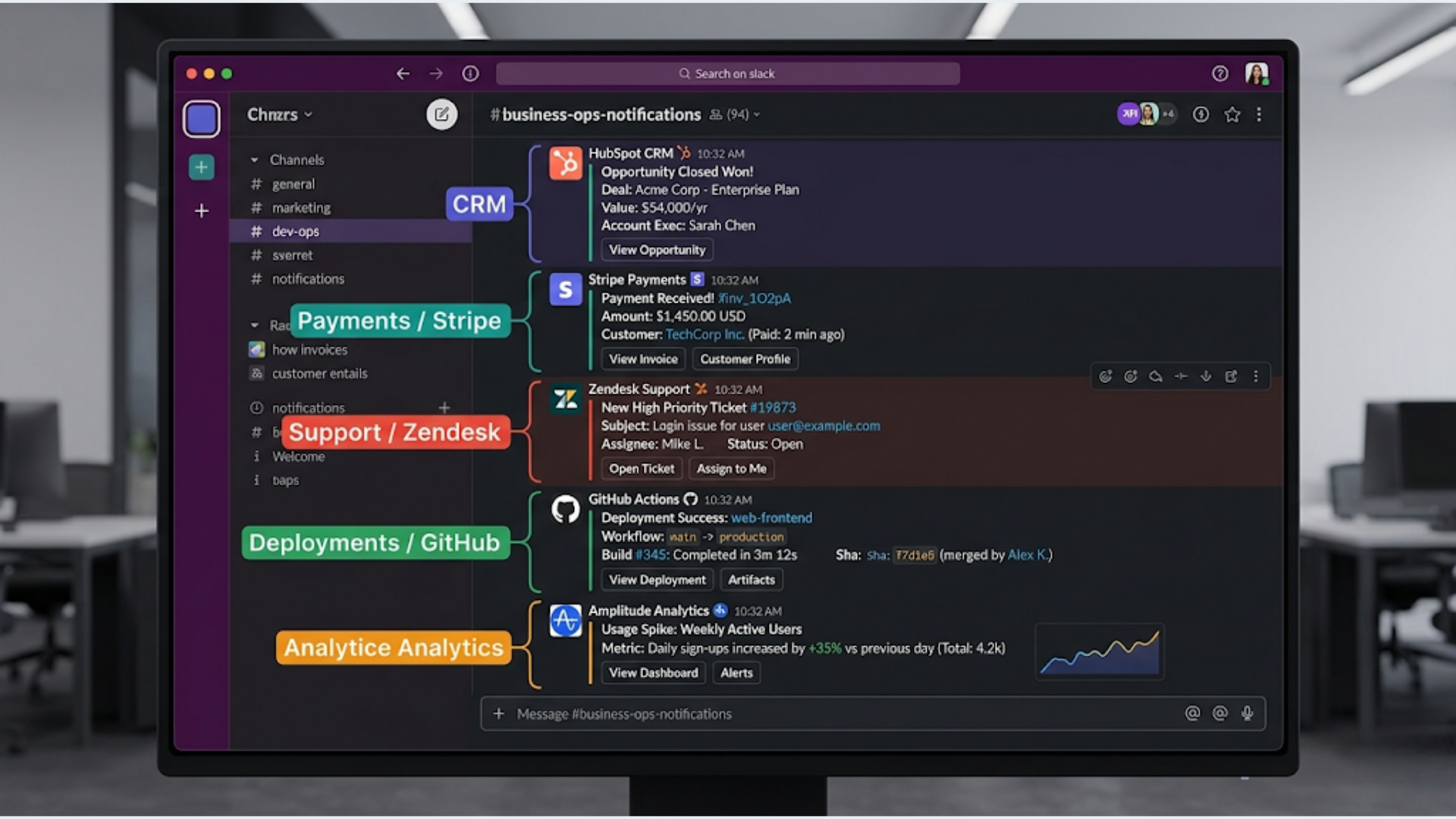
How to Automate Slack Notifications from Any Business Tool
Your team already lives in Slack. Your business data lives in 15 different tools. The gap between them is where things get missed.
A new customer signs up. Nobody knows until someone checks the CRM. A payment fails. The finance team finds out 3 days later during reconciliation. A deployment breaks. The dev who pushed it already went to lunch.
n8n sits in the middle and pushes the right information to the right Slack channel at the right time. No more logging into 8 dashboards to know what’s happening in your business.
I build these notification systems for teams ranging from 3 to 200 people. The setup is straightforward. The impact on response time and team awareness is immediate. Here’s how to build it, with 10 ready-to-use recipes.
The Architecture: n8n as Your Notification Hub
The concept is simple. Every business tool either has webhooks, an API, or both. n8n connects to all of them and routes formatted messages to Slack channels.
Why n8n over Zapier for Slack notifications?
Zapier works fine for simple one-to-one connections. But Slack notification systems get complex fast. You want rich formatting, conditional routing, threading, rate limiting, and error handling. Zapier charges per task and limits branching logic on lower plans. n8n lets you build complex routing logic with unlimited executions on a single workflow.
Basic architecture:
[Business Tool] --> [Webhook/API Trigger] --> [n8n Workflow]
                                                   |
                                          [Format Message]
                                                   |
                                          [Route to Channel]
                                                   |
                                           [Slack API Call]
Slack setup:
- Create a Slack App at api.slack.com/apps
- Add the
chat:write,chat:write.public, andfiles:writeOAuth scopes - Install the app to your workspace
- Copy the Bot User OAuth Token
- Add the n8n Slack credential with this token
Channel structure recommendation:
| Channel | Purpose | Sources |
|---|---|---|
| #sales-alerts | New deals, won/lost, pipeline changes | CRM |
| #payments | Successful payments, failures, refunds | Stripe, Razorpay |
| #support-tickets | New tickets, escalations, CSAT scores | Freshdesk, Zendesk |
| #deployments | Deploy status, errors, rollbacks | GitHub, Vercel, AWS |
| #marketing | New signups, campaign metrics | Mailchimp, ConvertKit |
| #ops-critical | Anything requiring immediate action | All systems |
Don’t dump everything into one channel. Channel fatigue is real. If a channel has more than 30 messages per day, people stop reading it.
Rich Message Formatting with Block Kit
Plain text Slack messages are easy to ignore. Block Kit messages with sections, fields, buttons, and color coding get attention and convey information at a glance.
Basic Block Kit structure for notifications:
{
  "channel": "#sales-alerts",
  "blocks": [
    {
      "type": "header",
      "text": {
        "type": "plain_text",
        "text": "New Deal Won"
      }
    },
    {
      "type": "section",
      "fields": [
        {
          "type": "mrkdwn",
          "text": "*Company:*\nAcme Corp"
        },
        {
          "type": "mrkdwn",
          "text": "*Deal Size:*\n$12,500"
        },
        {
          "type": "mrkdwn",
          "text": "*Sales Rep:*\nRahul S."
        },
        {
          "type": "mrkdwn",
          "text": "*Close Date:*\nApr 26, 2026"
        }
      ]
    },
    {
      "type": "actions",
      "elements": [
        {
          "type": "button",
          "text": {
            "type": "plain_text",
            "text": "View in CRM"
          },
          "url": "https://crm.example.com/deals/12345"
        }
      ]
    }
  ],
  "attachments": [
    {
      "color": "#36a64f"
    }
  ]
}
Color coding convention:
- Green (#36a64f): Success (deal won, payment received, deployment succeeded)
- Yellow (#f2c744): Warning (low stock, approaching deadline, payment retry)
- Red (#e01e5a): Urgent (payment failed, system error, SLA breach)
- Blue (#2196f3): Informational (new signup, status update, report generated)
Use this consistently across all your notifications. Your team will learn to scan by color before reading content.
Channel Routing and Threading
Not every notification belongs in every channel. And not every notification deserves its own message.
Conditional routing in n8n:
Use a Switch node to route notifications based on urgency, type, or source:
// In a Switch node
const severity = $input.first().json.severity;

if (severity === 'critical') {
  // Route to #ops-critical AND the specific channel
  return { critical: true };
} else if (severity === 'warning') {
  // Route to specific channel only
  return { warning: true };
} else {
  // Route to specific channel, no urgency
  return { info: true };
}
Threading for related notifications:
When multiple notifications are about the same entity (same deal, same support ticket, same deployment), thread them instead of flooding the channel.
The approach: when sending the first notification about an entity, capture the Slack message ts (timestamp) from the API response. Store it in a Google Sheet or n8n’s built-in static data, keyed by entity ID. When a follow-up notification arrives for the same entity, send it as a thread reply using the stored ts.
Example: A support ticket gets created (new message in #support-tickets). The ticket gets assigned (thread reply). The ticket gets escalated (thread reply with red color). The ticket gets resolved (thread reply with green color). One thread per ticket, not 4 separate messages.
This keeps channels clean and preserves context. Your team can expand a thread to see the full lifecycle of any event.
Rate limiting. Some tools fire rapid-fire webhooks (e.g., a bulk import triggering hundreds of CRM updates). Without rate limiting, your Slack channel gets destroyed. Add a Function node that batches rapid events and sends a summary: “47 contacts updated in CRM” instead of 47 individual messages.
10 Ready-Made Notification Recipes
Here are 10 workflows you can build in n8n today. Each one follows the same pattern: trigger, enrich, format, route.
Recipe 1: New Deal in CRM
Trigger: HubSpot/Pipedrive/Salesforce webhook on deal creation Channel: #sales-alerts Message: Deal name, company, value, assigned rep, expected close date Color: Blue (informational)
Recipe 2: Deal Won
Trigger: CRM webhook on deal stage change to “Closed Won” Channel: #sales-alerts + #general (for team celebration) Message: Company name, deal value, sales rep, sales cycle length Color: Green (success) Extra: Include a confetti emoji or a celebratory GIF via Giphy API. Sounds silly. Keeps morale visible.
Recipe 3: Payment Received
Trigger: Stripe/Razorpay webhook on payment_intent.succeeded
Channel: #payments
Message: Customer name, amount (with currency), payment method, invoice link
Color: Green
India-specific: For Razorpay, include the payment method detail (UPI, card, netbanking). UPI payments in India account for 70%+ of transactions. Knowing the payment method helps identify patterns.
Recipe 4: Payment Failed
Trigger: Stripe/Razorpay webhook on payment_intent.payment_failed
Channel: #payments + #ops-critical
Message: Customer name, amount, failure reason, number of retry attempts
Color: Red
Action button: “View Customer” linking to Stripe/Razorpay dashboard
Recipe 5: New Support Ticket
Trigger: Freshdesk/Zendesk webhook on ticket creation
Channel: #support-tickets
Message: Ticket subject, customer name, priority, assigned agent
Color: Yellow for high priority, blue for normal
Threading: Start a new thread. Store ticket ID and message ts for follow-up updates.
Recipe 6: Support Ticket Escalation
Trigger: Freshdesk/Zendesk webhook on priority change to “Urgent” Channel: #support-tickets (thread reply) + #ops-critical Message: Ticket subject, customer, original priority, new priority, time since creation Color: Red
Recipe 7: Deployment Status
Trigger: GitHub Actions webhook on workflow completion, or Vercel/Netlify deploy webhook Channel: #deployments Message: Repo name, branch, commit message, deploy status (success/failure), deploy URL Color: Green for success, red for failure On failure: Tag the committer using GitHub username to Slack ID mapping
Recipe 8: New Email Subscriber
Trigger: ConvertKit/Mailchimp webhook on new subscriber Channel: #marketing Message: Subscriber email, source (which form/page), subscriber count milestone Batching: Don’t send individual notifications. Batch into hourly summaries: “12 new subscribers in the last hour. Total: 4,847.”
Recipe 9: Form Submission (Lead)
Trigger: Typeform/JotForm/HubSpot Forms webhook Channel: #sales-alerts Message: Lead name, company, inquiry type, form source Color: Blue Extra: If the lead’s email domain matches a company in your CRM, flag it: “Existing customer alert: Acme Corp already in CRM.”
Recipe 10: Daily Business Summary
Trigger: Scheduled (Cron) at 9 AM daily Channel: #general or #leadership Message: Pull data from multiple sources and compile:
- New leads today (from CRM)
- Revenue collected (from Stripe/Razorpay)
- Support tickets open/closed (from Freshdesk)
- Website traffic (from Google Analytics API)
- Newsletter subscribers (from ConvertKit)
Format as a single Block Kit message with sections. One message, complete business awareness.
Error Handling and Reliability
Slack notifications are only useful if they’re reliable. A notification system that silently fails is worse than no system at all.
Webhook verification. Most tools send a signature header with webhooks (Stripe’s Stripe-Signature, GitHub’s X-Hub-Signature-256). Verify these signatures in n8n to prevent spoofed notifications.
Retry logic. Slack’s API occasionally returns 429 (rate limited) or 5xx errors. Configure n8n’s error handling to retry failed Slack messages up to 3 times with exponential backoff. n8n’s built-in retry settings handle this.
Dead letter channel. Create a #notification-errors channel. When any notification workflow fails after retries, send the error details to this channel. This meta-notification ensures you know when notifications themselves are broken.
Health check. Set up a daily scheduled workflow that sends a simple “System healthy” message to #notification-errors at 8 AM. If you don’t see this message, something is wrong with your n8n instance.
Deduplication. Webhooks sometimes fire twice for the same event (network retries, tool bugs). Add a deduplication check: store the last 100 event IDs in n8n’s static data. If an event ID already exists, skip processing. This prevents duplicate Slack messages that confuse your team.
Advanced: Interactive Notifications
Slack notifications don’t have to be one-way. Interactive messages let your team take action directly from Slack.
Approval workflows. A new expense report is submitted. Slack notification includes “Approve” and “Reject” buttons. The manager clicks “Approve” in Slack. n8n receives the interaction webhook and updates the expense system. No need to open the expense tool.
Quick responses. A new support ticket arrives in Slack. The message includes a “Claim” button. The first agent to click it gets assigned. n8n updates Freshdesk and posts a thread reply: “Claimed by @rahul.”
Setup: Configure your Slack app’s Interactivity & Shortcuts settings with an n8n webhook URL as the Request URL. When a user clicks a button, Slack sends the interaction payload to n8n. Parse the payload, identify the action, execute the backend logic, and respond.
This turns Slack from a notification viewer into a lightweight operations dashboard. Your team handles routine actions without context-switching between 5 different tool dashboards.
For Indian teams using Google Chat instead of Slack (common in organizations using Google Workspace), the same architecture applies. n8n has a Google Chat node that supports card formatting, threading, and spaces. The message formatting differs but the routing logic is identical.
If you want a custom notification hub connecting all your business tools to Slack, that’s what I build at triggerAll.
Frequently Asked Questions
How many Slack notifications per day is too many? More than 30 per channel per day and people stop reading. Use batching for high-frequency events (new subscribers, minor CRM updates). Reserve individual notifications for actionable items (new deals, payment failures, escalations). The daily summary recipe handles everything else.
Can I use this with Microsoft Teams instead of Slack? Yes. n8n has a Microsoft Teams node. The architecture and routing logic are identical. The message formatting uses Adaptive Cards instead of Block Kit, but the concept is the same. Teams’ webhook connector also works for simpler setups.
What’s the cost of running this on n8n Cloud? n8n Cloud Pro ($50/month) handles most setups comfortably. A notification hub processing 2,000-5,000 events per day uses roughly 150,000-375,000 executions per month. n8n Cloud’s execution limits vary by plan, so verify your plan includes enough executions.
How do I map tool usernames to Slack user IDs?
Maintain a Google Sheet with columns: Name, Email, Slack User ID, GitHub Username, CRM User ID. When a notification references a person, look up their Slack ID and use <@SLACK_USER_ID> to mention them directly. This is the only reliable way to tag people across tools.
Can notifications include images or files? Yes. Slack’s API supports image blocks and file uploads. Use this for deployment screenshots (using Playwright to capture), chart images (generated from Google Sheets data), or product photos in inventory alerts. Images in notifications increase engagement significantly compared to text-only messages.
What happens if n8n goes down? Most webhook providers retry failed deliveries for 24-72 hours. When n8n comes back online, it processes the queued webhooks. For zero-downtime reliability, self-host n8n with a process manager (PM2) and health monitoring. n8n Cloud handles uptime management for you.
How do I prevent sensitive data from appearing in Slack? Add a sanitization step in your n8n workflow. Mask credit card numbers (show last 4 digits only), redact full email addresses for GDPR compliance (show domain only), and never include passwords or API keys in notifications. Configure your Slack workspace’s data retention policy to auto-delete messages older than 90 days in channels that contain business data.
Need help implementing this?
Book a free 30-minute discovery call. We'll map your current setup, identify quick wins, and outline what automation can do for your business.
Book a Free Discovery Call