How to Automate Shopify Inventory Alerts with n8n
Build automated Shopify inventory alerts with n8n. Low stock webhooks, Slack/WhatsApp/email notifications, auto-reorder triggers, and daily inventory reports.
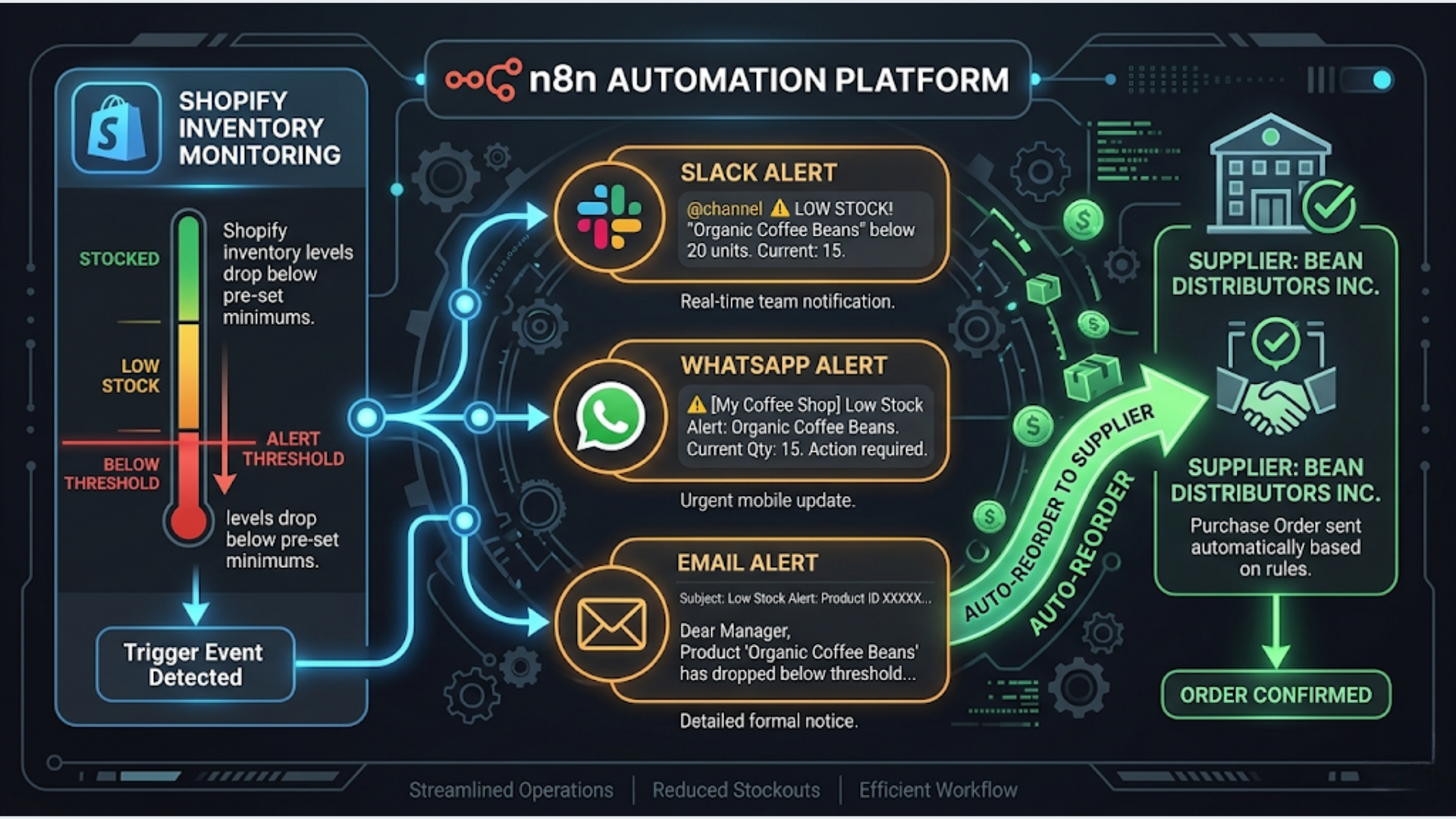
How to Automate Shopify Inventory Alerts with n8n
A Shopify store with 500+ SKUs and no automated inventory alerts is a stockout waiting to happen. By the time you manually check inventory levels and realize a bestseller is at zero, you’ve already lost 2-3 days of sales.
n8n connects directly to Shopify’s API and can monitor inventory levels, fire alerts to Slack, WhatsApp, or email, trigger reorder workflows, and generate daily inventory reports. All without paying for a dedicated inventory management app.
I build these systems for e-commerce clients. The typical setup takes 2-4 hours and replaces $50-150/month in Shopify app subscriptions. Here’s how to build it from scratch.
Prerequisites and Setup
You need three things before starting:
- A Shopify store with Admin API access (any plan works)
- n8n (self-hosted or n8n Cloud)
- A notification channel (Slack workspace, WhatsApp Business via WATI/Twilio, or email via SMTP/SendGrid)
Create a Shopify Custom App
Go to Settings > Apps and Sales Channels > Develop Apps in your Shopify admin. Create a custom app with these scopes:
read_inventory(required)read_products(required)read_locations(required for multi-location)write_inventory(only if you want auto-reorder adjustments)
Save the Admin API access token. You’ll need this in n8n.
Set Up n8n Credentials
In n8n, add a new Shopify API credential. Enter your store URL (yourstore.myshopify.com) and the Admin API access token. Test the connection to confirm it works.
The entire system uses 4-5 n8n workflows that work together. I’ll walk through each one.
Workflow 1: Low Stock Webhook Alert
This is the real-time alert. When inventory changes and drops below your threshold, you get notified immediately.
Trigger: Use n8n’s Webhook node as the receiver. In Shopify, go to Settings > Notifications > Webhooks and create a webhook for the inventory_levels/update topic. Point it to your n8n webhook URL.
Threshold check logic: After the webhook fires, use a Function node to compare the incoming inventory level against your threshold:
const item = $input.first().json;
const threshold = 10; // Set your minimum stock level

if (item.available <= threshold && item.available > 0) {
  return [{ json: { ...item, alert_type: 'low_stock' } }];
}
if (item.available <= 0) {
  return [{ json: { ...item, alert_type: 'out_of_stock' } }];
}
return []; // Above threshold, no alert needed
Enrich the data. The webhook payload only includes inventory_item_id and available quantity. Use a Shopify node to fetch the product name, variant title, and SKU so your alert message is actually useful. Nobody wants to read “Item 847291038 is at 3 units.”
Route the alert. Use a Switch node to route low_stock alerts to one channel and out_of_stock alerts to another (more urgent) channel. Low stock goes to a #inventory Slack channel. Out of stock goes to Slack plus a WhatsApp message to the operations manager.
Slack message format. Use Block Kit for clean formatting:
:warning: Low Stock Alert
Product: Blue Widget (Large)
SKU: BW-LG-001
Current Stock: 3 units
Location: Main Warehouse
Threshold: 10 units
This workflow fires within seconds of a Shopify inventory change. No polling, no delays.
Workflow 2: Daily Inventory Report
Real-time alerts catch emergencies. The daily report gives you the full picture.
Trigger: Use a Cron/Schedule node set to run daily at 7 AM (before your business day starts).
Pull all inventory. Use the Shopify node with the “Get All Products” operation. Fetch all products with their variants and inventory levels. For stores with 1,000+ products, use pagination (n8n’s Shopify node handles this automatically with the “Return All” option, but be aware of Shopify’s API rate limits of 40 requests per second for the REST API).
Process and categorize. Use a Function node to sort products into buckets:
- Out of stock (0 units)
- Critical (below 25% of reorder point)
- Low (below reorder point)
- Healthy (above reorder point)
Per-product thresholds. Don’t use a single threshold for everything. A product that sells 50 units/day needs a different alert level than one that sells 2 units/month. Store your thresholds in a Google Sheet with columns: SKU, Product Name, Reorder Point, Reorder Quantity, Supplier. The n8n workflow reads this sheet and matches thresholds per product.
Generate the report. Format the results as an HTML table and send via email, or post a summary to Slack. Include:
- Total SKUs monitored
- SKUs out of stock (with product names)
- SKUs below reorder point
- SKUs approaching reorder point (within 20%)
- Top 5 fastest-declining products (comparing today vs yesterday)
Store daily snapshots. Append a row to a Google Sheet with the date, total out-of-stock count, and total low-stock count. After 30 days, you’ll have a trend chart showing whether your inventory management is improving or getting worse.
Workflow 3: Auto-Reorder Trigger
This workflow doesn’t purchase automatically. That’s usually too risky. It generates reorder requests that a human approves.
Trigger: Connect this to Workflow 1 (when a low_stock alert fires) or Workflow 2 (when the daily report identifies items below reorder point).
Look up reorder details. Query your Google Sheet for the SKU’s reorder quantity and supplier contact. This sheet is your source of truth for reorder rules.
Create a purchase order draft. Use a Google Sheets node to add a row to a “Pending Reorders” sheet with: Date, SKU, Product Name, Current Stock, Reorder Quantity, Supplier, Estimated Cost, Status (Pending).
Notify for approval. Send a Slack message with an approval button (using Slack’s interactive message blocks). The message includes the product details and reorder quantity. The operations manager clicks “Approve” or “Modify” directly in Slack.
On approval, send the order. When approved, trigger a follow-up workflow that emails the supplier with the PO details (or, if your supplier has an API like Faire or a custom portal, submit the order automatically).
For Indian D2C brands using suppliers without digital ordering systems, the approval workflow sends a WhatsApp message via WATI to the supplier contact with the reorder details. Most Indian suppliers respond faster to WhatsApp than email.
Deduplication. Add a check to prevent duplicate reorder requests. Before creating a new request, query the Pending Reorders sheet for the same SKU with status “Pending.” If one exists, skip the duplicate and optionally update the existing request with the new stock level.
Workflow 4: Multi-Location Stock Sync
If you operate multiple Shopify locations (warehouse, retail stores, fulfillment centers), inventory gets complicated fast.
The problem. Shopify tracks inventory per location. Your main warehouse might have 50 units, but Location B has 0. The product shows as “in stock” on your storefront because total inventory is 50. But if Location B handles local deliveries and can’t fulfill orders, customers in that area get delayed shipments.
The solution. Build a workflow that monitors per-location inventory and alerts when any single location drops below its minimum, regardless of total stock.
Setup: Create a Google Sheet with location-specific thresholds:
| SKU | Location | Min Stock | Transfer Source |
|---|---|---|---|
| BW-LG-001 | Main Warehouse | 20 | N/A |
| BW-LG-001 | Mumbai Store | 5 | Main Warehouse |
| BW-LG-001 | Delhi Store | 5 | Main Warehouse |
Workflow logic: The daily report workflow (Workflow 2) pulls inventory levels per location using Shopify’s inventory_levels endpoint. Compare each location’s stock against its specific threshold. When a location drops below minimum, generate a transfer request from the designated transfer source.
Transfer automation. For Shopify Plus stores, you can use the GraphQL Admin API to create inventory transfers automatically. For standard Shopify plans, the workflow creates a transfer request in a Google Sheet and notifies the warehouse team.
This is particularly relevant for Indian e-commerce operations running multiple warehouses or using a combination of self-fulfillment and 3PL providers. Each fulfillment node needs its own stock minimums.
Workflow 5: Slack/WhatsApp/Email Alert Configuration
Not every alert deserves the same urgency. Configure your notification routing so the right people get the right alerts at the right time.
Channel routing rules:
| Alert Type | Slack | ||
|---|---|---|---|
| Out of stock | #inventory-urgent | Ops manager | Ops manager + Founder |
| Low stock | #inventory | None | None |
| Daily report | #inventory | None | Leadership team |
| Reorder pending | #procurement | Ops manager | None |
| Reorder approved | None | Supplier | Supplier + Ops manager |
WhatsApp setup (India-specific). Use WATI or Twilio WhatsApp Business API. WATI is more popular with Indian businesses because it supports template messages approved by Meta, has a lower per-message cost for Indian numbers, and provides a shared inbox for team responses. n8n connects to WATI via its HTTP API.
Slack rich messages. Use Slack’s Block Kit to format inventory alerts with product images, stock levels, and action buttons. Include a “Snooze” button that suppresses alerts for that SKU for 24 hours (useful during planned stockouts or seasonal items).
Email digests. Instead of individual emails per alert, batch low-stock alerts into a single digest sent once at the end of the day. Only out-of-stock alerts get immediate individual emails. This prevents inbox fatigue while keeping urgent issues visible.
Rate limiting. Add a deduplication check to prevent the same alert from firing repeatedly. Use n8n’s built-in “Remove Duplicates” node or a simple Google Sheet lookup that tracks the last alert time per SKU. Only re-alert if stock has changed since the last notification.
What This Replaces (and What It Costs)
Popular Shopify inventory alert apps charge $29-99/month. Stocky, Back in Stock, and similar apps provide some of this functionality, but they’re limited to Shopify-native features and don’t integrate with your broader operational stack.
This n8n system costs:
- n8n Cloud Starter: $24/month (or free if self-hosted)
- WATI (for WhatsApp): Rs 2,499/month for Indian businesses
- Google Sheets: Free
- Slack: Free tier is sufficient
- Total: $24-60/month depending on your notification channels
The bigger value isn’t cost savings. It’s operational speed. Knowing about a stockout 10 minutes after it happens versus finding out at the end of the week is the difference between a 1-day and a 7-day gap in sales.
If you need help building custom inventory automation for your Shopify store, or connecting it to your warehouse management and supplier systems, that’s what I do at triggerAll.
Frequently Asked Questions
Does this work with Shopify’s free plan? No. You need at least the Basic Shopify plan to access the Admin API. The Starter plan doesn’t provide API access for custom apps.
How many products can this handle? n8n can process thousands of products per run. The limiting factor is Shopify’s API rate limit (40 requests/second for REST, 50 points/second for GraphQL). For stores with 5,000+ SKUs, use GraphQL bulk operations to pull inventory data without hitting rate limits.
Can I set different thresholds per product? Yes. Store your per-product thresholds in a Google Sheet. The workflow reads the sheet and applies product-specific reorder points instead of a blanket threshold.
Will this work with Shopify POS inventory? Yes. Shopify POS uses the same inventory system. POS inventory changes fire the same webhooks, so your alerts will capture both online orders and in-store sales that reduce stock.
Can I add auto-reorder through my supplier’s API? If your supplier has an API (Faire, Oberlo, or a custom portal), n8n can submit purchase orders automatically after approval. For suppliers without APIs, the workflow sends a formatted email or WhatsApp message with the order details.
How do I handle seasonal products that are intentionally out of stock? Add a “Seasonal” flag column to your Google Sheet. The workflow checks this flag and skips alerts for products marked as seasonal/discontinued. Update the flag when the season starts or ends.
Does this handle bundle or kit inventory? Not natively. Shopify doesn’t track bundle inventory at the component level. You’d need an additional workflow that calculates available bundles based on the lowest-stock component. This adds complexity but is doable with a Function node that reads component mappings from a Google Sheet.
Need help implementing this?
Book a free 30-minute discovery call. We'll map your current setup, identify quick wins, and outline what automation can do for your business.
Book a Free Discovery Call