How to Automate Invoice Follow-Ups with n8n (Stop Chasing Payments)
Build an automated invoice follow-up system with n8n. Escalating reminders at 3, 7, 14, and 30 days via email and WhatsApp. Includes Slack alerts for overdue invoices and India-specific GST/UPI considerations.
How to Automate Invoice Follow-Ups with n8n (Stop Chasing Payments)
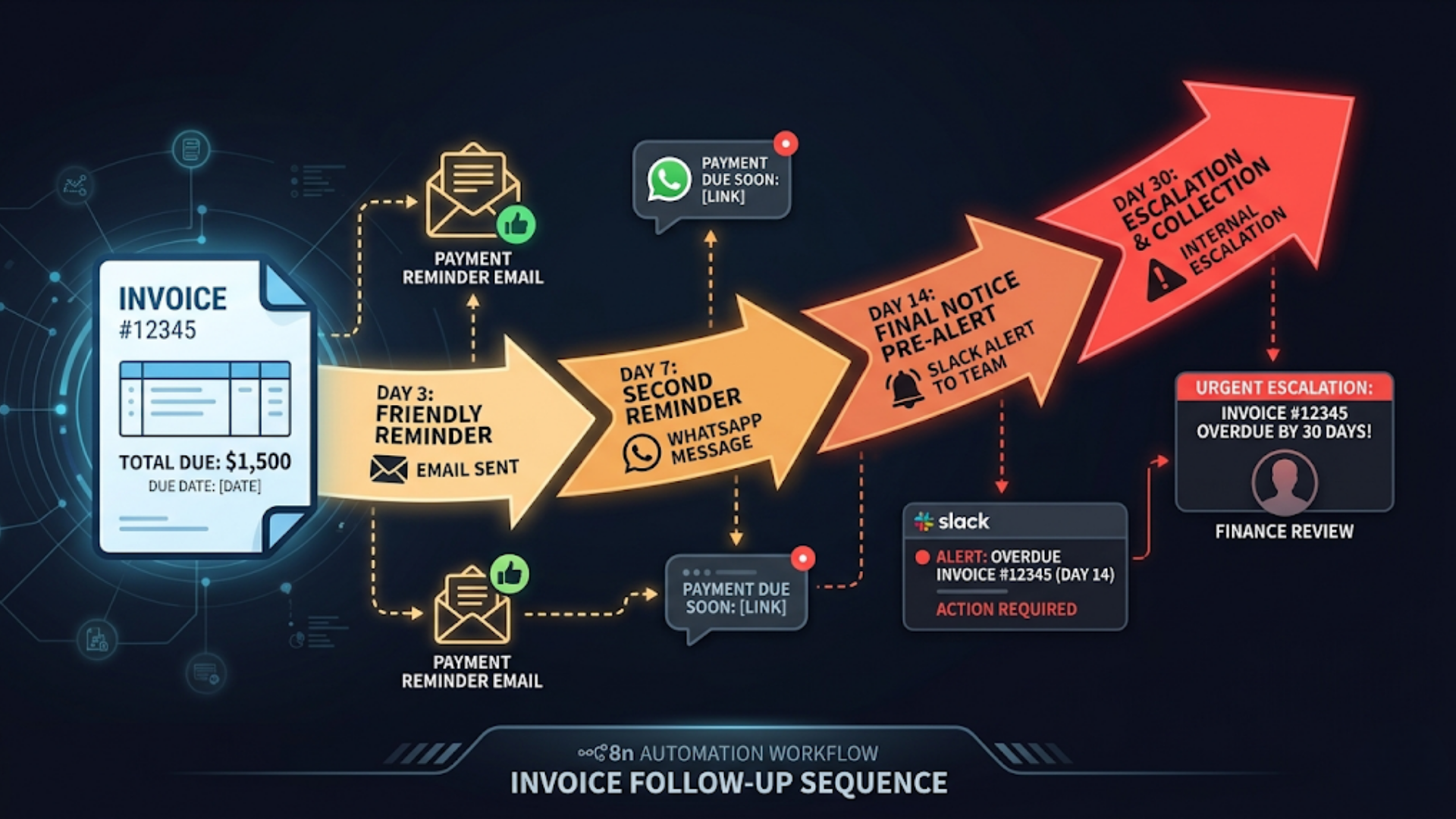
An automated invoice follow-up system sends escalating reminders at 3, 7, 14, and 30 days past due, cutting average collection time from 45 days to 18-25 days. The system checks payment status, sends the right reminder at the right time, and alerts you when manual intervention is needed.
I build these systems. Chasing payments is the most soul-crushing part of running a services business. You did the work. You sent the invoice. Now you’re writing awkward “just following up” emails while pretending you’re not annoyed. Automate it. Remove yourself from the equation. Let the system be persistent so you don’t have to be.
Here’s the full build using n8n.
Why Manual Follow-Ups Don’t Scale
If you send 5 invoices a month, manual follow-ups are manageable. Annoying, but manageable. You remember who owes what, and you send a polite nudge when the due date passes.
At 15-20 invoices a month, it falls apart. You forget to follow up on Invoice #47 because you were busy delivering on Invoice #52. By the time you remember, it’s 30 days late and the client has conveniently “forgotten” too.
The numbers on payment behavior are consistent across industries:
| Reminder Timing | Payment Rate |
|---|---|
| On due date (gentle reminder) | 35-40% pay within 48 hrs |
| 3 days past due | 25-30% pay after first follow-up |
| 7 days past due | 15-20% pay after second |
| 14 days past due | 10-15% pay after third |
| 30+ days past due | Requires phone call or escalation |
The insight: most late payments aren’t malicious. They’re forgotten. Invoices get buried in inboxes. The person who approves payments was on leave. The purchase order wasn’t matched. A simple reminder solves 70-80% of late payment situations. The remaining 20-30% need escalation.
Automated follow-ups are not aggressive. They’re professional and consistent. Every invoice gets the same treatment. No invoice falls through the cracks because you were busy.
The Architecture: Escalating Reminder Pipeline
The system runs on a schedule (daily) and checks all outstanding invoices against their due dates. Based on how many days past due, it triggers the appropriate action.
Components:
- Invoice data source: Your invoicing tool (Stripe, Razorpay, Zoho Invoice, FreshBooks, QuickBooks, or a Google Sheet)
- n8n scheduled workflow: Runs daily, checks payment status
- Reminder templates: Email and/or WhatsApp messages for each escalation tier
- Notification channel: Slack alerts when invoices hit the 14-day and 30-day marks
- Logging: Google Sheet tracking every reminder sent and every payment received
The escalation ladder:
| Days Past Due | Channel | Tone | Action |
|---|---|---|---|
| 0 (due date) | Friendly reminder | ”Your invoice is due today” | |
| 3 | Gentle nudge | ”Quick reminder on Invoice #X” | |
| 7 | Email + WhatsApp | Slightly firmer | ”Following up on your outstanding invoice” |
| 14 | Email + WhatsApp + Slack alert to you | Direct | ”This invoice is now 14 days overdue” |
| 30 | Email + Slack alert + flag for call | Formal | ”Final notice before escalation” |
Each tier is a node path in n8n. The Switch node checks the day count and routes to the appropriate reminder.
Step 1: Set Up the Invoice Data Source
You need a single source of truth for invoice status. Two approaches work.
Option A: Direct integration with your invoicing tool.
If you use Stripe, Zoho Invoice, FreshBooks, or QuickBooks, n8n has native nodes for each. The workflow queries the API for invoices with status “unpaid” or “overdue.” This is the cleanest approach because payment status updates automatically when the client pays.
For Stripe: Use the Stripe node to list invoices with status: open and due_date in the past. Stripe’s API returns the exact amount, due date, customer email, and payment link.
For Zoho Invoice: Use the Zoho Invoice node or HTTP Request node to query overdue invoices. Zoho Invoice’s API filters by status (“overdue”) directly.
Option B: Google Sheet as the invoice tracker.
For freelancers and small agencies not using formal invoicing software, a Google Sheet works fine.
Columns:
| Invoice # | Client | Phone | Amount | Currency | Due Date | Status | Reminder Count | Last Reminder | Notes |
|---|
When you create an invoice (manually or via any tool), add a row. When payment arrives, update the Status column to “Paid.” The n8n workflow reads from this sheet, filters for rows where Status is “Unpaid” and Due Date is in the past.
Why Google Sheets works here: For businesses sending under 50 invoices per month, a spreadsheet is simpler to maintain than a full invoicing API integration. You can see all your invoices at a glance, add notes, and manually override the system if needed (e.g., marking “On Hold” for a client you’ve agreed to give extra time).
Step 2: Build the Daily Check Workflow
Create a new workflow in n8n with a Cron trigger set to run daily at 9:00 AM (your time zone, or your client’s time zone if you bill internationally).
Node 1: Cron Trigger Set to fire every day at 09:00. Monday through Friday only (nobody wants a payment reminder on Sunday).
Node 2: Fetch unpaid invoices If using Google Sheets: Use the Google Sheets node to read all rows. Add a filter (IF node) for Status = “Unpaid.” If using Stripe: Use the Stripe node to list invoices with status “open.”
Node 3: Calculate days past due Add a Code node that calculates the difference between today and the due date for each invoice:
for (const item of $input.all()) {
  const dueDate = new Date(item.json.due_date);
  const today = new Date();
  const daysPastDue = Math.floor((today - dueDate) / (1000 * 60 * 60 * 24));
  item.json.days_past_due = daysPastDue;
}
return $input.all();
Node 4: Filter out future invoices and recently reminded Only process invoices that are past due (days_past_due >= 0). Also filter out invoices where the last reminder was sent less than 3 days ago (to avoid double-messaging).
Node 5: Switch node for escalation tier Route based on days_past_due:
- 0-2 days: Due date reminder path
- 3-6 days: First follow-up path
- 7-13 days: Second follow-up path (add WhatsApp)
- 14-29 days: Third follow-up path (add Slack alert)
- 30+ days: Final notice path (Slack alert + flag)
Each path connects to its own email/messaging nodes with the appropriate template.
Step 3: Write the Reminder Templates
The tone escalates gradually. Never start aggressive. Never stay meek at day 30.
Due Date (Day 0):
Subject: Invoice #{invoice_number} due today
Body: Hi {client_name},
Quick heads-up that Invoice #{invoice_number} for {amount} {currency} is due today.
Payment link: {payment_link}
If you’ve already sent payment, please disregard this message.
Thanks, {your_name}
First Follow-Up (Day 3):
Subject: Reminder: Invoice #{invoice_number} - 3 days past due
Body: Hi {client_name},
Following up on Invoice #{invoice_number} for {amount} {currency}, which was due on {due_date}.
If there’s an issue with the invoice, let me know and I’ll sort it out. Otherwise, here’s the payment link: {payment_link}
Thanks, {your_name}
Second Follow-Up (Day 7):
Subject: Invoice #{invoice_number} - 7 days overdue
Body: Hi {client_name},
Invoice #{invoice_number} for {amount} {currency} is now 7 days past due. I want to make sure this hasn’t slipped through the cracks.
Could you let me know the expected payment date?
Payment link: {payment_link}
Best, {your_name}
Third Follow-Up (Day 14):
Subject: Overdue: Invoice #{invoice_number} - Action needed
Body: Hi {client_name},
This is regarding Invoice #{invoice_number} for {amount} {currency}, now 14 days overdue. I’ve sent a few reminders and haven’t heard back.
I’d appreciate a quick reply with the expected payment timeline.
Payment link: {payment_link}
Regards, {your_name}
Final Notice (Day 30):
Subject: Final notice: Invoice #{invoice_number} - 30 days overdue
Body: Hi {client_name},
Invoice #{invoice_number} for {amount} {currency} is now 30 days overdue. This is the final automated reminder.
If there’s a dispute or issue with this invoice, please let me know immediately so we can resolve it.
Payment link: {payment_link}
Regards, {your_name}
Implementation in n8n: Use the Send Email node (via SMTP or Gmail) for each tier. Map the variables (invoice_number, client_name, amount, due_date, payment_link) from the invoice data. Use the Merge node if you need to pull additional data (like the client’s payment history) from another source.
Step 4: Add WhatsApp and Slack Notifications
Email alone isn’t enough after day 7. Add WhatsApp for client-facing reminders and Slack for internal alerts.
WhatsApp (Day 7+):
If you use WATI or WhatsApp Business API, add a WhatsApp node after the Day 7 email node. Send a shorter, more direct message:
“Hi {client_name}, this is {your_name}. Quick reminder that Invoice #{invoice_number} for {amount} is 7 days past due. Here’s the payment link: {payment_link}. Let me know if there’s any issue.”
WhatsApp messages get 90%+ open rates compared to 40-50% for email. A client who’s ignoring your emails will likely see the WhatsApp message.
Slack alerts (Day 14+):
At the 14-day and 30-day marks, send a Slack notification to yourself (or your finance channel):
“Overdue Invoice Alert: Invoice #{invoice_number} for {client_name} - {amount} {currency} - {days_past_due} days overdue. {reminder_count} reminders sent. Action needed.”
This is your trigger to pick up the phone and have a direct conversation. The automated system has done its job. Now it’s human time.
Logging every action:
Add a Google Sheets Append node after every reminder sent. Log: date, invoice number, client, reminder tier, channel (email/WhatsApp/Slack), and the reminder count. This gives you a complete audit trail and helps you analyze which clients consistently pay late (so you can adjust terms for them).
Step 5: Handle Payments and Stop Reminders
The system needs to know when to stop reminding. Two approaches:
Automatic (API-based): If your invoicing tool (Stripe, Zoho Invoice) marks invoices as paid when payment arrives, the daily check workflow simply won’t find those invoices anymore. They drop out of the “unpaid” filter automatically.
Manual (Sheet-based): When you receive payment, update the Status column in your Google Sheet to “Paid.” The workflow skips paid invoices on the next run. Add a date column for payment received date so you can track how long each invoice actually took to collect.
Partial payments: Some clients pay partial amounts. Handle this by adding a “Paid Amount” column. The workflow should compare Paid Amount to Invoice Amount. If there’s a remaining balance, send a modified reminder: “Thanks for the partial payment of {paid_amount}. The remaining balance of {remaining_amount} is still outstanding.”
Payment confirmation: When an invoice is marked as paid, trigger a thank-you email. Don’t skip this. It’s professional, it confirms receipt, and it keeps the relationship positive. “Thank you for the payment of {amount} for Invoice #{invoice_number}. Received on {date}.”
India-Specific Considerations
For Indian businesses, invoice follow-ups have unique patterns and tools.
GST invoice compliance: Indian invoices must include GSTIN, SAC/HSC codes, and proper GST breakdowns (CGST + SGST for intra-state, IGST for inter-state). Your invoice data source should capture these fields. When sending reminders, reference the GST invoice number (not just your internal invoice number) because your client’s accounts team uses the GST number for their records and reconciliation.
UPI payment links: India’s UPI system is faster than bank transfers for small to medium invoices. Include a UPI payment link or QR code in your reminders alongside traditional bank transfer details. Services like Razorpay let you generate UPI-enabled payment links via API. In n8n, call the Razorpay API to generate a payment link for each overdue invoice and include it in the reminder.
Razorpay integration: Razorpay is the most common payment gateway for Indian businesses. n8n’s HTTP Request node calls Razorpay’s API to check payment status and create payment links. Use the Razorpay Invoices API to list unpaid invoices: GET /invoices?status=issued&type=invoice. This is cleaner than maintaining a separate Google Sheet if you’re already on Razorpay.
WhatsApp is primary, not secondary: In India, WhatsApp isn’t a secondary channel. It’s often the primary business communication channel, especially for SMB clients. Start WhatsApp reminders earlier (Day 3 instead of Day 7). Many Indian clients respond faster to WhatsApp than email. Your WATI account needs pre-approved message templates for transactional messages (payment reminders qualify as transactional).
Financial year-end rush: Indian financial year ends March 31. Many companies rush to clear outstanding payments in February-March for tax purposes. Schedule additional reminders in February for all invoices from the current financial year. This is a legitimate and expected practice. Your clients’ finance teams are actively looking to clear books during this period.
Typical payment timelines in India: Standard payment terms for Indian B2B services are 15-30 days, but actual payment averages 45-60 days. Your escalation timeline should account for this cultural norm. Consider starting the escalation ladder at 7 days past due instead of 0, and extending the final notice to 45 days instead of 30. Aggressive follow-ups on Day 1 past due can damage relationships in the Indian business context.
FAQ
How do I automate invoice reminders without annoying clients? Space reminders appropriately: Day 0 (due date), Day 3, Day 7, Day 14, Day 30. This cadence is professional, not aggressive. Start with a friendly tone and escalate gradually. Always include the payment link to make paying easy. Add a line like “If you’ve already sent payment, please disregard” to the first two reminders. If a client asks for more time, pause the automation for that specific invoice.
What’s the best tool for automated invoice follow-ups? n8n is the most flexible option because it connects to any invoicing tool (Stripe, Razorpay, Zoho Invoice, FreshBooks, QuickBooks) and any notification channel (email, WhatsApp, Slack). Zapier works too but costs more for the same number of automations. Some invoicing tools have built-in reminders (Stripe sends a single reminder), but they lack the escalating multi-channel approach that actually gets results.
How much does an automated invoice follow-up system cost to run? n8n Cloud: $20/month. Email sending: free (via Gmail SMTP) or $10-20/month for a dedicated sender. WhatsApp via WATI: $40/month base + per-message cost. Total: $20-80/month depending on channels used. For a business with $50K+ in monthly invoicing, the system pays for itself if it accelerates even one payment per month.
Should I include payment links in automated reminders? Always. Every reminder should include a direct payment link (Stripe payment link, Razorpay link, or UPI link). The easier you make it to pay, the faster you get paid. Removing friction is the single most effective thing you can do. A client who has to log into their bank, look up your account details, and manually initiate a transfer is a client who will “do it later.”
How do I handle clients who consistently pay late? Track payment data over time. If a client pays late on 3+ consecutive invoices, have a conversation about adjusting terms. Options: require 50% upfront, shorten payment terms to Net 7, add a late payment fee (common and accepted in professional services), or switch to milestone-based billing where work pauses if payment for the previous milestone is outstanding.
Can I automate follow-ups for invoices in multiple currencies? Yes. Include the currency in your invoice data (INR, USD, GBP, etc.) and reference it in the reminder templates. The workflow logic is identical regardless of currency. If you use Stripe, the currency is already part of the invoice data. If using Google Sheets, add a Currency column and reference it in your email templates.
What if the client disputes the invoice? Add a “Disputed” status option. When a client replies disputing an invoice, manually update the status to “Disputed” (or create an n8n workflow that detects dispute keywords in reply emails and auto-flags them). Disputed invoices exit the reminder automation and route to a separate handling queue. Continuing to send payment reminders on a disputed invoice looks unprofessional and damages trust.
Need help implementing this?
Book a free 30-minute discovery call. We'll map your current setup, identify quick wins, and outline what automation can do for your business.
Book a Free Discovery Call