How to Automate Data Entry Between Google Sheets and CRM
Automate bidirectional data sync between Google Sheets and your CRM (HubSpot, Zoho, Pipedrive). n8n workflows for field mapping, deduplication, and conflict resolution.
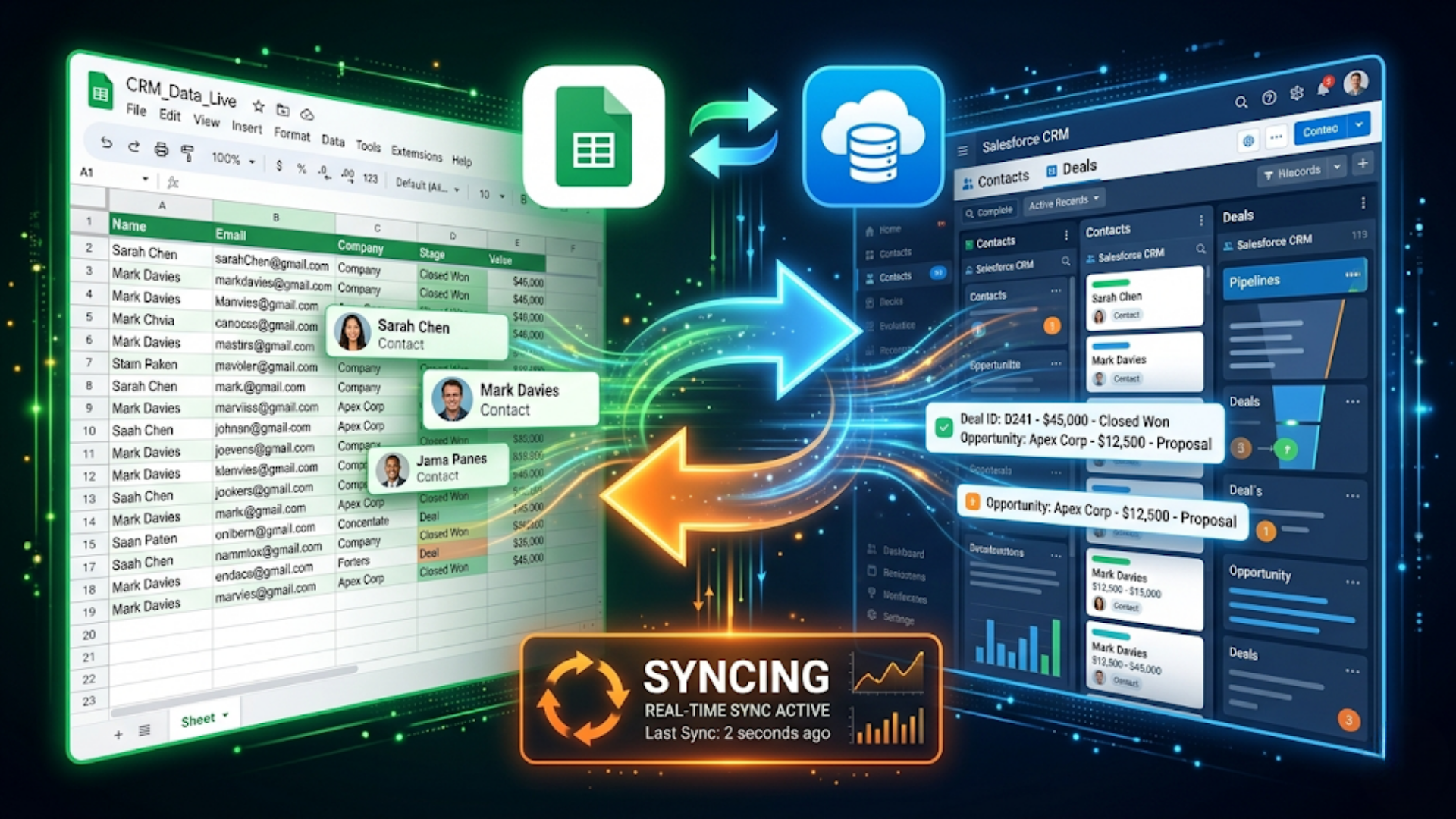
How to Automate Data Entry Between Google Sheets and CRM
Someone on your team is copying data from Google Sheets to the CRM right now. Or worse, copying from the CRM back to a spreadsheet for reporting. This happens in every sales team I’ve seen. The CRM has the official records. The spreadsheet has the real data people actually use.
The gap between the two systems creates duplicate records, outdated information, missed follow-ups, and wasted hours. A sales team of 5 people spends roughly 6-10 hours per week on manual data transfer between Sheets and CRM. That’s a full working day lost to copy-paste.
Bidirectional sync between Google Sheets and your CRM eliminates this entirely. I build these systems. Here’s how to do it properly with n8n, including the edge cases most guides skip.
Why Bidirectional Sync (Not Just One-Way)
Most tutorials show one-way sync. New row in Google Sheets creates a contact in HubSpot. Done.
That covers maybe 30% of real use cases. Here’s what actually happens in practice:
- Marketing team adds leads to a Google Sheet from an event. Those need to flow into the CRM.
- Sales rep updates deal stage in the CRM. That needs to reflect in the reporting spreadsheet.
- Operations team tracks project delivery in Sheets. Client details come from the CRM.
- Finance team needs invoice data from the CRM in their revenue tracking sheet.
One-way sync creates a second version of the truth. Bidirectional sync means both systems stay current. Change in either direction propagates to the other.
The challenge: Bidirectional sync introduces conflicts. If someone updates a phone number in Sheets and someone else updates it in the CRM at the same time, which one wins? You need rules for this. We’ll cover conflict resolution in detail below.
Architecture: How the Sync Works
Two n8n workflows handle the full sync.
Workflow 1: Sheets to CRM (webhook-triggered or scheduled)
Trigger (Sheet edit or 5-min poll)
  → Read changed rows from Google Sheets
  → For each row: look up contact in CRM by email
  → If found: update existing record
  → If not found: create new record
  → Log sync result in a "Sync Log" sheet tab
Workflow 2: CRM to Sheets (webhook-triggered)
Trigger (CRM webhook on contact/deal update)
  → Read updated record from CRM
  → Look up row in Google Sheets by email or CRM ID
  → If found: update existing row
  → If not found: append new row
  → Log sync result
Trigger options:
| Trigger Type | Latency | Cost | Best For |
|---|---|---|---|
| Webhook (real-time) | Instant | Free | CRM to Sheets (CRMs have webhooks) |
| Scheduled poll (every 5 min) | Up to 5 min | Free | Sheets to CRM (Sheets lacks edit webhooks) |
| Google Apps Script trigger | Near-instant | Free (with coding) | Sheets to CRM (real-time) |
Google Sheets doesn’t have native webhooks for cell edits. Two workarounds:
-
Scheduled polling. n8n checks the sheet every 5 minutes for changes. Simple but has latency. You compare “Last Modified” timestamps to find changed rows.
-
Google Apps Script. A small script in the Sheet detects edits and sends a webhook to n8n. Near-instant sync. Requires a one-time script setup.
For most teams, 5-minute polling is fine. Real-time sync sounds better but rarely matters for CRM data.
Field Mapping: The Critical Step Everyone Rushes
Field mapping determines which Sheet column maps to which CRM field. Get this wrong and you’ll have phone numbers in company name fields.
Standard field mapping for a contact/lead sync:
| Google Sheets Column | HubSpot Field | Zoho Field | Pipedrive Field |
|---|---|---|---|
| First Name | firstname | First_Name | first_name |
| Last Name | lastname | Last_Name | last_name |
| Phone | phone | Phone | phone |
| Company | company | Company | org_name |
| Job Title | jobtitle | Title | job_title |
| Lead Source | lead_source (custom) | Lead_Source | lead_source (custom) |
| Deal Value | amount (on deal) | Amount (on deal) | value (on deal) |
| Status | lifecyclestage | Lead_Status | stage_id |
| Notes | notes (via engagement) | Description | note (via note API) |
| Last Contact Date | last_contacted (custom) | Last_Activity_Time | last_activity_date |
CRM-specific gotchas:
HubSpot: Contact and deal are separate objects. If your Sheet has deal data mixed with contact data (common), you need to split the sync. Contacts sync to the Contacts API. Deal values and stages sync to the Deals API with an association to the contact.
Zoho CRM: Field API names don’t always match display names. “Annual Revenue” in the UI is “Annual_Revenue” in the API. Use Zoho’s field metadata API to get exact names. Also, Zoho has rate limits of 100 API calls per minute on free plans. If you’re syncing 500 rows, batch them.
Pipedrive: Everything revolves around Organizations, Persons, and Deals. A contact in your Sheet might need to create both a Person and an Organization in Pipedrive. Custom fields use numeric IDs, not names. Query the custom fields API first to get the mapping.
Data type mismatches to handle:
- Dates: Sheets uses locale-specific formats. CRMs want ISO 8601 (2026-04-26). n8n’s Date node handles conversion.
- Phone numbers: Sheets might have “9876543210” or “+91 98765 43210” or “(987) 654-3210”. Normalize before syncing.
- Currency: Sheets might have “Rs 50,000” or “50000” or “$500”. Strip currency symbols and commas.
- Dropdowns: CRM dropdown values must match exactly. “Qualified Lead” in Sheets won’t match “qualified_lead” in the CRM.
Deduplication: Preventing Double Records
Deduplication is where most sync setups fail. Without it, you create duplicate contacts every time the sync runs.
The matching key. You need a unique identifier to match Sheet rows to CRM records. Options:
| Matching Key | Reliability | Notes |
|---|---|---|
| Email address | High | Best for B2B. Fails for contacts without email |
| Phone number | Medium | Normalize format first. Multiple formats cause mismatches |
| CRM Record ID | Highest | Store CRM ID back in Sheets after first sync |
| Composite (name + company) | Low | Too many false negatives |
Best approach: CRM ID stored in Sheets.
On first sync (Sheets to CRM):
- Look up by email in CRM
- If no match, create new record
- Write the CRM record ID back to a column in the Sheet
- All subsequent syncs use this ID for matching
This eliminates deduplication issues entirely. The CRM ID is unique and immutable. Store it in a hidden column or a “CRM_ID” column in your Sheet.
Handling existing duplicates: If your CRM already has duplicate records (most do), clean them before setting up sync. HubSpot has a built-in duplicate management tool. Zoho has Deduplicate Records. Pipedrive has merge functionality. Run deduplication first, then start the sync.
n8n deduplication logic:
For each Sheet row:
  1. If CRM_ID column has a value → use it (direct match)
  2. If CRM_ID is empty → search CRM by email
  3. If email match found → update record, write CRM_ID back to Sheet
  4. If no match → create new record, write CRM_ID back to Sheet
  5. If multiple email matches → flag for manual review (don't auto-merge)
Never auto-merge when multiple matches are found. Flag them in a “Review Needed” column and let a human decide.
Conflict Resolution: When Both Systems Change
With bidirectional sync, conflicts are inevitable. Someone updates a phone number in the Sheet at 2:00 PM. Someone else updates the same phone number in the CRM at 2:03 PM. The 5-minute poll runs at 2:05 PM. Which value wins?
Three conflict resolution strategies:
Strategy 1: Last write wins. Compare timestamps. The most recent change overwrites the older one. Simple to implement. Works when both systems have reliable timestamps.
How to implement: Google Sheets doesn’t track cell-level edit timestamps natively. Add a “Last Modified” column (auto-updated via Google Apps Script or a formula). CRM records have built-in “Modified Time” fields. Compare the two timestamps during sync.
Strategy 2: CRM wins (source of truth). The CRM is the canonical system. If there’s a conflict, CRM values overwrite Sheet values. Sheets acts as a view layer, not an editing layer.
When to use this: When only the sales team should update contact data and the Sheet is primarily for reporting or marketing’s reference.
Strategy 3: Field-level rules. Different fields have different owners.
| Field | Owner | Rule |
|---|---|---|
| Contact info (email, phone) | CRM | CRM overwrites Sheets |
| Deal value, stage | CRM | CRM overwrites Sheets |
| Lead source, campaign | Sheets | Sheets overwrites CRM |
| Notes | Append only | Both sides add, never overwrite |
| Custom tags | Sheets | Marketing team manages |
This is the most practical approach for teams where different people own different data. It requires more n8n logic but prevents the “my update got overwritten” complaints.
Sync log is essential. Every sync operation writes to a “Sync Log” tab:
| Timestamp | Direction | Record | Field | Old Value | New Value | Conflict? |
|---|---|---|---|---|---|---|
| 2026-04-26 14:05 | Sheet→CRM | john@example.com | Phone | 9876543210 | 9876543211 | No |
| 2026-04-26 14:05 | CRM→Sheet | jane@example.com | Stage | Qualified | Proposal Sent | No |
This log is your audit trail. When someone asks “why did this value change?”, the log tells you.
CRM-Specific Configuration Guides
HubSpot + Google Sheets
Authentication: HubSpot private app token. Create in HubSpot Settings > Integrations > Private Apps. Grant scopes: contacts, deals, companies.
Key API endpoints:
- Search contacts:
POST /crm/v3/objects/contacts/search - Create contact:
POST /crm/v3/objects/contacts - Update contact:
PATCH /crm/v3/objects/contacts/{id} - Batch operations:
POST /crm/v3/objects/contacts/batch/update(up to 100 per call)
Rate limits: 100 requests per 10 seconds (private apps). Batch endpoints are your friend. Instead of updating 50 contacts individually (50 API calls), use the batch update endpoint (1 API call).
HubSpot-specific tip: HubSpot’s search API has a 10,000 result limit. If your CRM has more than 10,000 contacts, paginate using the “after” cursor. For initial full sync, export from HubSpot first, then set up incremental sync.
Zoho CRM + Google Sheets
Authentication: Zoho OAuth2. More complex than HubSpot. You need a client ID, client secret, and refresh token. Set up a “Server-based Application” in Zoho’s API console. n8n has a built-in Zoho CRM node that handles the OAuth flow.
Key API endpoints:
- Search records:
GET /crm/v2/Contacts/search?email={email} - Create record:
POST /crm/v2/Contacts - Update record:
PUT /crm/v2/Contacts/{id} - Bulk operations:
POST /crm/v2/Contacts(up to 100 per call)
Rate limits: 100 calls/minute (Free), 500/minute (Professional), 1,000/minute (Enterprise). Bulk operations are critical here.
Zoho-specific tip: Zoho CRM has a “Modified_Time” field on every record. Use this for incremental sync. Query contacts modified since the last sync timestamp: GET /crm/v2/Contacts?modified_since=2026-04-26T10:00:00+05:30.
Pipedrive + Google Sheets
Authentication: API token from Pipedrive Settings > Personal Preferences > API.
Key API endpoints:
- Search persons:
GET /persons/search?term={email} - Create person:
POST /persons - Update person:
PUT /persons/{id}
Rate limits: 100 requests per 10 seconds. Generous for most sync workloads.
Pipedrive-specific tip: Custom fields in Pipedrive use hash keys (like “a1b2c3d4e5f6”). Map these to your Sheet columns during setup. The field mapping is the most tedious part of Pipedrive integration.
India-Specific: GST Data Sync
Indian businesses often maintain GST-related data in Google Sheets (GSTIN verification, invoice tracking, tax calculations) that needs to sync with CRM deal records.
Common fields to sync:
| Sheet Column | CRM Custom Field | Purpose |
|---|---|---|
| Client GSTIN | gstin_number | Tax invoicing |
| GST State Code | gst_state | Place of supply |
| HSN/SAC Code | hsn_sac_code | Service classification |
| Invoice Number | last_invoice | Payment tracking |
| TDS Applicable | tds_applicable | Tax deduction at source |
GST validation before sync: Before pushing a GSTIN to the CRM, validate it. The format is: 2-digit state code + 10-digit PAN + 1 entity code + 1 check digit (e.g., 27AABCU9603R1ZM). n8n can validate the format with a regex check and optionally verify against the GST portal API.
Invoice number sync: When finance generates invoices in Sheets (common for small businesses), the invoice number and amount should flow back to the CRM deal record. This gives sales reps visibility into payment status without asking finance.
Frequently Asked Questions
How often should the sync run? Every 5-15 minutes for most teams. Real-time sync (webhooks) for CRM to Sheets. Polling for Sheets to CRM. Daily batch sync is too slow for active sales teams. Real-time is unnecessary for most data types.
Will this slow down my Google Sheet? No. n8n reads the sheet via API, not through the UI. It doesn’t lock the sheet or affect editing performance. The only visible change is the CRM_ID column getting populated and the Sync Log tab being updated.
What happens if the sync breaks? n8n has error handling built in. Set up an error workflow that sends you a Slack or email notification when sync fails. Common failures: expired API token (re-authenticate), rate limit hit (add delays between batches), field mapping error (a dropdown value doesn’t match). The Sync Log helps diagnose quickly.
Can I sync more than one Sheet to the same CRM? Yes, but be careful. If two Sheets both sync to the same contact, you need clear field ownership. Sheet A owns lead source and campaign data. Sheet B owns project delivery data. Both write to different custom fields. If they overlap on the same field, you’ll get a ping-pong effect (each sync overwrites the other).
How do I handle the initial bulk sync? Don’t run 10,000 rows through the live sync workflow. Export your CRM data first. Import it into the Sheet. Match and fill CRM_ID columns manually or via a one-time batch script. Then turn on incremental sync. The initial bulk load should be a separate one-time workflow with higher rate limit handling and batch operations.
Is Google Sheets good enough as a CRM alternative? For teams under 5 people with fewer than 500 active contacts, yes. Google Sheets with n8n automation handles lead tracking, follow-up reminders, and basic pipeline management. Above that, the lack of proper permissions, audit trails, and relationship tracking becomes a bottleneck. At that point, invest in a real CRM and use Sheets as a reporting layer.
What about Google Sheets add-ons like Coefficient or Supermetrics? They work for one-way CRM to Sheets pulls (reporting). They don’t handle bidirectional sync well. No deduplication, no conflict resolution, no custom field mapping logic. For simple reporting dashboards, they’re fine. For operational sync where both teams edit data, use n8n.
Need help implementing this?
Book a free 30-minute discovery call. We'll map your current setup, identify quick wins, and outline what automation can do for your business.
Book a Free Discovery Call