How to Automate Appointment Booking with Cal.com + Zoho
Build an automated appointment booking system with Cal.com and Zoho CRM using n8n. Covers contact creation, deal tracking, WhatsApp confirmations, and pre-meeting emails.
How to Automate Appointment Booking with Cal.com + Zoho
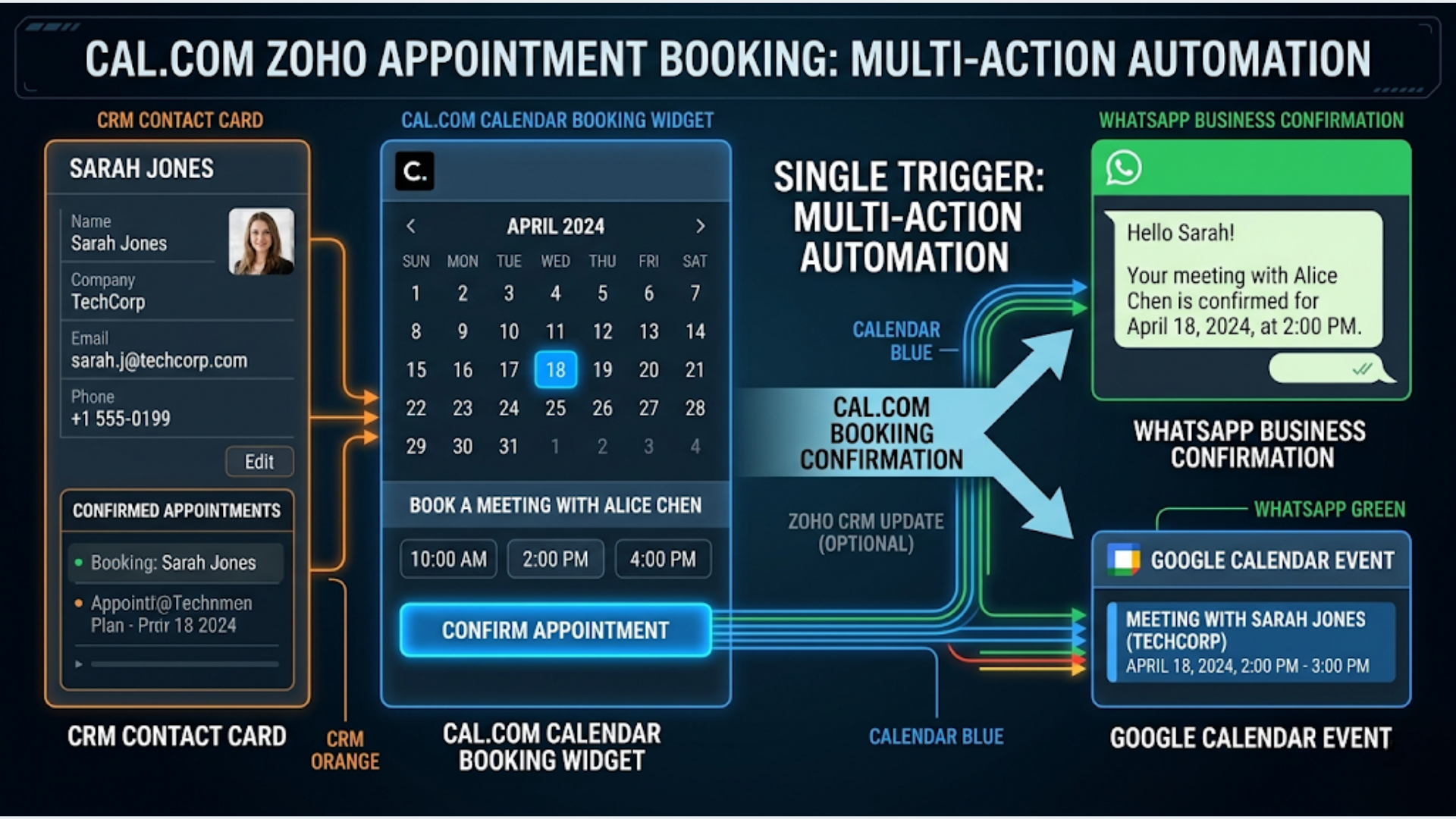
A prospect books a call on your website. Then what? Someone has to check the booking, create a contact in Zoho, log a deal, send a confirmation, add the meeting to the team calendar, and send a pre-meeting email with prep instructions.
That is 10-15 minutes of admin per booking. If you get 5 bookings a day, that is over an hour of repetitive work. Every day.
I build these systems to make the booking trigger everything else automatically. Cal.com handles the scheduling. n8n handles the orchestration. Zoho CRM becomes the single source of truth. WhatsApp sends the confirmation because your prospect actually reads those.
Here is the complete setup.
Why Cal.com Over Calendly
Both work for scheduling. Cal.com has specific advantages for this integration:
- Open source. Self-host if you want full control over data (important for Indian businesses handling sensitive client information).
- Webhook support. Native, reliable, and includes all booking data in the payload.
- Free tier is generous. One event type, unlimited bookings. Paid plans start at $12/month for more event types.
- Custom fields. Add any fields to your booking form. Company name, phone number, “What do you need help with?” All of this data flows into your automation.
- IST timezone handling. Cal.com displays available slots in the booker’s timezone automatically. No confusion for Indian prospects booking with you.
Calendly works too. The webhook payload is different, so adjust the field mapping in n8n accordingly. The automation logic stays the same.
Set up Cal.com:
- Create an account at cal.com
- Set your availability (account for IST)
- Create an event type: “Discovery Call” or “Consultation”
- Add custom fields: Company Name (text), Phone (phone), “What are you looking to automate?” (long text)
- Enable the webhook (Settings > Webhooks)
The Architecture
When someone books a call:
- Cal.com fires a webhook with all booking details
- n8n receives the webhook
- n8n checks if the contact exists in Zoho CRM
- If new: creates contact + account + deal in Zoho
- If existing: updates the contact and creates a new deal
- n8n sends a WhatsApp confirmation via WATI
- n8n adds the meeting to your Google Calendar (with Zoho link in notes)
- n8n schedules a pre-meeting email (sent 2 hours before the call)
Every step after the booking is automatic. The prospect gets instant confirmation. Your CRM is updated. Your calendar is blocked. And you get a pre-meeting brief without lifting a finger.
What you need:
- Cal.com account (free or paid)
- n8n instance
- Zoho CRM account
- WATI account (for WhatsApp) or Twilio
- Google Calendar API access
- An email sending method (SMTP, SendGrid, or Zoho Mail)
Step 1: Configure the Cal.com Webhook
In Cal.com, go to Settings > Developer > Webhooks.
Create a new webhook:
- Subscriber URL: Your n8n webhook URL
- Event trigger: BOOKING_CREATED
- Active: Yes
Optionally, also add triggers for:
- BOOKING_RESCHEDULED (to update Zoho and resend confirmations)
- BOOKING_CANCELLED (to update deal status in Zoho)
The BOOKING_CREATED payload includes:
{
  "triggerEvent": "BOOKING_CREATED",
  "payload": {
    "title": "Discovery Call",
    "startTime": "2026-04-28T09:00:00.000Z",
    "endTime": "2026-04-28T09:30:00.000Z",
    "attendees": [{
      "name": "Prospect Name",
      "email": "prospect@company.com",
      "timeZone": "Asia/Kolkata"
    }],
    "responses": {
      "company": { "value": "Acme Corp" },
      "phone": { "value": "+919876543210" },
      "what_to_automate": { "value": "We need to automate our invoice processing" }
    },
    "meetingUrl": "https://meet.google.com/xxx-xxx-xxx",
    "uid": "booking-unique-id"
  }
}
In n8n, create a webhook node to receive this. Extract the key fields using a Set node:
const payload = $input.first().json.payload;
const attendee = payload.attendees[0];
const responses = payload.responses;

// Convert UTC to IST for display
const startIST = new Date(payload.startTime).toLocaleString('en-IN', {
  timeZone: 'Asia/Kolkata',
  dateStyle: 'full',
  timeStyle: 'short'
});

return [{
  json: {
    name: attendee.name,
    email: attendee.email,
    timezone: attendee.timeZone,
    company: responses.company?.value || 'Not provided',
    phone: responses.phone?.value || '',
    need: responses.what_to_automate?.value || '',
    meeting_start: payload.startTime,
    meeting_end: payload.endTime,
    meeting_start_ist: startIST,
    meeting_url: payload.meetingUrl,
    booking_uid: payload.uid
  }
}];
Step 2: Create or Update Zoho CRM Records
This step requires careful logic. You do not want to create duplicate contacts.
Check if contact exists:
Use the Zoho CRM node (or HTTP Request to Zoho’s API):
GET https://www.zohoapis.com/crm/v2/Contacts/search?email={email}If the contact exists, update it. If not, create a new one.
Create contact:
{
  "data": [{
    "First_Name": "{first_name}",
    "Last_Name": "{last_name}",
    "Email": "{email}",
    "Phone": "{phone}",
    "Company": "{company}",
    "Lead_Source": "Website - Cal.com Booking",
    "Description": "Automation need: {need}"
  }]
}
Create account (company):
If the company does not exist as a Zoho Account, create one:
{
  "data": [{
    "Account_Name": "{company}",
    "Phone": "{phone}",
    "Website": "extracted from email domain"
  }]
}
Link the contact to the account using the Account_Name field.
Create deal:
Every booking represents a potential deal. Create one:
{
  "data": [{
    "Deal_Name": "{company} - Discovery Call - {date}",
    "Stage": "Qualification",
    "Contact_Name": "{contact_id}",
    "Account_Name": "{account_id}",
    "Closing_Date": "30 days from now",
    "Description": "Booked via Cal.com. Need: {need}\nMeeting: {meeting_start_ist}\nLink: {meeting_url}",
    "Amount": 0
  }]
}
Set the deal stage to “Qualification” since a discovery call is the beginning of your sales pipeline. Closing date 30 days out is a reasonable default. Update it after the call.
Zoho API authentication: Zoho uses OAuth2 with refresh tokens. In n8n, set up Zoho CRM credentials with:
- Client ID and Client Secret (from Zoho API Console)
- Authorization URL:
https://accounts.zoho.in/oauth/v2/auth(use .in for Indian data center) - Token URL:
https://accounts.zoho.in/oauth/v2/token - Scope:
ZohoCRM.modules.ALL
Note the .in domain. If your Zoho account is on the Indian data center (most Indian businesses), you must use zoho.in not zoho.com. Using the wrong domain is the number one reason Zoho integrations fail for Indian users.
Step 3: Send WhatsApp Confirmation
Your prospect just booked a call. Email confirmations get buried. WhatsApp confirmations get read within minutes.
If you have a phone number from the booking form (you should), send a WhatsApp confirmation via WATI:
POST https://live-server-{id}.wati.io/api/v1/sendTemplateMessage
Headers:
  Authorization: Bearer {wati_api_key}
Body:
{
  "template_name": "booking_confirmation",
  "broadcast_name": "appointment_confirm",
  "parameters": [
    {"name": "name", "value": "{first_name}"},
    {"name": "date_time", "value": "{meeting_start_ist}"},
    {"name": "meeting_link", "value": "{meeting_url}"}
  ]
}
Your approved WhatsApp template:
“Hi {{name}}, your discovery call is confirmed for {{date_time}} IST. Join here: {{meeting_link}}. Looking forward to our conversation.”
Keep it simple. Include the date, time (in IST), and the meeting link. That is everything they need.
Fallback to email: If no phone number is provided, or if WATI returns an error (number not on WhatsApp), send an email confirmation instead. Use n8n’s Email node or the SendGrid node. The content is the same. Just different delivery channel.
Step 4: Google Calendar Integration
Cal.com creates calendar events automatically if you connect your Google Calendar. But the auto-created event often lacks context. It has the prospect’s name and the meeting link, but not the Zoho deal link, the prospect’s automation needs, or their company information.
Create a richer calendar event through the Google Calendar API:
{
  "summary": "Discovery Call - {name} ({company})",
  "description": "Prospect: {name}\nCompany: {company}\nEmail: {email}\nPhone: {phone}\n\nAutomation Need:\n{need}\n\nZoho Deal: {zoho_deal_url}\nMeeting Link: {meeting_url}",
  "start": {
    "dateTime": "{meeting_start}",
    "timeZone": "Asia/Kolkata"
  },
  "end": {
    "dateTime": "{meeting_end}",
    "timeZone": "Asia/Kolkata"
  },
  "reminders": {
    "useDefault": false,
    "overrides": [
      {"method": "popup", "minutes": 15},
      {"method": "popup", "minutes": 60}
    ]
  }
}
Now when you open your calendar event before the call, everything is right there. No switching to Zoho to look up the prospect. No searching emails for what they wanted to discuss.
If Cal.com already creates a calendar event, either:
- Delete Cal.com’s auto-event and create yours (more control)
- Update Cal.com’s event with the additional details using the Google Calendar update API
I prefer creating a fresh event with full context.
Step 5: Schedule the Pre-Meeting Email
Two hours before the call, send the prospect a preparation email. This serves two purposes: it reminds them about the call (reducing no-shows by 20-30%) and it primes them to have a productive conversation.
In n8n, after the booking is processed, add a Wait node. Calculate the delay:
const meetingStart = new Date($input.first().json.meeting_start);
const now = new Date();
const twoHoursBefore = new Date(meetingStart.getTime() - (2 * 60 * 60 * 1000));
const delayMs = twoHoursBefore.getTime() - now.getTime();

// If meeting is less than 2 hours away, send immediately
const actualDelay = Math.max(delayMs, 0);

return [{ json: { delay_minutes: Math.round(actualDelay / 60000) } }];
Set the Wait node to delay by {delay_minutes} minutes.
After the wait, send the email:
Subject: Prep for our call tomorrow at {time} IST

Hi {first_name},

Quick reminder about our discovery call {day} at {time} IST.

To make the most of our 30 minutes, it helps to have answers to these ready:

1. What manual process takes the most time in your week?
2. What tools does your team currently use (CRM, spreadsheets, messaging)?
3. What does success look like if this automation works perfectly?

Join link: {meeting_url}

Talk soon,
Krishna
Short. Actionable. The three questions ensure the prospect comes prepared, which makes your discovery call twice as productive.
For Indian prospects specifically: Send this via WhatsApp too, not just email. A brief WhatsApp reminder 2 hours before has a much higher read rate. Keep the WhatsApp version shorter:
“Hi {name}, reminder: our call is at {time} IST today. Join: {meeting_url}. Quick prep: what manual process takes the most time in your week?”
Handling Reschedules and Cancellations
If you set up the BOOKING_RESCHEDULED and BOOKING_CANCELLED webhooks, handle them in separate n8n workflows (or branches of the same workflow).
Reschedule flow:
- Receive webhook
- Find the Zoho deal by booking UID (store the booking_uid in a custom Zoho field)
- Update the deal description with the new date/time
- Update the Google Calendar event
- Send a WhatsApp/email with the new time
- Cancel the old pre-meeting email (tricky with n8n Wait nodes, see below)
The pre-meeting email cancellation is the hardest part. n8n Wait nodes cannot be cancelled once started. Two solutions:
Option A: Before sending the pre-meeting email, check if the booking is still active (query Cal.com or check a flag in Zoho). If cancelled or rescheduled, skip sending.
Option B: Use a scheduled workflow instead of a Wait node. Store the pre-meeting email details in a Google Sheet or database with the scheduled send time. Run a workflow every 15 minutes that checks for emails due to be sent. Mark cancelled bookings in the same sheet.
Option A is simpler. Option B is more robust for high volumes.
Cancellation flow:
- Receive webhook
- Find and update the Zoho deal stage to “Closed Lost” (or a custom “Cancelled” stage)
- Delete or update the Google Calendar event
- Optionally send a “Sorry to see you go, rebook anytime” message
Measuring the Pipeline
Once this system runs, you have clean data in Zoho to measure:
- Booking to show rate: How many booked calls actually happen
- Show to deal rate: How many calls convert to proposals
- Average deal cycle: Days from booking to closed deal
- Lead source tracking: Every Cal.com booking is tagged in Zoho
Build a Zoho CRM report or dashboard filtering deals by Lead Source = “Website - Cal.com Booking.” Track these metrics monthly.
For Indian service businesses, typical benchmarks:
- Booking to show: 70-80% (WhatsApp reminders push this higher)
- Show to deal: 25-40% (depends on qualification quality)
- Deal cycle: 7-21 days for small automation projects
FAQ
Can I use Calendly instead of Cal.com? Yes. Calendly has webhook support. The payload structure differs, so adjust your field mapping in n8n. Calendly’s Pro plan ($12/month) is needed for webhooks. The rest of the automation stays identical.
What if I use Zoho Bookings instead of Cal.com? Zoho Bookings integrates natively with Zoho CRM, so some of this automation is built in. But the native integration is basic. It creates a contact and maybe an event. It does not create deals, send WhatsApp confirmations, or send prep emails. Use the n8n automation layer on top for the full pipeline.
How do I handle bookings from multiple team members? Cal.com supports team scheduling. Each team member has their own availability. The webhook payload includes which team member the booking is with. In Zoho, assign the deal to that team member automatically using the Owner field in the deal creation API call.
What about no-shows? Add a post-meeting workflow. 15 minutes after the scheduled end time, check if the Zoho deal was updated (you would typically update it during/after the call). If it was not updated, send an automated follow-up: “Sorry we missed each other. Here is a link to rebook: {cal_link}.” Rebook rates from no-show follow-ups are 30-40%.
Can this work for recurring appointments (weekly coaching, monthly check-ins)? Cal.com supports recurring bookings. Each occurrence triggers a separate webhook. The n8n workflow handles each one independently. For recurring clients, the “contact exists” check ensures you do not create duplicate contacts. Each booking creates a new deal or updates an existing one, depending on your pipeline structure.
How reliable are the webhooks? Cal.com webhooks are reliable but not guaranteed. If your n8n instance is down when a booking happens, the webhook is lost. Cal.com retries once. For critical bookings, add a safety net: run a scheduled workflow every hour that queries Cal.com’s API for recent bookings and cross-references with your Zoho deals. Process any that were missed.
What does this cost to run? Cal.com free tier: $0. WATI: starts at Rs 2,499/month. Zoho CRM: free for up to 3 users. n8n self-hosted: $0. Google Calendar API: free. Total for a solo operator: Rs 2,499/month for WhatsApp. Everything else is free.
Need help implementing this?
Book a free 30-minute discovery call. We'll map your current setup, identify quick wins, and outline what automation can do for your business.
Book a Free Discovery Call