How to Auto-Post LinkedIn Content from Notion
Automate LinkedIn posting from a Notion content calendar using n8n. Covers scheduling, LinkedIn API setup, image handling, carousel workarounds, and status tracking.
How to Auto-Post LinkedIn Content from Notion
You write your LinkedIn posts in Notion. You schedule them on a content calendar. Then you manually copy-paste them to LinkedIn at the right time every single day. That last step should not exist.
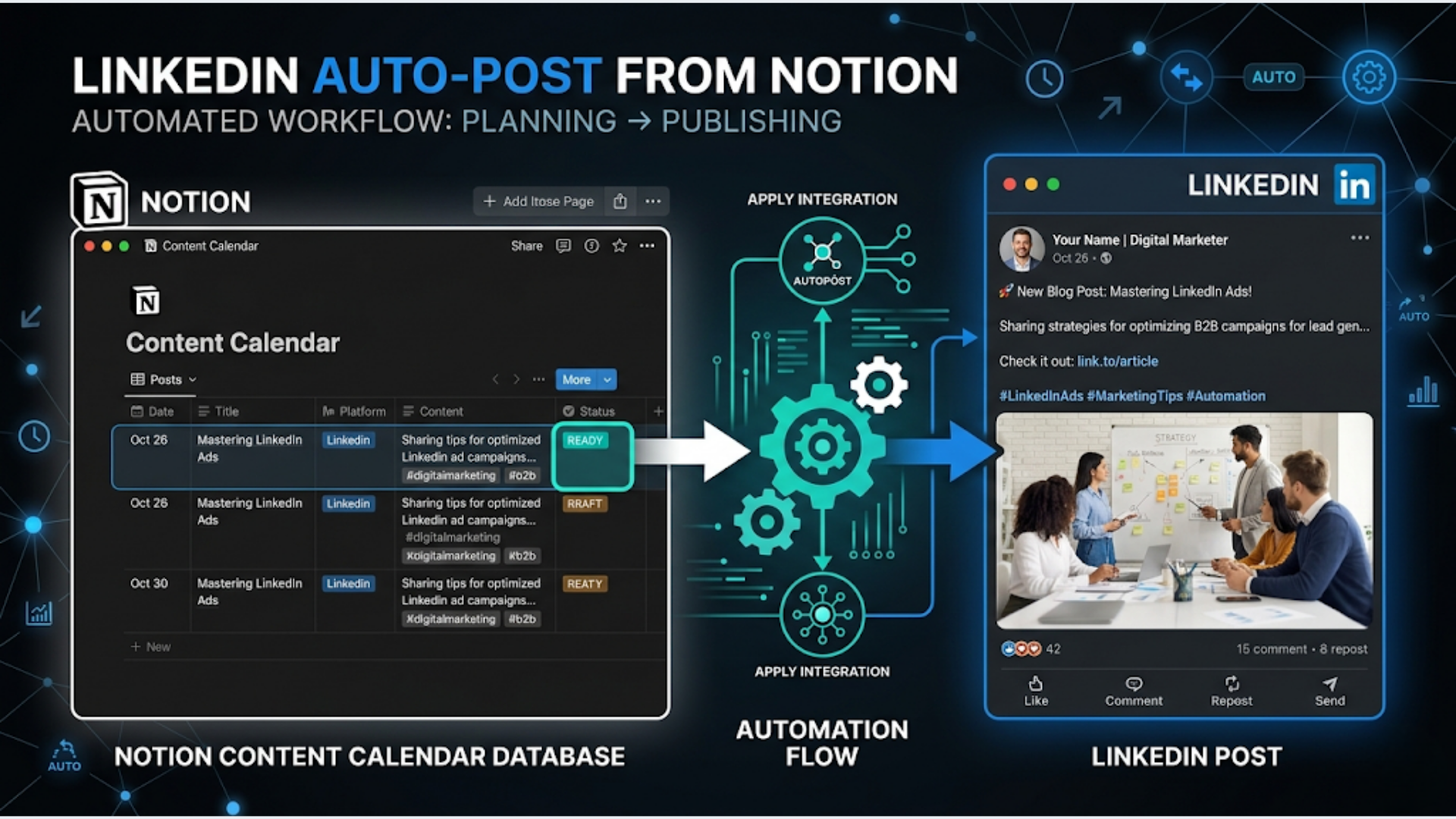
I build these systems to eliminate the manual publish step. Your Notion content calendar becomes the single source of truth. When a post is marked “Ready” and the scheduled date arrives, it goes to LinkedIn automatically. Status updates back in Notion. No copy-pasting. No “I forgot to post today.”
This guide covers the full setup: Notion database structure, n8n orchestration, LinkedIn API configuration, image handling, and the carousel workaround that actually works.
The Content Calendar Setup in Notion
If you already have a Notion content calendar, you can adapt it. If not, here is the structure that works best for automated publishing.
Create a Notion database with these properties:
| Property | Type | Purpose |
|---|---|---|
| Title | Title | Post headline (internal reference) |
| Content | Rich text | The actual LinkedIn post text |
| Status | Select | Draft / Review / Ready / Published / Failed |
| Scheduled Date | Date | When to publish |
| Scheduled Time | Select | Morning (9 AM) / Afternoon (1 PM) / Evening (6 PM) |
| Platform | Multi-select | LinkedIn / X / Both |
| Post Type | Select | Text / Image / Carousel / Article |
| Image URL | URL | Link to the image (hosted on Google Drive, Cloudinary, etc.) |
| LinkedIn Post ID | Rich text | Filled automatically after publishing |
| Published At | Date | Actual publish timestamp |
| Engagement | Number | Optional: track likes/comments |
| Notes | Rich text | Internal notes, not published |
The key field is Status. The automation looks for posts where Status is “Ready” and Scheduled Date is today. Everything else is ignored.
Why “Scheduled Time” as a Select instead of a precise time? Because LinkedIn engagement follows broad patterns, not precise minutes. Morning posts (8-10 AM) work well for professional audiences. Afternoon (12-2 PM) catches lunch scrollers. Evening (5-7 PM) hits commute time. Pick one of three slots. Overcomplicating the timing adds complexity without measurable benefit.
Adjust these times for your audience’s timezone. For Indian audiences, 9 AM IST and 6 PM IST tend to perform best. For global audiences targeting US timezones, 8 AM EST (6:30 PM IST) works.
LinkedIn API Setup
This is the part that trips most people up. LinkedIn’s API has changed multiple times, and the documentation is scattered.
Step 1: Create a LinkedIn App
Go to https://www.linkedin.com/developers/apps. Create a new app.
You need:
- A LinkedIn Company Page (required for app creation)
- App name and description
- A logo (any square image works)
Step 2: Request API Access
Under the “Products” tab, request access to:
- Share on LinkedIn (this is the posting API)
- Sign In with LinkedIn using OpenID Connect (for authentication)
The “Share on LinkedIn” product gives you the w_member_social scope, which allows posting on behalf of a member.
Approval is usually instant for “Share on LinkedIn.” If it takes longer, wait. Do not try to use the Community Management API unless you are posting on behalf of an organization page.
Step 3: Get OAuth2 Credentials
Under the “Auth” tab, note your:
- Client ID
- Client Secret
- Redirect URL (set this to your n8n OAuth callback URL)
In n8n, create a new OAuth2 credential for LinkedIn:
- Authorization URL:
https://www.linkedin.com/oauth/v2/authorization - Access Token URL:
https://www.linkedin.com/oauth/v2/accessToken - Scope:
openid profile w_member_social - Client ID: Your app’s client ID
- Client Secret: Your app’s client secret
Complete the OAuth flow. n8n will store the access token and refresh it as needed.
Important: LinkedIn access tokens expire after 60 days. n8n handles refresh tokens if properly configured. But check your token monthly to make sure it has not expired. A dead token means silent posting failures.
Step 4: Get Your LinkedIn Person URN
You need your LinkedIn member ID to post. Use this API call (HTTP Request node in n8n):
GET https://api.linkedin.com/v2/userinfo
Authorization: Bearer {access_token}
The response includes your sub field. Your person URN is urn:li:person:{sub}.
Store this in n8n as a variable. You will use it in every post request.
Building the n8n Workflow
The workflow runs on a schedule and does this:
- Poll Notion for posts with Status = “Ready” and Scheduled Date = today
- Check if the current time matches the Scheduled Time slot
- Format the post for LinkedIn’s API
- Post to LinkedIn
- Update Notion with Published status and LinkedIn Post ID
Step 1: Schedule Trigger
Add a Schedule Trigger node. Run it every 30 minutes. This checks for ready posts three times per time slot, which is frequent enough to not miss windows but not so frequent that you waste API calls.
Alternatively, run it at specific times: 8:55 AM, 12:55 PM, and 5:55 PM IST (just before each posting window). This is more precise but less flexible.
Step 2: Query Notion
Use the Notion node with a database query:
- Operation: Get Many
- Database ID: Your content calendar database
- Filter:
{
  "and": [
    {
      "property": "Status",
      "select": { "equals": "Ready" }
    },
    {
      "property": "Platform",
      "multi_select": { "contains": "LinkedIn" }
    },
    {
      "property": "Scheduled Date",
      "date": { "equals": "{{$today}}" }
    }
  ]
}
This returns all LinkedIn posts scheduled for today that are ready to publish.
Step 3: Time Slot Check
Add a Code node to check if the current time matches the post’s scheduled time slot:
const now = new Date();
const istHour = new Date(now.toLocaleString('en-US', { timeZone: 'Asia/Kolkata' })).getHours();

const posts = $input.all();
const readyToPost = [];

for (const post of posts) {
  const slot = post.json.properties['Scheduled Time']?.select?.name;
  let shouldPost = false;

  if (slot === 'Morning' && istHour >= 9 && istHour < 10) shouldPost = true;
  if (slot === 'Afternoon' && istHour >= 13 && istHour < 14) shouldPost = true;
  if (slot === 'Evening' && istHour >= 18 && istHour < 19) shouldPost = true;

  if (shouldPost) readyToPost.push(post);
}

return readyToPost;
If no posts are ready for the current time slot, the workflow ends.
Step 4: Format and Post to LinkedIn
For text posts, use the LinkedIn Posts API:
POST https://api.linkedin.com/rest/posts
Headers:
  Authorization: Bearer {access_token}
  LinkedIn-Version: 202401
  Content-Type: application/json

Body:
{
  "author": "urn:li:person:{your_member_id}",
  "commentary": "{post_text}",
  "visibility": "PUBLIC",
  "distribution": {
    "feedDistribution": "MAIN_FEED",
    "targetEntities": [],
    "thirdPartyDistributionChannels": []
  },
  "lifecycleState": "PUBLISHED"
}
The commentary field is your post text. LinkedIn supports up to 3,000 characters. Newlines work. Formatting (bold, italic) is not supported through the API, only through the LinkedIn editor.
Handling Images
For posts with images, you need a two-step process:
Step 1: Initialize the upload
POST https://api.linkedin.com/rest/images?action=initializeUpload
Headers:
  Authorization: Bearer {access_token}
  LinkedIn-Version: 202401

Body:
{
  "initializeUploadRequest": {
    "owner": "urn:li:person:{your_member_id}"
  }
}
The response gives you an uploadUrl and an image URN.
Step 2: Upload the image binary
Use an HTTP Request node to PUT the image binary to the uploadUrl.
You need the actual image file. If your Notion database stores image URLs (Google Drive, Cloudinary, S3), add an HTTP Request node before this step to download the image.
Step 3: Include the image in the post
Modify the post body to include the image:
{
  "author": "urn:li:person:{your_member_id}",
  "commentary": "{post_text}",
  "visibility": "PUBLIC",
  "distribution": {
    "feedDistribution": "MAIN_FEED"
  },
  "content": {
    "media": {
      "id": "{image_urn_from_step_1}"
    }
  },
  "lifecycleState": "PUBLISHED"
}
Image hosting tip: Do not host images in Notion. Notion’s image URLs expire. Use Google Drive (with public sharing), Cloudinary (free tier is generous), or any CDN with permanent URLs. Store the permanent URL in your Notion database.
The Carousel Workaround
LinkedIn does not support carousel (multi-image document) posts through the API. This is a well-known limitation. The official API only supports single images, articles, and text.
Here are workarounds that actually work:
Option 1: PDF as document post LinkedIn allows document posts (PDFs that display as swipeable slides). The API supports this via the Documents endpoint.
Create your carousel as a multi-page PDF. Each page is one “slide.” Upload it as a document:
POST https://api.linkedin.com/rest/documents?action=initializeUploadThen include it in your post with content.media.id pointing to the document URN.
This is the closest you get to a carousel via the API. It works, it is swipeable, and it looks professional. The limitation is you cannot use LinkedIn’s native carousel editor features (drag to reorder, etc.).
Store your carousel PDFs in Google Drive or S3. Reference the URL in Notion.
Option 2: Third-party tools as fallback For true native carousels, tools like Taplio or Shield have reverse-engineered the carousel endpoint. They break periodically when LinkedIn changes things. If native carousels are critical to your strategy, use one of these tools for carousel posts only and n8n for everything else.
My recommendation: Use PDF document posts. They look nearly identical to carousels in the feed. They work reliably through the API. And they do not depend on third-party reverse engineering that might break next month.
Step 5: Update Notion After Publishing
After a successful LinkedIn API response, update the Notion page:
Use the Notion node:
- Operation: Update Page
- Page ID: The post’s Notion page ID
- Properties to update:
- Status: “Published”
- Published At: Current timestamp
- LinkedIn Post ID: The post ID from LinkedIn’s API response
If the LinkedIn API returns an error, update Status to “Failed” instead. Add the error message to the Notes field so you can debug.
This feedback loop is what makes the system reliable. You open Notion and instantly see which posts published successfully and which failed.
Monitoring and Edge Cases
Duplicate post prevention: If your schedule trigger runs multiple times during a time slot, you might post twice. Add a check: before posting, verify the Status is still “Ready.” If it has already been changed to “Published” (by a previous execution), skip it.
Better approach: immediately change Status to “Publishing” when you start processing a post. If the post succeeds, change to “Published.” If it fails, change to “Failed.” This prevents race conditions.
Character limit handling: LinkedIn allows 3,000 characters. If your Notion content exceeds this, the API will reject it. Add a character count check before posting. If over 3,000, either truncate with an ellipsis or change Status to “Too Long” for manual editing.
Link handling: LinkedIn suppresses reach for posts with links in the body. This is widely observed. If your content calendar includes posts with links, consider two strategies: either put the link in the first comment (requires a second API call after posting) or accept the reach trade-off.
To auto-comment a link:
POST https://api.linkedin.com/rest/socialActions/{post_urn}/comments
Body:
{
  "actor": "urn:li:person:{your_member_id}",
  "message": {
    "text": "{your_link}"
  }
}
Weekend and holiday scheduling: Add a “Skip Weekends” toggle to your Notion database if your audience is primarily B2B. LinkedIn B2B engagement drops 40-60% on weekends. For Indian audiences, also consider skipping major holidays (Diwali, Holi, Independence Day) when professional engagement is low.
FAQ
Does LinkedIn allow automated posting? Yes, through their official API with proper OAuth2 authentication. This is not scraping or browser automation. It uses LinkedIn’s sanctioned endpoints. As long as you are posting as yourself (not impersonating) and following their terms of service (no spam, no fake engagement), automated posting is allowed.
Can I schedule posts for specific minutes, not just time slots? Yes. Change the Scheduled Time property from a Select to a Date with time. Adjust the n8n workflow to check the exact time. I do not recommend this because the added precision does not improve results, and it makes the system more fragile.
What if LinkedIn changes their API? It happens. LinkedIn updates their API roughly annually. The current “Rest API” (with LinkedIn-Version header) replaced the older “v2” format. When changes happen, update the API endpoints and headers in your n8n HTTP Request nodes. The overall workflow structure stays the same.
Can I also post to X (Twitter) from the same Notion database? Yes. Add a parallel branch in your n8n workflow that checks for “X” in the Platform multi-select. X’s API (v2) is straightforward for posting. You will need separate API credentials and a separate posting node, but the Notion query and scheduling logic is shared.
How do I handle LinkedIn’s rate limits? LinkedIn allows approximately 100 API calls per day per app. If you are posting 1-3 times per day, you are well within limits. The image upload requires 2-3 calls per post. Even with 3 image posts per day, you are using 12-15 of your 100 daily calls.
Can I pull engagement data back into Notion?
Yes. Use a separate scheduled workflow that runs daily. Query the LinkedIn API for post statistics (GET /rest/socialActions/{post_urn}). Update the Engagement field in Notion with likes, comments, and shares. This gives you a performance dashboard directly in your content calendar.
What about company page posting vs personal profile?
This guide covers personal profile posting. For company pages, use the w_organization_social scope and your organization URN instead of person URN. Everything else is the same. For personal branding purposes, personal profile posts consistently outperform company page posts in reach and engagement.
Need help implementing this?
Book a free 30-minute discovery call. We'll map your current setup, identify quick wins, and outline what automation can do for your business.
Book a Free Discovery Call